How to Block TikTok on Android Without Deleting It
Written by Mouhsine
Admin
Published October 18, 2026 · Updated October 21, 2026
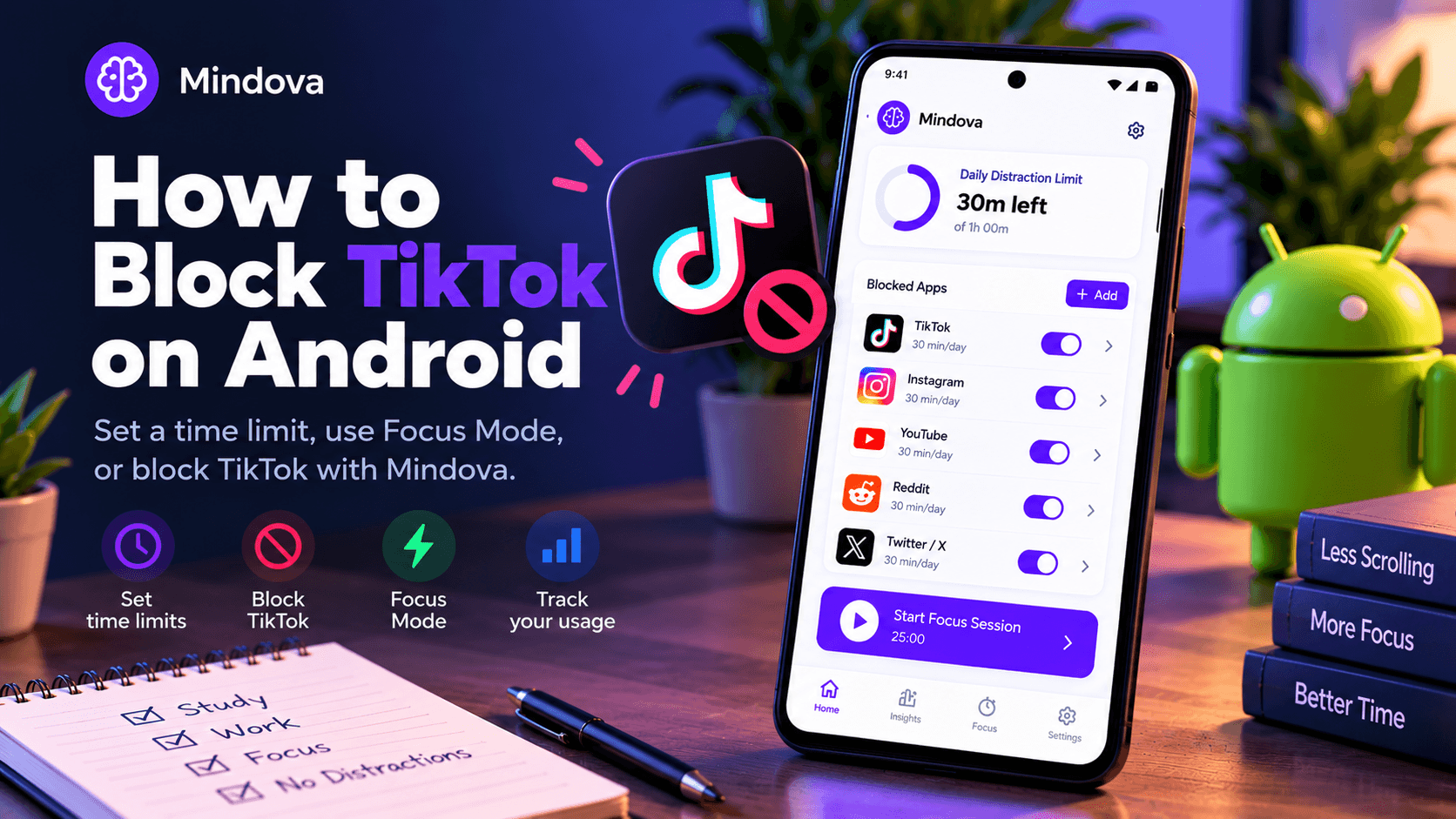
You open TikTok to watch one video. A few swipes later, you're still scrolling, even though you originally picked up your phone to do something else.
If you want to block TikTok on Android without deleting the app, you have several options. TikTok has built-in screen time controls, Android can limit or temporarily pause the app, and dedicated app blockers can help you manage distracting applications.
The important part is choosing a method that matches what you actually need: a reminder, a daily time allowance, or restricted access during work and study.
Quick answer: On Android, go to Settings → Digital Wellbeing → App timers, select TikTok, and set a daily limit. When the allowance runs out, Android closes the app. You can also use Focus mode to pause TikTok temporarily, or configure TikTok's own Daily screen time feature if a reminder and passcode prompt are enough.
This guide is about controlling your own access to TikTok, not blocking another person's TikTok account.
Which Method Should You Use to Block TikTok?
| Method | What happens | Best for |
|---|---|---|
| TikTok Daily screen time | Shows a limit notification and requires an on-screen passcode to continue | Setting a daily boundary within TikTok |
| TikTok Screen time breaks | Reminds you to stop after uninterrupted use | Interrupting long scrolling sessions |
| Android App Timer | Closes and pauses TikTok after its allowance is exhausted | Daily app limits |
| Android Focus mode | Temporarily pauses TikTok and its notifications | Studying or working |
| Mindova for Android | Lets you manage selected distracting apps with individual limits and focus tools | Controlling several distracting apps |
If you only want to reduce your TikTok usage, start with the controls already available on your phone.
Method 1: Set a Daily Screen Time Limit Inside TikTok
TikTok has its own screen time settings. You can use them without installing another application.
How to set TikTok's daily screen time limit
- Open TikTok on your Android phone.
- Tap Profile at the bottom.
- Open the Menu (☰).
- Select Settings and privacy.
- Tap Screen time.
- Select Daily screen time.
- Choose a daily limit or configure a custom limit.
TikTok also lets you adjust your daily screen time settings later.
What happens when you reach your TikTok time limit?
According to TikTok, the app notifies you when you reach the daily limit. You can close TikTok or enter the on-screen passcode to continue using it.
This is different from an Android App Timer.
TikTok's daily limit creates an interruption that asks you to make a conscious decision. It does not make further access impossible.
If you frequently enter the passcode and continue scrolling, you may prefer a restriction managed outside TikTok.
Official source: TikTok Help Center — Screen time
Method 2: Use TikTok's Screen Time Breaks
TikTok also offers Screen time breaks, which work differently from a daily limit.
Instead of measuring your total time for the day, this feature reminds you to take a break after a period of uninterrupted TikTok use.
To enable it:
- Open TikTok → Profile.
- Tap Menu → Settings and privacy.
- Open Screen time.
- Select Screen time breaks.
- Choose when TikTok should remind you to take a break.
When the reminder appears, TikTok offers options to dismiss it, snooze it, or edit the reminder settings.
For example, you might enable a break reminder because your problem is getting stuck in one continuous scrolling session rather than using TikTok several times throughout the day.
Daily screen time vs. screen time breaks
These features solve slightly different problems.
Daily screen time is about your total TikTok use during the day.
Screen time breaks are about interrupting continuous use before one session becomes longer than intended.
Neither should be described as an irreversible app lock.
TikTok also offers sleep reminders and a screen time dashboard if you want to review your usage or reduce late-night interruptions.
Method 3: Block TikTok After a Daily Limit With Android Digital Wellbeing
Android's Digital Wellbeing tools provide an alternative if TikTok's built-in limits are too easy for you to dismiss.
An Android App Timer applies a daily allowance to an application.
Once TikTok uses that allowance, Android closes the app and dims its icon until the timer resets or is changed.
Step 1: Find Digital Wellbeing
Open your phone's Settings.
Look for Digital Wellbeing or Digital Wellbeing & parental controls, depending on your phone.
If you cannot find it, use the search field inside Settings.
Step 2: Select TikTok
Open App timers.
Find TikTok in your list of installed applications and select the option to set a timer.
On some phones, you may also reach an application's timer from the Digital Wellbeing usage dashboard.
Step 3: Choose a limit
Decide how much time you want to allow.
You could start with:
- 15 minutes/day for a quick planned check.
- 30 minutes/day for more flexibility.
- 60 minutes/day if you're reducing your usage gradually.
These are examples, not universal recommendations. The right allowance depends on what you use TikTok for and what you're trying to change.
Save the timer.
Does Android completely block TikTok after the timer runs out?
Android closes the app and dims its icon when its time allowance is exhausted.
Google states that standard app timers reset at midnight. You can also remove an ordinary timer in Settings to access the app again earlier.
That means an App Timer offers a more direct restriction than a simple reminder, but it is not necessarily impossible to change.
Official source: Google Android Help — Manage your time with Digital Wellbeing
Can you protect the TikTok timer with a PIN?
On supported Android devices, Digital Wellbeing includes an App limits PIN.
To configure it, open:
Settings → Digital Wellbeing → App limits → App limits PIN
Follow the device prompts to enable PIN protection.
Google documents this feature as a way to control who can change app limits, and also describes setting a zero-time limit to restrict access on a shared device.
Availability depends on the phone and software version, so you may not see the same controls on every Android device.
If the option is available, it can add another boundary around the timer. You should still avoid assuming that every Android phone offers identical protection.
Method 4: Pause TikTok During Work or Studying With Focus Mode
A daily limit may not be what you need.
Perhaps you want to use TikTok later in the evening but avoid opening it during a two-hour study session.
Android's Focus mode is designed for temporary restrictions.
How to pause TikTok with Focus Mode
- Open Settings → Digital Wellbeing.
- Select Focus mode.
- Choose TikTok from the list of distracting apps.
- Tap Turn on now.
While Focus mode is active, Android pauses the selected apps and prevents their notifications from interrupting you.
On supported devices, you can also set a schedule.
[IMAGE PLACEHOLDER: Genuine Android Focus mode screenshot with TikTok selected as a distracting app.]
Is Focus Mode a permanent TikTok block?
No.
Focus mode is intended to help you concentrate during selected periods.
Android includes a Take a break option that temporarily lets you use paused apps.
That flexibility can be useful when you genuinely need TikTok, but it also means Focus mode is not designed as an impossible-to-bypass lock.
Use it when the main problem is TikTok interrupting work, studying, or another activity that needs your attention.
Method 5: Limit TikTok With Mindova for Android
If TikTok is only one of several distracting applications on your phone, you may want to manage those apps together.
Mindova for Android lets you choose installed apps, classify distracting applications, and configure individual daily limits.
It also offers a Daily Distraction Limit, Focus Sessions, and activity insights.
Step 1: Install Mindova
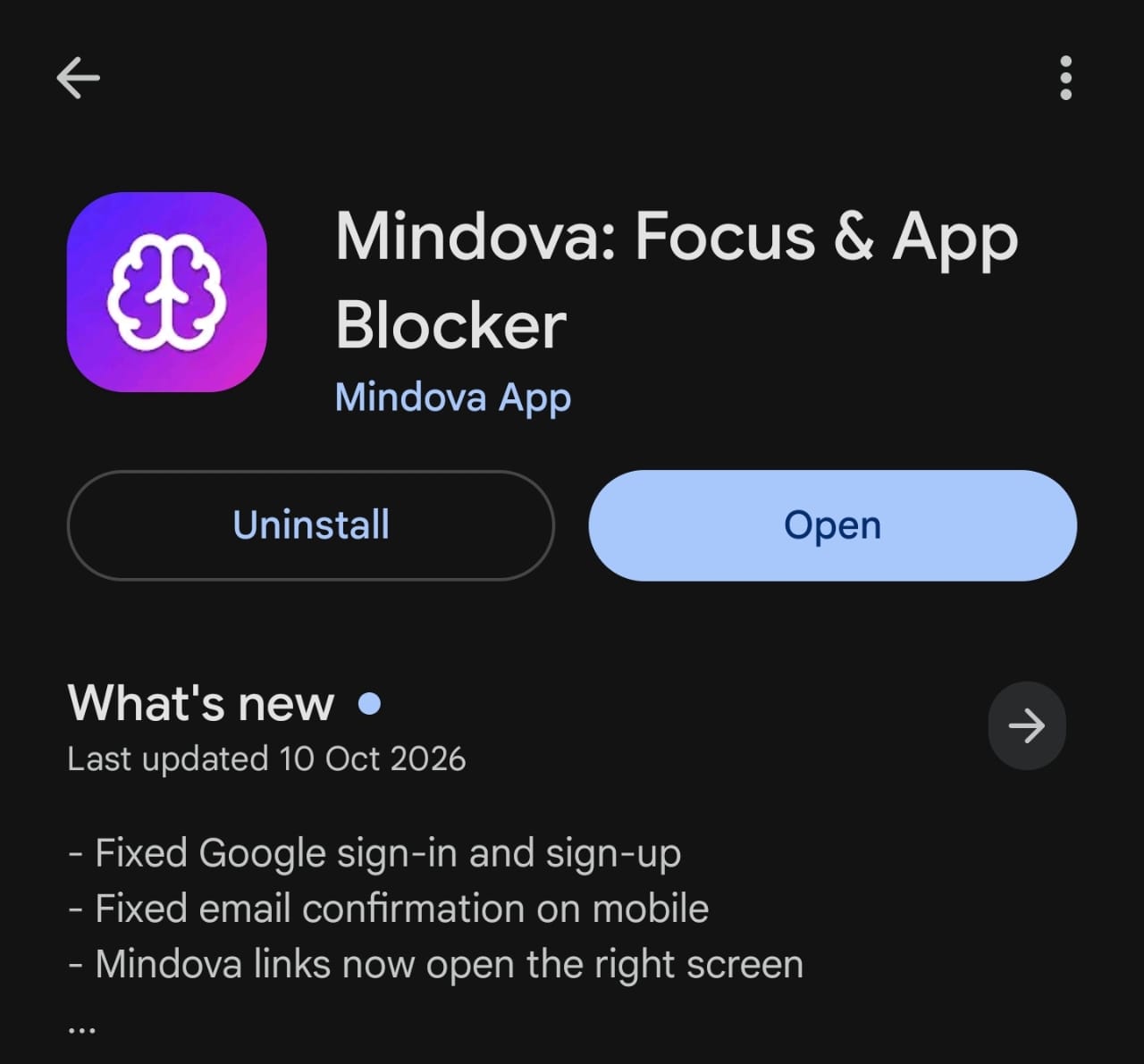
Download Mindova: Focus & App Blocker on Google Play.
Open the application, sign in, and complete the setup process.
Review the Android permissions the app requests. Usage access and the appropriate blocking permissions are relevant to the app's ability to monitor usage and interrupt access.
Step 2: Add TikTok to your distracting apps
Open Mindova's app-management controls and locate your installed applications.
If TikTok appears in the supported app list, select it and classify it as distracting.
The idea is to manage the applications that interrupt you, rather than treating everything installed on your phone as something that needs to be blocked.
Step 3: Set an individual daily limit
Configure a daily allowance for TikTok.
An individual limit lets you keep an app available for intentional use while defining how much time you want to spend in it.
Mindova's Android blocking workflow is designed to interrupt access to a selected app after its configured allowance is exhausted.
What has Mindova actually tested?
We have documented Mindova's native Android blocking workflow using Instagram, not TikTok.
During that test, Instagram was selected as a distracting application and assigned a one-minute daily limit. Once the limit was reached, Mindova interrupted normal access to Instagram and displayed a notification.
That verifies the tested Instagram workflow. It should not be presented as a separate hands-on TikTok test.
Before claiming a TikTok-specific test result, we would need to select TikTok on an Android device, configure its allowance, and verify what happens when that time runs out.
You can explore the existing product screenshots and verified functionality in our Mindova App Blocker guide.
When should you choose Mindova instead of Digital Wellbeing?
If you only want a basic TikTok App Timer, Android's built-in feature may be enough.
Mindova may be more useful if you want to manage multiple distracting apps, give them separate allowances, work with an overall distraction budget, start Focus Sessions, and review how you spend your time.
Mindova's Android app controls native applications. Its separate desktop browser extension controls websites in supported browsers.
Those are different blocking environments, and you should not assume that configuring a restriction for one automatically restricts every other way of accessing TikTok.
TikTok App vs. TikTok Website: An Important Difference
You can access TikTok in more than one way:
- Through the native TikTok Android application.
- Through
tiktok.comin a mobile browser. - Through the TikTok website in a desktop browser.
If you restrict only the native application, TikTok's website may still be accessible separately.
Android Digital Wellbeing supports website timers for Chrome on compatible devices. This can help if your main workaround is opening TikTok in the mobile browser instead of the app.
Mindova's desktop browser extension can also control access to tiktok.com through supported desktop browsers.
For detailed browser instructions, read How to Block TikTok on Chrome.
That article covers the TikTok website, while this guide focuses on the native Android app.
What about TikTok Lite?
TikTok Lite is a separate application where available.
Do not assume that selecting the main TikTok application automatically applies the same restriction to TikTok Lite.
If both are installed, check whether your chosen blocking tool lets you manage each application separately.
TikTok Still Opens? Check These Settings
If TikTok continues to open after you've configured a restriction, check which method you're using.
TikTok Daily screen time: Reaching your limit displays an interruption and passcode option. This feature does not guarantee that you cannot continue.
TikTok Screen time breaks: These are reminders. Dismissing or snoozing the reminder does not block the app.
Android App Timer: Confirm TikTok is selected, the timer is saved, and its allowance has actually been used. Also check whether the timer has reset or been removed.
Android Focus mode: Make sure Focus mode is currently active and TikTok is included in its paused apps. Check whether a temporary break has been enabled.
Mindova: Verify that TikTok is selected, your intended daily allowance is configured, and the necessary Android permissions are enabled. Behavior can depend on device configuration and app permissions.
TikTok in Chrome: If you're opening tiktok.com rather than the native app, review your browser-specific restrictions separately.
For more general troubleshooting and alternatives, see our How to Block Apps on Android guide.
Frequently Asked Questions
Can I block TikTok on Android without uninstalling it?
Yes. You can keep TikTok installed and use Android Digital Wellbeing, Focus mode, or a compatible app blocker to restrict access.
Uninstalling TikTok or deleting your account is not necessary to configure those limits.
Can I block TikTok completely?
Some tools offer stronger restrictions than reminders, but the result depends on the device, configuration, and blocking method.
For example, an ordinary Android App Timer can be changed or removed, while Focus mode allows temporary breaks.
If you need a restriction that another person cannot easily change, investigate supported PIN controls or device-management options rather than assuming any ordinary timer is permanent.
How do I set a TikTok screen time limit?
Open TikTok → Profile → Menu → Settings and privacy → Screen time → Daily screen time.
Select the allowance you want. TikTok will notify you when you reach it, and you can choose to close the app or enter the on-screen passcode to continue.
Can I block TikTok during school or work hours?
Android Focus mode lets you pause TikTok during selected periods and supports schedules on compatible devices.
You can also use an app blocker with focus tools, but check its actual scheduling capabilities before relying on them.
Can Mindova block only TikTok's For You feed?
The Android app-blocking workflow described here controls selected applications. It is not a feature that selectively hides the For You feed while keeping every other part of TikTok available.
Does blocking TikTok also block TikTok Lite?
Not automatically. TikTok Lite can be a separate installed app. Check and configure it separately where supported.
Can I use these methods on Samsung Android phones?
Many Samsung devices include Digital Wellbeing controls, although menu names, available features, and supported PIN settings can differ across device models and software versions.
Search your phone's Settings for Digital Wellbeing, App timers, or Focus mode.
Is Mindova available on iPhone?
Mindova's native mobile app is available on Android. An iPhone version is not publicly available yet.
You can join the Mindova iOS waitlist.
Choose a TikTok Limit That Fits Your Day
You don't have to delete TikTok to use it more intentionally.
Start with the simplest method that solves your problem. TikTok's own Screen time controls may be enough if you respond well to reminders. Android App Timers are a better fit if you want the application to close after a daily allowance. Focus mode can help when you want TikTok out of the way while working or studying.
If you're also managing Instagram and other distracting apps, Mindova for Android provides another way to organize app limits and review your usage.
The goal is to make opening TikTok a deliberate decision instead of the default whenever you have a free moment.
Mouhsine
Admin
Passionate about helping people achieve peak mental performance through evidence-based strategies and mindful technology use.
Related Articles
App Blocker for Distracting Apps
Block distracting Android apps with Mindova, set daily app limits, run Focus Sessions, review usage insights, and manage mobile and browser distractions.
How to Block Apps on Android
Learn how to block apps on Android with Digital Wellbeing app timers, Focus Mode, or Mindova. Compare each method and choose the right level of control.
How to Block the Instagram App on Android Without Deleting It
Learn how to block or limit Instagram on Android using Digital Wellbeing, Focus Mode, and Mindova. Compare daily reminders, app timers, and blocking options.
Comments
Be the first to comment.
Ready to protect your focus?
Block distracting sites, set daily limits, and run focus sessions. Mindova is free.