How to Block the Instagram App on Android Without Deleting It
Written by Mouhsine
Admin
Published October 12, 2026 · Updated November 10, 2026
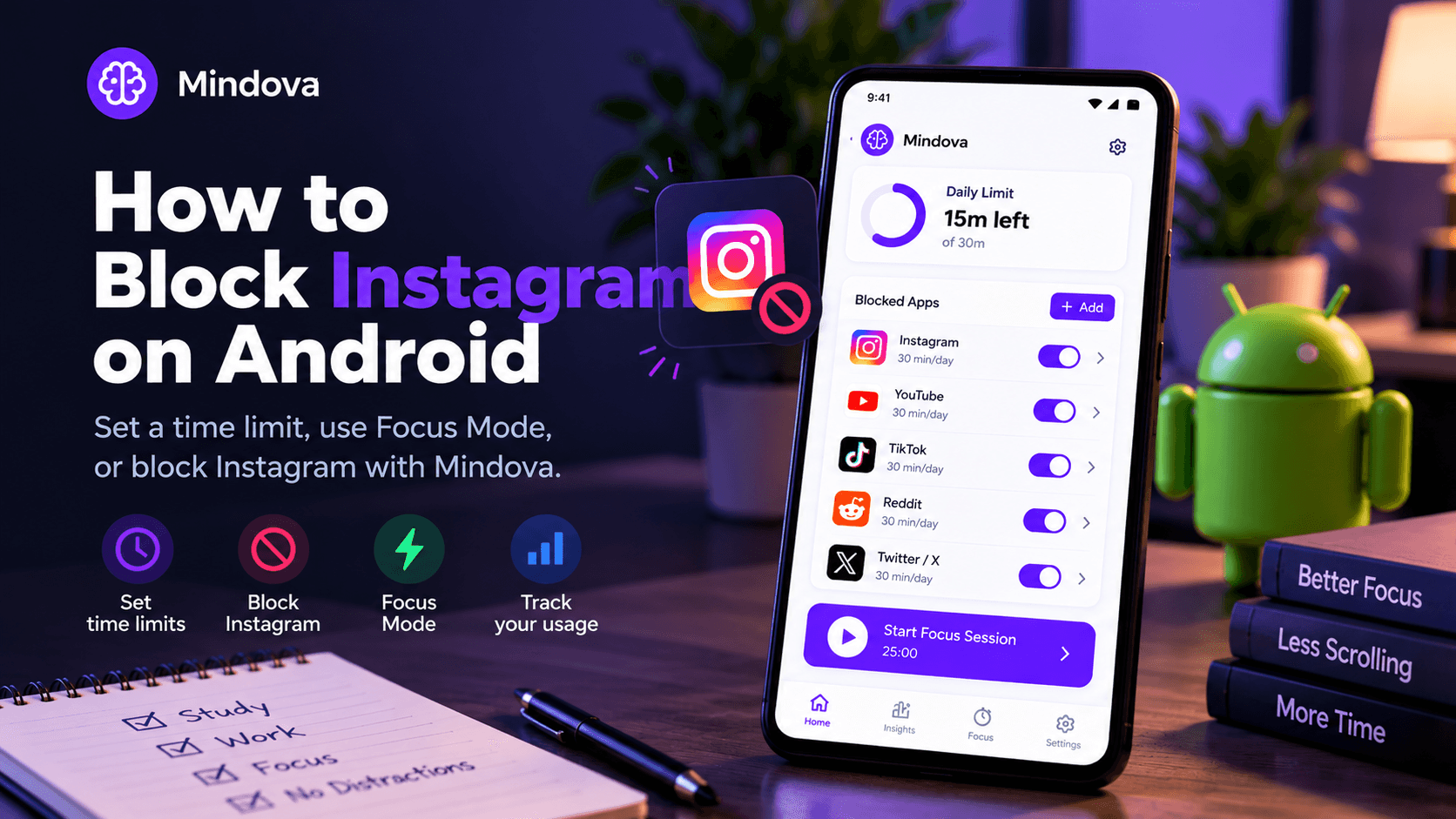
Instagram can be useful for keeping in touch, replying to messages, or managing a business account. But opening it for one task can easily turn into spending longer than you intended watching Reels or checking your feed.
If you want to block Instagram on your Android phone without deleting the app or losing your account, you have several options. You can set a daily app timer, temporarily pause Instagram with Android's Focus Mode, or use a dedicated app blocker that restricts access when your allowance runs out.
The right method depends on whether you want a reminder, a daily time limit, or a temporary break from opening Instagram.
Quick answer: To limit Instagram on Android, open Settings → Digital Wellbeing → App timers, find Instagram, and set a daily allowance. To pause it during work or study, use Digital Wellbeing → Focus mode. If you want a separate app-blocking workflow with individual limits and activity insights, Mindova for Android is another option.
The steps below are for controlling your own use of the Instagram app. They are not instructions for blocking another Instagram account or person.
Which Instagram Blocking Method Should You Use?
| Method | What it does | Best for |
|---|---|---|
| Instagram's daily limit | Reminds you when you reach your chosen amount of time | Awareness and lighter boundaries |
| Android App Timer | Closes and pauses Instagram when its daily allowance is exhausted | Daily screen-time limits |
| Android Focus Mode | Temporarily pauses Instagram and its notifications | Work or study periods |
| Android App Limits PIN | Adds PIN protection to app limits on supported devices | Limits you want to make harder to change |
| Mindova for Android | Restricts selected apps using individual daily limits and focus tools | Managing several distracting apps and reviewing usage |
For many people, Android's built-in tools are enough. Start there if you only need to limit one application.
Method 1: Set a Daily Time Limit Inside Instagram
Instagram includes its own time-management controls. These are useful if you want to become more aware of how long you spend in the app without installing another tool. To set a daily limit:
- Open Instagram on your Android phone.
- Go to your profile.
- Open the menu in the upper-right corner.
- Find Time management under Instagram's settings.
- Select Daily limit.
- Choose how much time you want to spend on Instagram.
The wording and location of these controls can change as Instagram updates its app. For current instructions, refer to Instagram's official daily time limit guide.
Does Instagram's daily limit actually block the app?
An important distinction: Instagram's own time-management feature is designed around reminders. A reminder tells you that you have reached the limit you set. It should not be treated as an enforced Android app block that prevents further access.
If you routinely dismiss reminders and continue scrolling, Android's App Timer may be a better next step.
Method 2: Block Instagram After a Daily Limit With Android Digital Wellbeing
Android includes a feature called Digital Wellbeing on supported devices. It lets you monitor application usage and assign time limits without downloading another blocker. Our guide to the Digital Wellbeing app explains everything it includes.
For example, if you want to use Instagram for only 15 minutes each day, you can give the Instagram app a 15-minute timer.
Step 1: Open Digital Wellbeing
Open your Android phone's Settings. Look for Digital Wellbeing & parental controls or a similarly named menu. The exact wording can vary depending on your Android version and phone manufacturer.
Step 2: Find Instagram
Inside Digital Wellbeing:
- Open App timers, or select Instagram from your app usage dashboard.
- Find Instagram in your list of applications.
- Select the timer option.
Step 3: Choose Your Daily Allowance
Set a limit that matches how you actually want to use Instagram.
For example:
- 15 minutes/day: A short daily check.
- 30 minutes/day: More flexibility for messages or occasional browsing.
- 60 minutes/day: A gradual reduction if your current usage is much higher.
These are examples, not recommended limits for everyone. Save your timer when you are done.
What Happens When the Instagram Timer Runs Out?
According to Google's Android documentation, once an app uses its allotted time, Android closes it and dims its icon. The timer normally resets at midnight.
However, Android also lets users change or delete a timer from Settings. This means an ordinary App Timer is not an irreversible block.
If you find yourself repeatedly extending the allowance, consider whether you need a different restriction or more control over changing your limits. Official source: Google — Manage your time with Digital Wellbeing.
Method 3: Pause Instagram During Work or Study With Focus Mode
Sometimes you do not need Instagram blocked for the whole day. You just want it unavailable while you finish an assignment, attend a meeting, or work without interruptions. Android's built-in Focus Mode is designed for this. To pause Instagram:
- Open Settings → Digital Wellbeing → Focus mode.
- Select Instagram as an app you want to pause.
- Turn on Focus Mode when you are ready to concentrate.
While Focus Mode is active, Android pauses the selected distracting apps and their notifications. You can also configure a Focus Mode schedule on supported devices.
Can you take a break from Focus Mode?
Yes. Android supports a Take a break option that temporarily unpauses selected apps. That is useful when you need access for something important, but it also means Focus Mode is not a permanent or impossible-to-bypass restriction.
If your goal is to stop automatically opening Instagram while studying, Focus Mode is a reasonable free place to start.
Can You Protect an Instagram App Limit With a PIN?
Some Android devices support an App limits PIN through Digital Wellbeing. On supported phones, you can find this feature under:
Settings → Digital Wellbeing → App limits → App limits PIN
Follow the device instructions to create a PIN for managing app time limits. Google also documents the possibility of combining an App Limits PIN with a zero-time limit to prevent another device user from opening an app.
Availability depends on your Android device and software version. If you cannot find the option, do not assume that your phone supports it. A PIN may add friction to changing a limit, but you should not treat every Android implementation as an unbreakable security system.
Method 4: Block or Limit the Instagram App With Mindova for Android
If you want to manage Instagram alongside other distracting Android apps, you can use Mindova. Unlike a desktop browser extension, Mindova's Android app is designed to control selected native Android applications.
It supports individual app limits, an overall Daily Distraction Limit, Focus Sessions, and activity insights.
Step 1: Install Mindova
Download Mindova: Focus & App Blocker from Google Play.
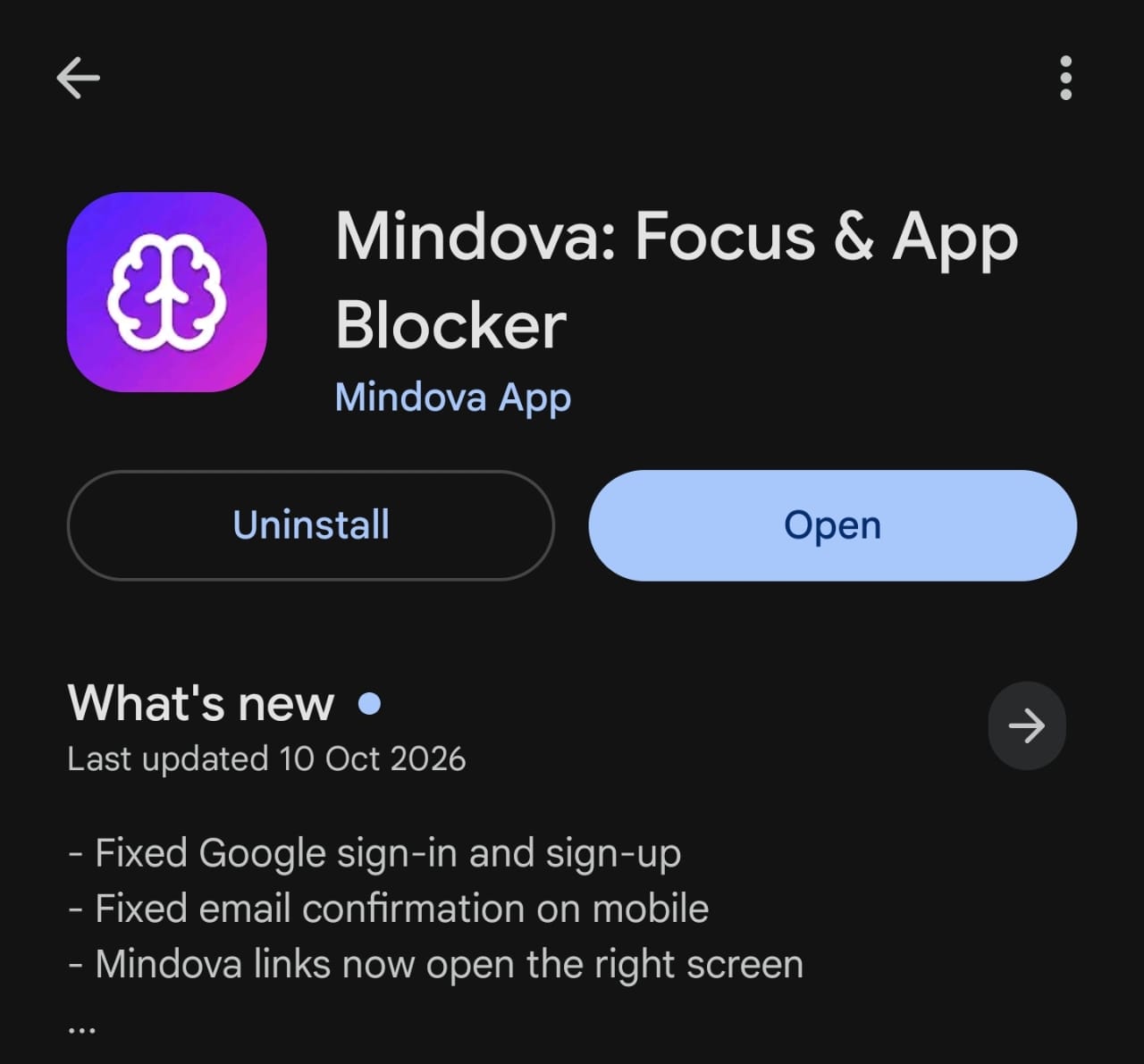
Sign in and complete the setup instructions shown in the Android app. Review the requested Android permissions before enabling app blocking or usage tracking.
Step 2: Select Instagram
In Mindova, find the installed applications you want to manage. Select Instagram and classify it as a distracting app.
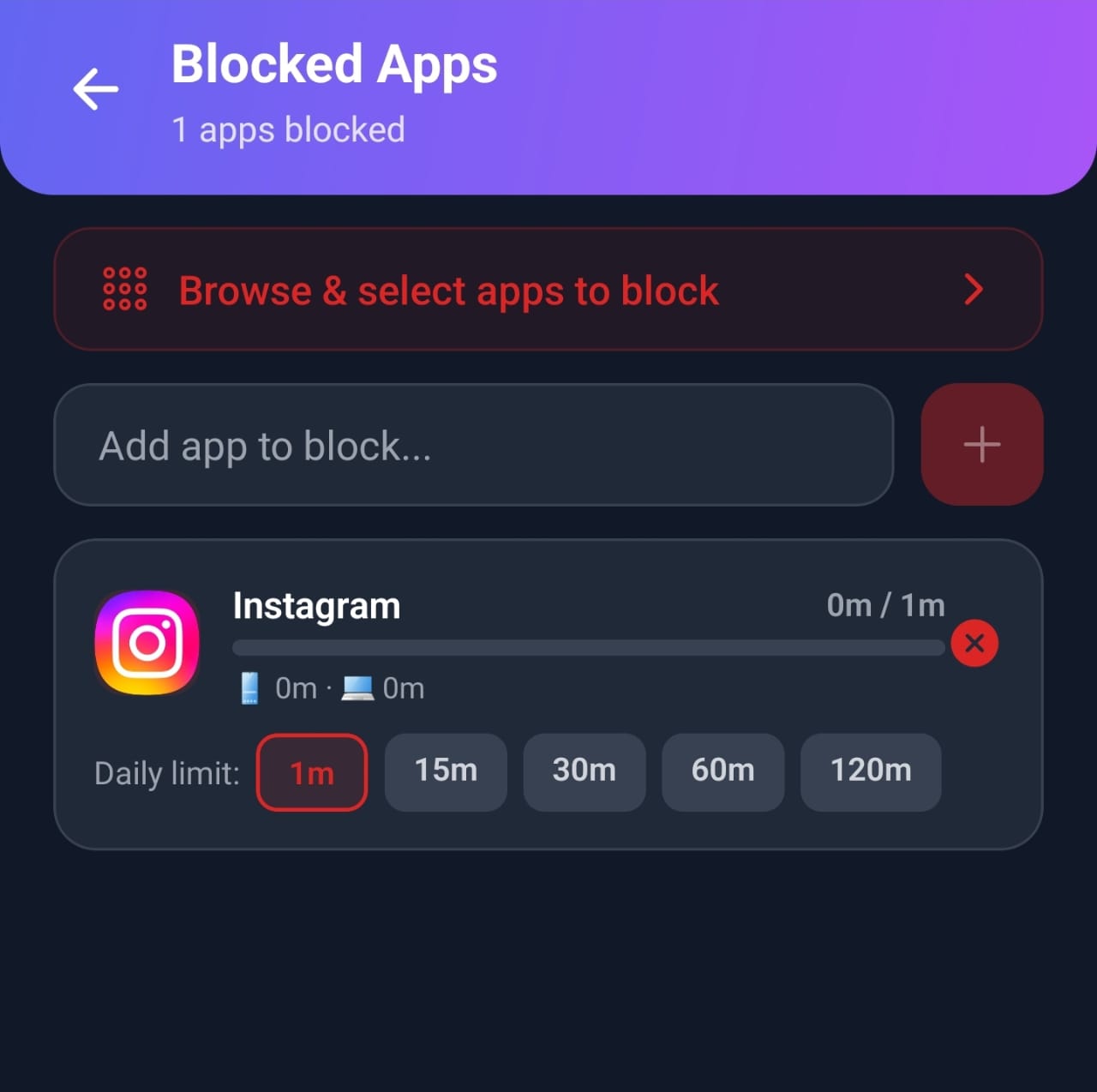
This lets you apply a limit to Instagram without treating every application on your phone as a distraction.
For example, you might want to restrict Instagram while leaving essential communication or productivity apps available.
Step 3: Set an Individual App Limit
Give Instagram a daily allowance based on how much access you want. A limit lets you keep Instagram installed for messages or specific tasks while defining how long you intend to use it. Once the configured allowance has been consumed, Mindova can interrupt access to the selected app.
What We Actually Tested With Instagram
During Mindova's Android testing, we selected Instagram as a distracting app and assigned it a one-minute daily limit.
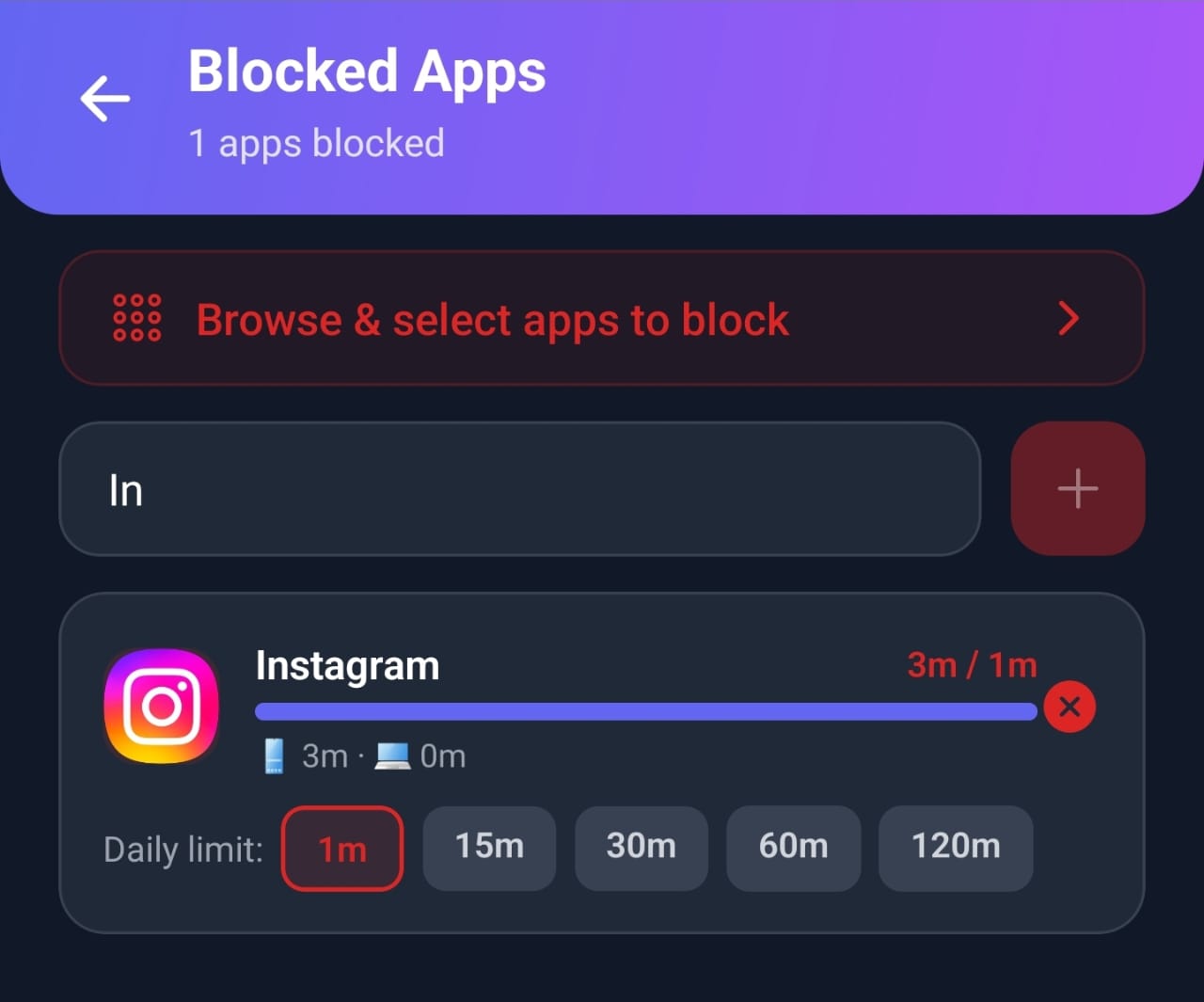
After the available time was used, Mindova prevented normal access to Instagram and displayed a notification indicating that the daily limit had been reached. This was an observed test of the Instagram blocking workflow, not a claim that every Android device behaves identically.
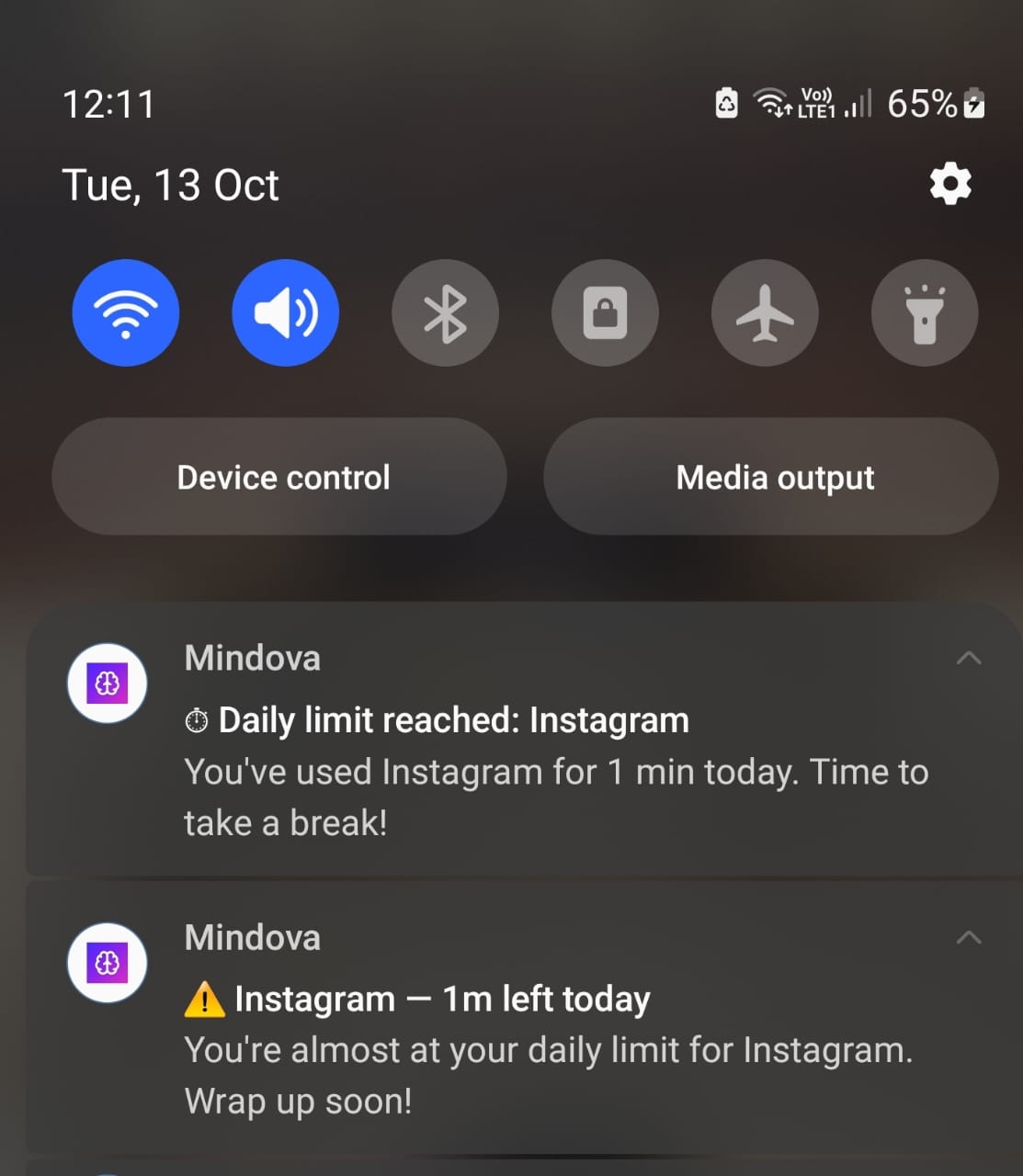
The blocking screen itself was protected from screenshots on the test device, so we are not presenting a recreated image as genuine evidence. You can explore the broader feature set in our Mindova App Blocker guide.
When Does Mindova Make More Sense Than Digital Wellbeing?
If you only need a basic Instagram timer, Android Digital Wellbeing may be sufficient. Mindova is more relevant when your distraction problem extends across multiple apps and you want a broader workflow that combines:
- Individual daily limits for selected Android apps.
- An overall Daily Distraction Limit.
- Productive and Distracting app classification.
- Focus Sessions.
- App usage and focus insights.
Mindova also has a separate desktop browser extension for blocking websites in supported browsers. It is not presented as an irreversible hard-lock system, a parental surveillance tool, or a way to remove Instagram Reels while keeping every other part of Instagram available.
Mindova has a Free plan with no credit card required: up to 3 blocked apps on Android and 10 Focus Sessions a month. Pro removes the limits for $4.99/month or $39.99/year, and you can try Pro free for 7 days. See Mindova pricing for current details.

Block distractions. Stay focused with Mindova.
Block distracting websites and apps, set limits, and protect your focus time across your browser and phone.
Free plan, no credit card • Try Pro free for 7 days
Does Blocking the Instagram App Also Block Instagram in Your Browser?
Not necessarily. There are two different ways to access Instagram:
- The native Instagram application installed on your Android phone.
- The Instagram website at
instagram.comopened in a browser.
Restricting the native app does not automatically prove that the website is blocked.
If you stop using the Instagram app but continue opening Instagram in Chrome, you may need to manage browser access separately. Android Digital Wellbeing also documents website timers for Chrome on supported devices.
On a desktop computer, Mindova's browser extension can restrict instagram.com directly. See our separate guide to blocking Instagram on Chrome.
What If Instagram Still Opens After You Set a Limit?
Before assuming your blocker is not working, check which method you configured.
If you used Instagram's own daily limit: You may be receiving a reminder rather than an enforced block. Try Android's App Timer if you need the app to close after the allowance is consumed.
If you used Digital Wellbeing: Confirm that Instagram is selected, that the timer was saved, and that the remaining allowance has actually run out. Remember that Android app timers normally reset at midnight.
If you used Focus Mode: Confirm that Focus Mode is currently on. Also check whether you have temporarily unpaused Instagram using the break option.
If you used Mindova: Check that Instagram is selected as a distracting app, the intended daily limit is configured, and the required Android permissions are enabled. If the behavior still differs from what you expect, contact Mindova support.
If Instagram opens in your browser: Check whether you are accessing the native app or the website. The same restriction should not be assumed to apply to both.
For a broader explanation of Android's options, see How to Block Apps on Android.
Frequently Asked Questions
Can I block Instagram on Android without deleting it?
Yes. You can keep Instagram installed and use Android Digital Wellbeing, Focus Mode, or a compatible app blocker to limit or temporarily prevent access. Deleting your Instagram account is not necessary to set an app restriction.
Can I block Instagram completely?
Some tools let you restrict access rather than merely send reminders. However, the strength of a restriction depends on the method and device. An Android timer may be changed or removed, Focus Mode allows breaks, and Mindova is not being presented as an impossible-to-bypass hard lock.
If you need stronger device-management controls, compare those requirements separately.
Can I set an Instagram time limit without another app?
Yes. Digital Wellbeing includes app timers on supported Android devices. Instagram also includes its own daily time-management reminders. The two features work differently: an Instagram reminder is not the same as Android closing the app after its time allowance expires.
Can Mindova block only Instagram Reels while keeping DMs?
Not through the Android app-blocking workflow described here. Mindova controls the selected application rather than selectively removing the Reels feed while keeping direct messages available.
Does this work on Samsung phones?
Samsung phones commonly include Digital Wellbeing features, but exact settings and available controls depend on the model and software version.
Use the Settings search function to locate Digital Wellbeing, App timers, or Focus mode.
Does Mindova have a free plan?
Yes. The free plan needs no credit card and lets you block up to 3 apps or sites, with 10 Focus Sessions a month and 7 days of stats. Pro costs $4.99/month or $39.99/year, removes the limits and adds Cloud Sync. You can try Pro free for 7 days.
Choose a Limit You Can Actually Use
You do not have to delete Instagram to change how you use it.
Start with the specific problem you want to solve. If you only need a reminder, Instagram's built-in daily limit may be enough. If you want the app to close after a defined allowance, try Android Digital Wellbeing. If Instagram interrupts your study or work periods, Focus Mode may be the simplest approach.
And if you want to manage Instagram alongside other distracting applications, Mindova for Android gives you another way to set limits and review your activity.
The goal is not to block everything automatically. It is to make opening Instagram a more deliberate choice.
Less scrolling. More focused time.
Use Mindova to block distracting websites and apps, set daily limits, and create protected time for studying, working, or deep focus.
- Android AppBlock and limit distracting apps on Android.
- Browser ExtensionChrome, Edge, Brave, Opera & Vivaldi
- iPhone AppControl distracting apps and protect your focus on iPhone.


Start free — no credit card needed. Try Pro free for 7 days whenever you like.
Mouhsine
Admin
Passionate about helping people achieve peak mental performance through evidence-based strategies and mindful technology use.
Related Articles
How to Block the YouTube App on Android Without Deleting It
Block the YouTube app on your Android phone without deleting it. Use Digital Wellbeing app timers, Focus Mode, YouTube's Shorts limit, or Mindova.
How to Block X (Twitter) on Android Without Deleting It
Block the X (Twitter) app on Android without deleting it. Use App timers, Focus Mode, Mindova or Private DNS, with step-by-step instructions.
Brick Alternatives (2026): Cheaper and Free Ways to Block Apps on Android
Brick costs $59 and needs a puck you tap. Compare cheaper NFC cards, free open-source blockers and app-only options for Android, with official prices and honest trade-offs.
Comments
Be the first to comment.