How to Block Apps on Android
Written by Mouhsine
Admin
Published October 7, 2026 · Updated November 10, 2026
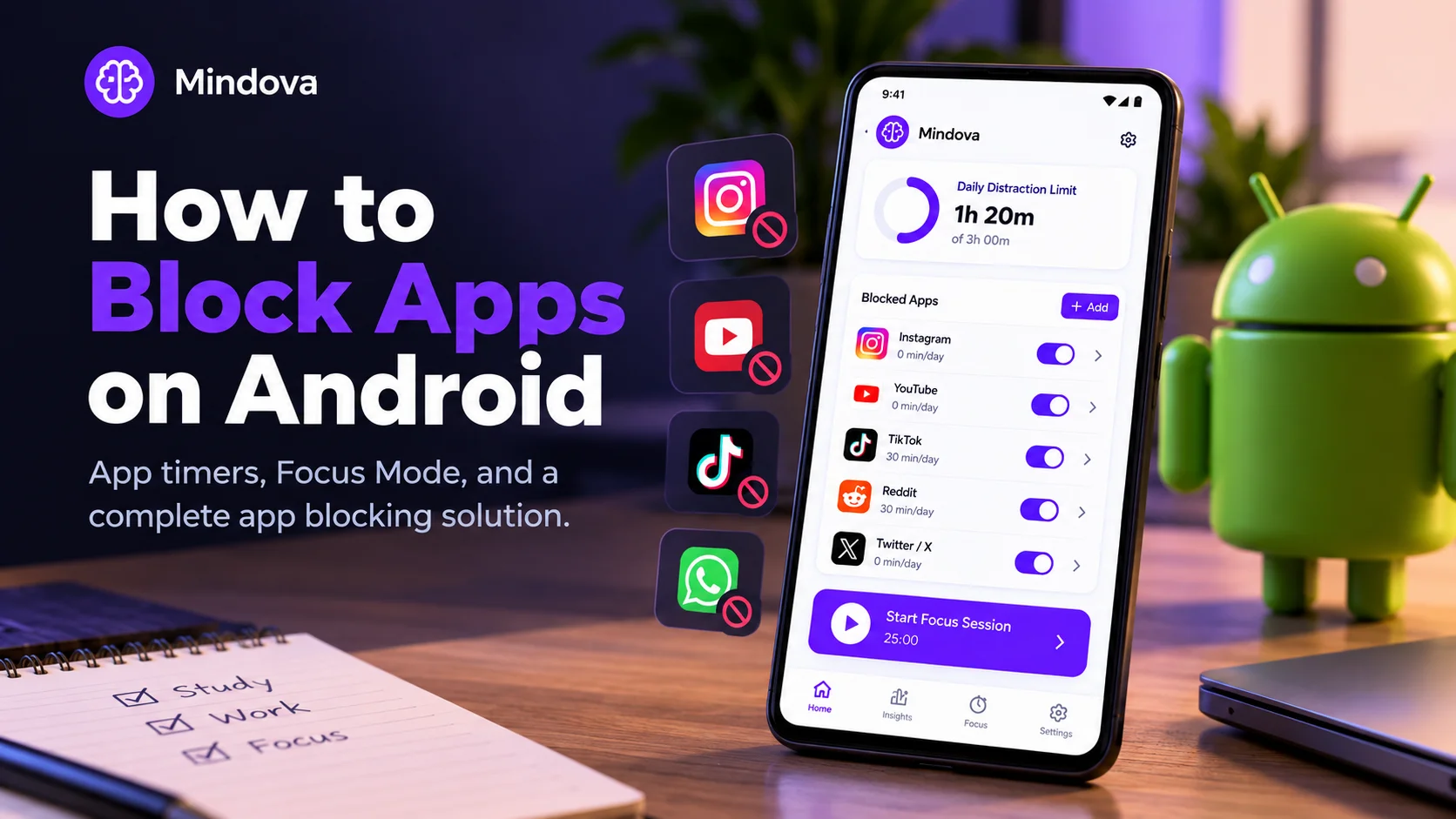
If an app keeps interrupting your work, studying, or downtime, Android gives you several ways to control it without deleting it completely.
For most people, the best place to start is Android's built-in Digital Wellbeing tools. You can set a daily App Timer for one app or use Focus Mode when you want several distracting apps temporarily unavailable. If you want a different workflow with app limits, distraction tracking, Focus Sessions, and mobile-to-desktop insights, you can also use a dedicated app blocker such as Mindova.
The right method depends on what you mean by "block." A daily time limit, a temporary pause during work, and a stronger distraction-management setup solve slightly different problems.
Quick Answer: How Do You Block Apps on Android?
You have three practical options:
- App Timers — best when you want to limit how long you can use a specific app each day.
- Focus Mode — best when you want distracting apps paused during a work, study, or other focused period.
- A dedicated app blocker such as Mindova — useful when you want app-level limits together with a broader focus and distraction-management workflow.
Android menu names can vary between phones and Android versions, so your screen may look slightly different from the steps below.
Method 1: Set a Daily App Timer With Digital Wellbeing
Android's built-in Digital Wellbeing tools are the simplest place to start because you may already have everything you need on your phone. For a full tour of what it includes, see our Digital Wellbeing app guide.
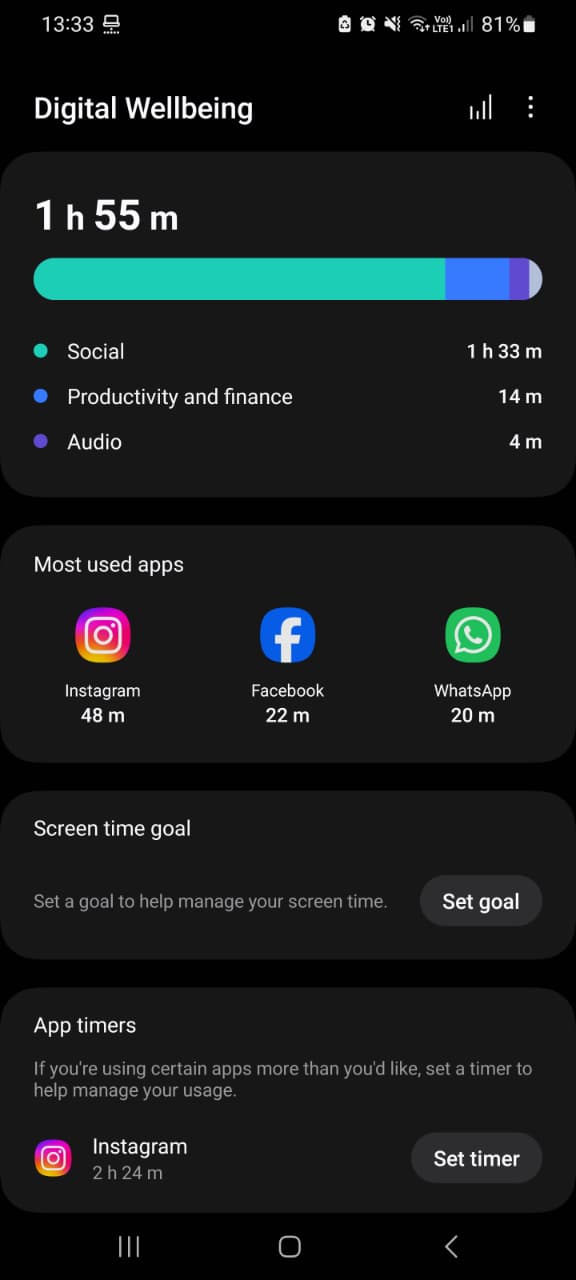
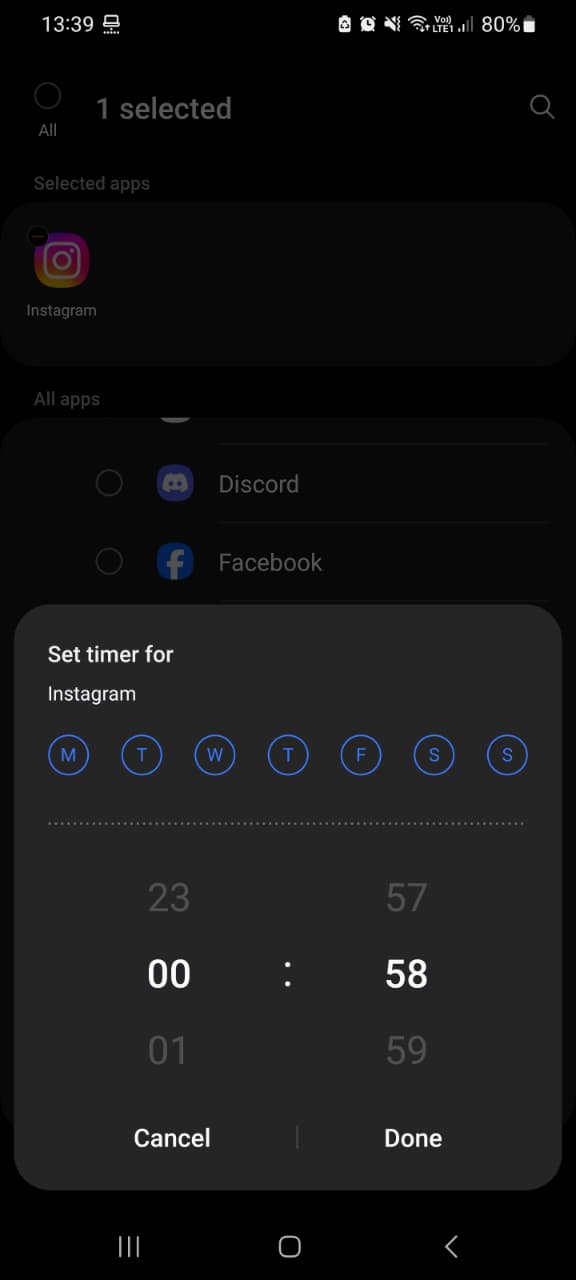
According to Google's current Android documentation, you can assign a daily timer to an app from Digital Wellbeing. When the available time runs out, Android closes the app and dims its icon. The timer resets at midnight. To set an app timer:
- Open Settings on your Android phone.
- Open Digital Wellbeing & parental controls.
- Tap App timers.
- Find the app you want to limit.
- Tap Set timer.
- Choose how much time you want to allow each day.
- Tap OK.
For example, if Instagram tends to turn into an hour of scrolling, you could give it a smaller daily allowance rather than deleting it entirely.
The important limitation is that an App Timer controls daily usage time. It is not the same thing as saying, "Block Instagram from 9:00 AM until 12:00 PM." For a time-based work or study period, Focus Mode is usually the better built-in option.
Google's official Digital Wellbeing documentation
You Can Also Protect App Limits With a PIN
One detail that older Android guides may miss is that Google's current Digital Wellbeing documentation includes an App limits PIN. On supported devices, you can open Settings → Digital Wellbeing & parental controls → App limits → App limits PIN and create a four-digit PIN for app time limits. This can be useful when another person should not be able to change the limits without the PIN. Google also documents using an app-limit PIN together with a zero time limit when you want to prevent another user of the device from accessing an app.
If you are setting limits only for yourself and you also know the PIN, however, it is still ultimately a self-managed restriction. The PIN does not magically remove your ability to change your own settings.
Method 2: Pause Distracting Apps With Focus Mode
App Timers answer:
How much time can I spend in this app today?
Focus Mode answers:
Which apps should be unavailable while I am trying to focus?
To use Android Focus Mode:
- Open Settings.
- Go to Digital Wellbeing & parental controls.
- Tap Focus mode.
- Choose the apps you want to pause.
- Tap Turn on now.
While Focus Mode is active, Android says you cannot use the selected apps and you will not receive notifications from them. You can also set a schedule if you regularly want the same apps paused during certain periods, such as your morning work block or evening study time.
Android also provides a Take a break option that temporarily unpauses the apps for a period you choose. That flexibility can be useful if you occasionally need one of those apps, but it also means Focus Mode is not designed as an impossible-to-bypass hard lock.
App Timer or Focus Mode: Which One Should You Use?
The two Android tools solve different problems.
| Method | Best for | What happens |
|---|---|---|
| App Timer | Limiting one app across the day | The app becomes unavailable after its daily allowance is used |
| Focus Mode | Protecting a specific work or study period | Selected apps are temporarily paused |
| Mindova | Managing distracting apps as part of a broader focus setup | Lets you configure distracting apps and limits while also using focus and usage tools |
You do not necessarily need to choose only one.
For example, you could give Instagram a daily allowance with an App Timer and still include it in Focus Mode while you study.
Method 3: Block or Limit Distracting Apps With Mindova
Android's built-in tools may be enough if all you need is a basic timer or temporary pause.
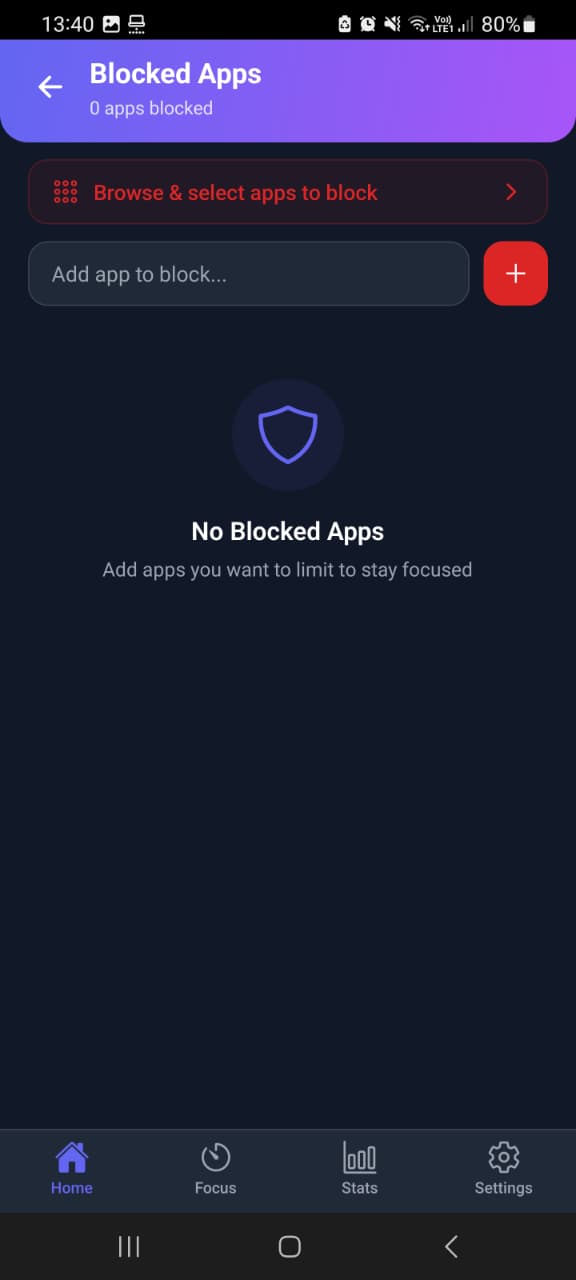
Mindova is another option if you want app blocking and limits to be part of a broader system for managing distraction. The Android app lets you identify distracting apps, assign app-level limits, set an overall Daily Distraction Limit, classify Productive Apps, run Focus Sessions, and review usage statistics.
We did not rely only on seeing these settings in the interface. We tested the current Android blocking workflow with the native Instagram app.
Explore the Mindova App Blocker
How We Tested Mindova With Instagram
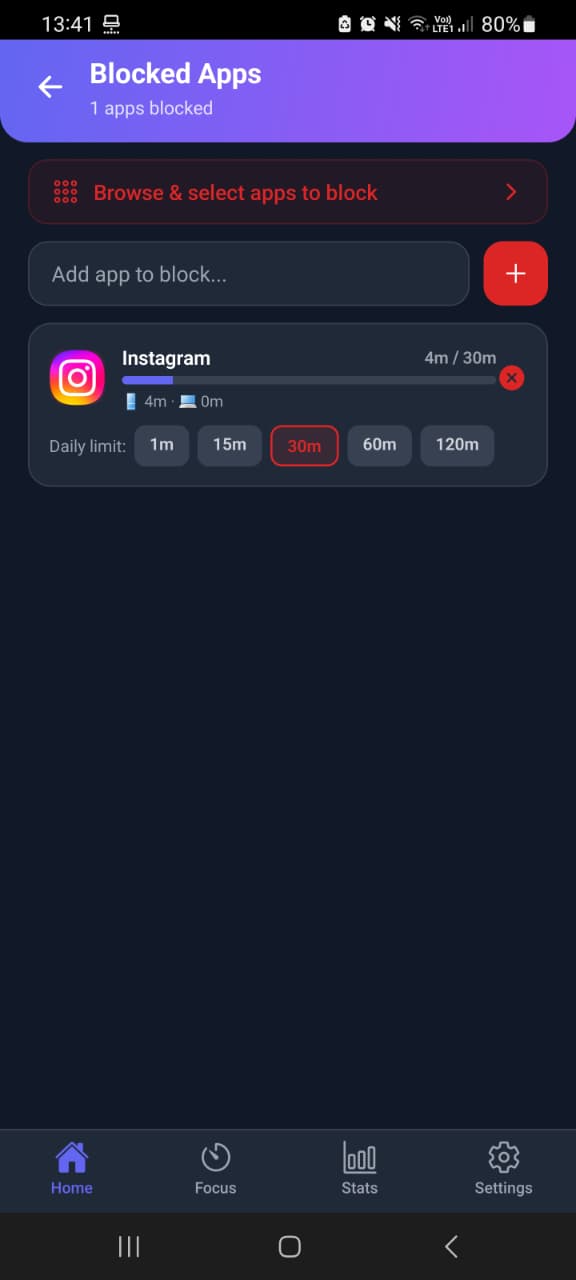
For our test, we selected Instagram as a distracting app and gave it a 1-minute daily limit.
We then used Instagram until that allowance was consumed. After the configured time was reached, Mindova prevented normal access to the app and Android displayed a notification confirming that the Instagram daily limit had been reached.
The blocking screen itself could not be captured with a normal screenshot on our test device because screenshot capture was protected while that screen was displayed. We have not recreated or simulated that screen for this guide.
Instead, the screenshots used here show the real Mindova configuration and the real limit-reached notification from our test.
How to Set an App Limit With Mindova on Android
The exact interface can change as the Android app develops, but the current workflow is straightforward:
- Open Mindova on your Android device.
- Open the section for your distracting or blocked apps.
- Select an installed app you want to control.
- Add it to your distracting-app setup.
- Choose the daily limit you want to allow.
- Use the app normally until that allowance is reached.
- Mindova applies the configured restriction when the available time has been used.
You can configure different limits for different apps rather than giving every distraction the same rule. That is useful when, for example, you still need YouTube for learning but want a much smaller allowance for an app you rarely need for anything productive.
Control More Than One Distracting App
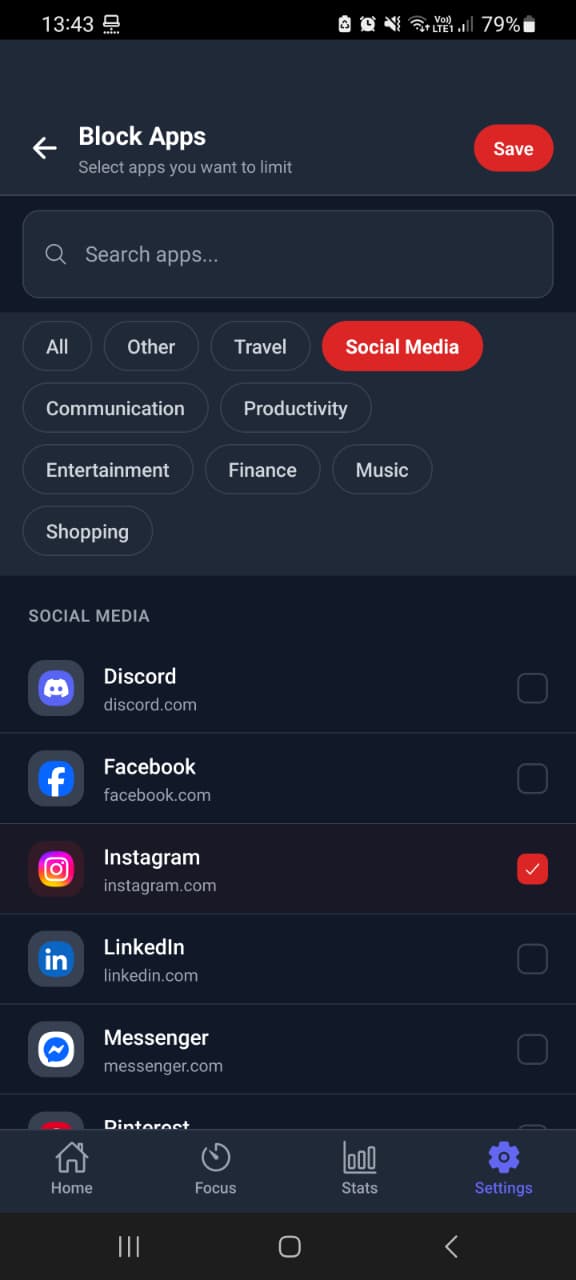
A common problem with per-app limits is substitution. You reach your Instagram limit, close Instagram, and immediately open Reddit. Then Reddit becomes YouTube, TikTok, X, or another feed.
Mindova includes a Daily Distraction Limit for the apps you have classified as distracting. This gives you another way to think about the problem: not only how much time you give one app, but how much of the day you want to give distracting apps altogether.
That does not mean every frequently used app needs to be classified as distracting. Mindova also lets you identify Productive Apps separately so that the setup can reflect how you actually use your phone.

Block distractions. Stay focused with Mindova.
Block distracting websites and apps, set limits, and protect your focus time across your browser and phone.
Free plan, no credit card • Try Pro free for 7 days
What If You Need to Block Apps Only While Working or Studying?
If you need apps unavailable only during a particular period, Android Focus Mode is a strong free option.
Mindova also includes Focus Sessions with configurable work and break durations. These can be useful when you want to create a deliberate focused period around studying, reading, writing, coding, or another task.
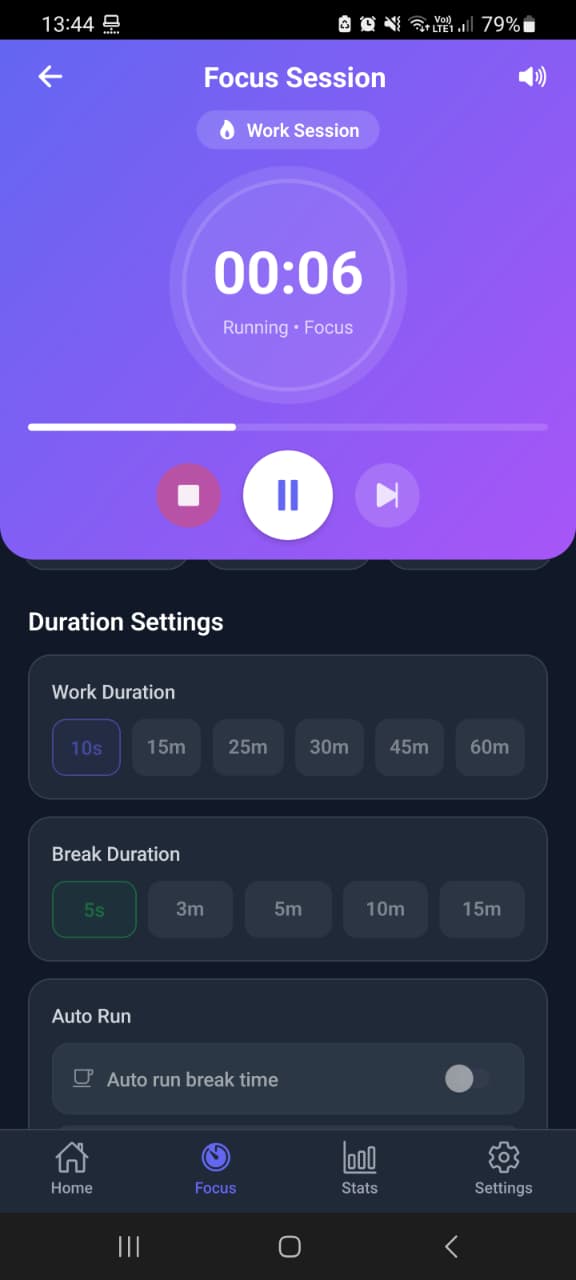
The important distinction is between a daily usage limit and a focus period. A daily limit answers:
How much of this app do I want today?
A Focus Session answers:
What should I be doing during the next block of time?
Thinking about those as different problems usually leads to a better setup than simply trying to block everything.
Which Android App-Blocking Method Is Best?
Start with the least complicated method that solves your problem.
Use an App Timer if one specific app takes too much of your day and you mainly want a daily cap.
Use Focus Mode if your main problem happens during predictable periods such as work, classes, studying, or bedtime.
Try Mindova if you want to manage several distracting apps as part of a broader workflow that includes app limits, an overall distraction allowance, productive-app classification, Focus Sessions, and usage insights.
You do not need a third-party blocker simply because one exists. Android's built-in tools are useful, free, and enough for many people. If you do want a dedicated app, compare the options in our list of the best app blockers for Android.
How to Block Social Media Apps on Android
There is no special Android blocking system that works only for social media. Instagram, TikTok, Reddit, Facebook, X, and similar apps can be handled using the same methods as other Android apps.
For example, you can:
- give one social app an Android App Timer;
- add several social apps to Focus Mode;
- classify selected social apps as distracting in Mindova and configure limits around them.
Choose the restriction based on how you actually use the app. If you need Instagram for publishing or YouTube for tutorials, a realistic daily limit may be more practical than treating the entire app as permanently unavailable.
What If the App Still Opens?
First identify which blocking method you are using.
If you are using an Android App Timer
Return to Digital Wellbeing → App timers and confirm that the correct app has a timer and that its daily allowance has actually been used. Remember that Android's App Timers reset at midnight.
If you are using Focus Mode
Check that Focus Mode is currently active and that the app appears in the selected distracting-app list. If you used Take a break, the app may be temporarily available until that break ends.
If you are using Mindova
Confirm that you selected the correct installed app and check its current limit. Also confirm that Mindova's background monitoring is active when required by the installed version.
If the settings appear correct but the behavior does not match what you expect, check the current Mindova Help Center or Android app instructions rather than assuming every Android device behaves identically.
Android Phones Do Not All Look the Same
Android is used across phones from Google, Samsung, Motorola, OnePlus, Xiaomi, and many other manufacturers. Menu names and available controls can therefore vary. Google itself notes that some Digital Wellbeing steps differ depending on the device.
If you cannot find the exact menu shown in this guide, search your phone's Settings for Digital Wellbeing, App timers or Focus mode before assuming your device does not support the feature.
What About Blocking Apps on a Child's Android Phone?
If your goal is parental supervision rather than managing your own distractions, Google Family Link is a more appropriate built-in option. Family Link allows a parent to block or allow apps and set individual app limits on a supervised child's compatible Android device.
Mindova should not be confused with a parental surveillance platform. Its current use case is personal focus and distraction management.
Google Family Link documentation
App Blocking Is Not the Same as Hiding or Disabling an App
Several Android settings can reduce distractions without actually blocking access in the same way. Turning off notifications stops alerts but does not stop you opening the app. Hiding an app can remove a visual cue but does not necessarily make the app unavailable.
Disabling an app is a different system-level action and may not be available for every app.
If your goal is specifically to interrupt habitual opening, use a tool designed around access or usage limits rather than assuming any setting that makes an app less visible is an app blocker.
Can Android App Blocks Be Bypassed?
That depends on the method and who controls the settings. Android's Focus Mode intentionally includes controls such as Take a break. App Timers can also be changed from Digital Wellbeing, although Google's current system supports an App limits PIN on compatible devices.
Mindova's tested Android workflow successfully enforced the Instagram limit we configured. Mindova is not an irreversible or impossible-to-bypass hard lock.
That distinction matters. Some people want a small amount of friction that makes automatic scrolling less convenient. Others specifically need an extremely strict anti-bypass system. Those are different requirements.
Frequently Asked Questions
Can you block apps on Android without installing another app?
Yes. Android's Digital Wellbeing includes App Timers and Focus Mode on supported devices. Start there if those tools provide enough control for your needs.
How do I block one app on Android?
For a daily usage limit, open Settings → Digital Wellbeing & parental controls → App timers, choose the app, and configure its allowance.
If you want it paused during a specific period instead, add it to Focus Mode.
Can I block an Android app for certain hours?
Focus Mode is the built-in Android option designed for pausing selected distracting apps during a focused period. Google also supports scheduling Focus Mode on compatible devices.
What happens when an Android App Timer runs out?
Google says the app closes and its icon becomes dimmed. The timer resets at midnight.
Can I password-protect Android app limits?
Google's current Digital Wellbeing documentation includes an App limits PIN on supported devices. This can help prevent another person without the PIN from changing app-limit settings.
Can Mindova block Android apps?
Yes. We tested Mindova's native Android app restriction workflow with Instagram and confirmed that access was interrupted after the configured daily limit was reached.
Can Mindova set different limits for different apps?
Yes. The current Android experience supports individual daily limits for distracting apps.
Does Mindova have an overall distraction limit?
Yes. Mindova also includes a Daily Distraction Limit for distracting app usage as a broader category.
Can Mindova block only Instagram Reels or YouTube Shorts?
The general Android workflow described here controls the selected app rather than only one feed or feature inside that app.
Is Mindova a parental-control app?
No. Mindova is built for personal focus and distraction management, not parental surveillance.
Start With the Simplest Boundary That Works
You do not need to make your Android phone unusable to reduce distracting app use.
Start with a daily App Timer if one app is taking too much time. Use Focus Mode when you need several apps paused while you work or study. If you want app limits to sit inside a broader distraction-management workflow, Mindova provides another option.
The useful question is not how many apps you can block. It is whether the boundary you choose helps you use your phone the way you intended.
Less scrolling. More focused time.
Use Mindova to block distracting websites and apps, set daily limits, and create protected time for studying, working, or deep focus.
- Android AppBlock and limit distracting apps on Android.
- Browser ExtensionChrome, Edge, Brave, Opera & Vivaldi
- iPhone AppControl distracting apps and protect your focus on iPhone.


Start free — no credit card needed. Try Pro free for 7 days whenever you like.
Mouhsine
Admin
Passionate about helping people achieve peak mental performance through evidence-based strategies and mindful technology use.
Related Articles
How to Block the YouTube App on Android Without Deleting It
Block the YouTube app on your Android phone without deleting it. Use Digital Wellbeing app timers, Focus Mode, YouTube's Shorts limit, or Mindova.
How to Block X (Twitter) on Android Without Deleting It
Block the X (Twitter) app on Android without deleting it. Use App timers, Focus Mode, Mindova or Private DNS, with step-by-step instructions.
Brick Alternatives (2026): Cheaper and Free Ways to Block Apps on Android
Brick costs $59 and needs a puck you tap. Compare cheaper NFC cards, free open-source blockers and app-only options for Android, with official prices and honest trade-offs.
Comments
Be the first to comment.