Digital Wellbeing App: What It Is and How to Use It (2026 Guide)
Written by Mouhsine
Admin
Published November 5, 2026 · Updated November 10, 2026
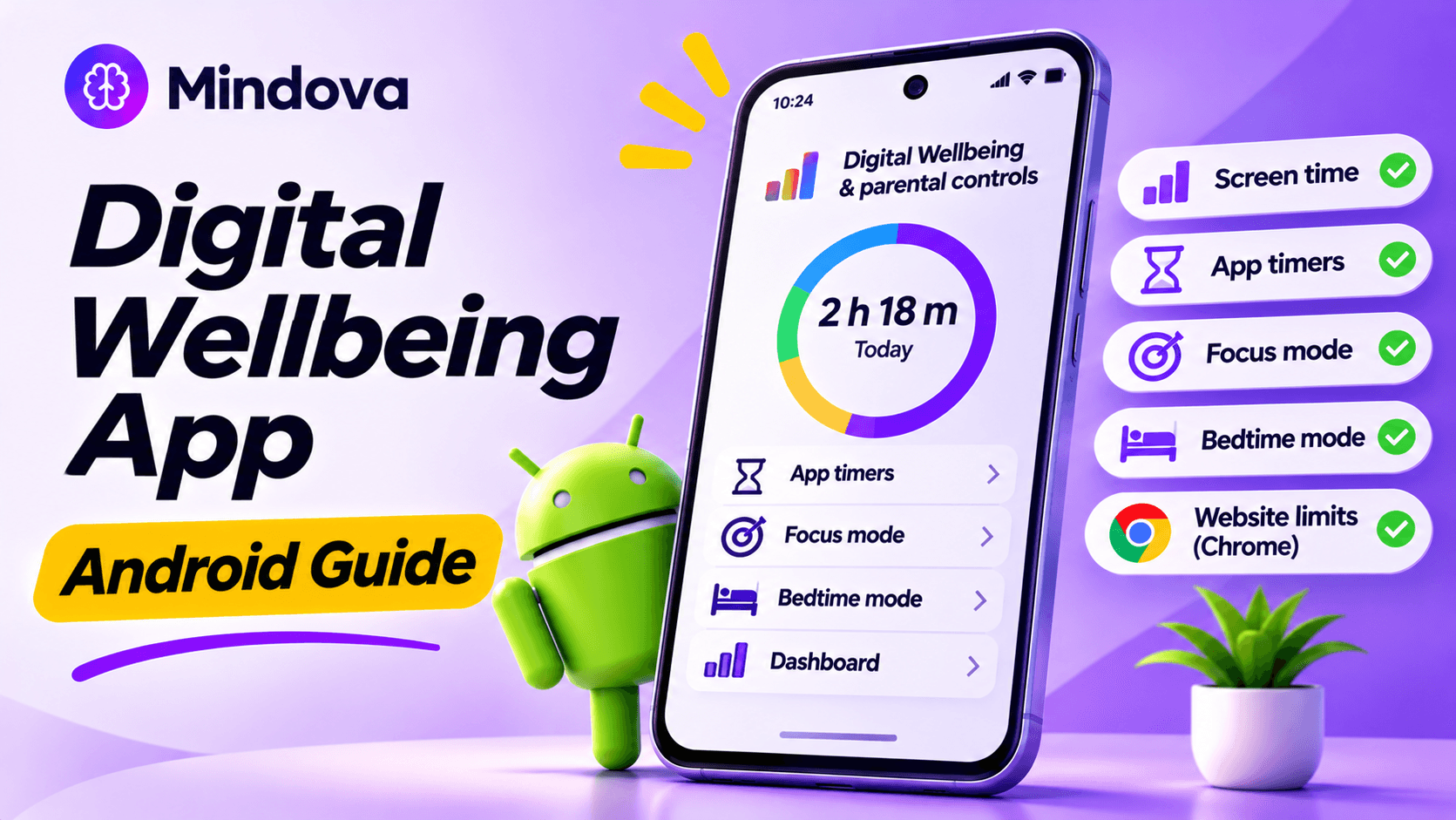
If you have an Android phone, you probably already have Digital Wellbeing, even if you have never opened it. It is Android's built-in tool for seeing how you use your phone and setting limits on distracting apps. Many people only discover it when they search for "screen time on Android."
This guide explains what the Digital Wellbeing app is, where to find it, how to use each feature, and what to do when its limits are not strong enough.
Quick answer: Digital Wellbeing is Google's built-in Android tool for managing screen time. It shows how long you use each app, how often you unlock your phone, and how many notifications you get. You can use it to set App timers, pause apps with Focus mode, wind down with Bedtime mode, and limit websites in Chrome. You do not need to download it: on most phones, open Settings → Digital Wellbeing & parental controls.
What Is the Digital Wellbeing App?
Digital Wellbeing is a set of tools from Google that helps you understand and control your phone use. It is built into Android on Pixel phones and many other Android phones, and it needs Android 9 or later. Samsung Galaxy phones include their own version with the same name.
It does three main things:
- Shows your habits: screen time per app, how many times you unlocked your phone, and notifications received.
- Sets limits: daily App timers, Focus mode, and Bedtime mode.
- Reduces interruptions: notification controls and quieter evenings.
Do you need the Digital Wellbeing app?
You do not need to install anything. If your phone supports it, Digital Wellbeing is already in Settings. It is useful if you want to see where your time goes or set simple limits on a few apps. If its limits are too easy to ignore, there are stronger options (see below).
Where Is the Digital Wellbeing App?
- Pixel and most Android phones: Settings → Digital Wellbeing & parental controls.
- Samsung Galaxy: Settings → Digital Wellbeing (on some versions, Digital Wellbeing and parental controls). See Samsung's guide.
- Can't find it? Use the search bar at the top of Settings and type "Digital Wellbeing."
Add it to your app list: in Settings → Digital Wellbeing, turn on Show icon in the app list, so you can open it like any other app (Google's help page).
How to Use Digital Wellbeing: Every Feature Explained
1. Dashboard: see your screen time
The chart at the top shows today's screen time and your most-used apps. Tap it to see:
- Screen time: which apps were on screen and for how long.
- Times opened: how often you unlocked your phone and opened each app.
- Notifications received: how many notifications you got and from which apps.
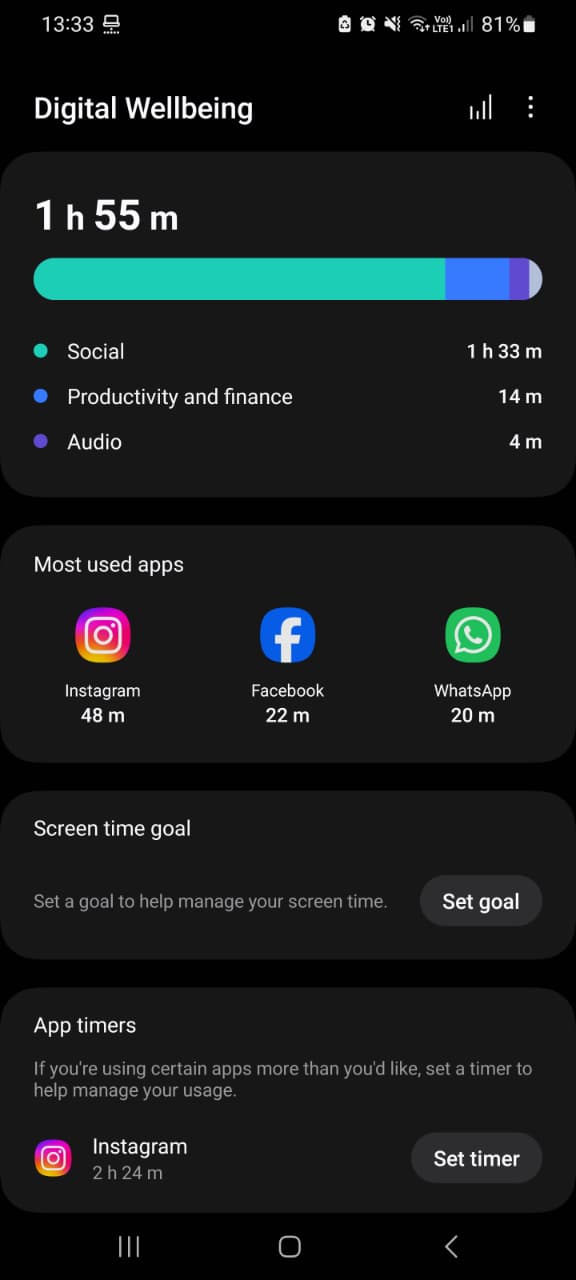
For step-by-step instructions on Pixel and Samsung, see how to check screen time on Android.
2. App timers: set a daily limit for an app
- Open Settings → Digital Wellbeing → App timers (or tap an app in the dashboard).
- Next to the app, tap Set timer.
- Choose how much time you can use it each day and tap OK.
When the time is up, the app closes and its icon dims. App timers reset at midnight.
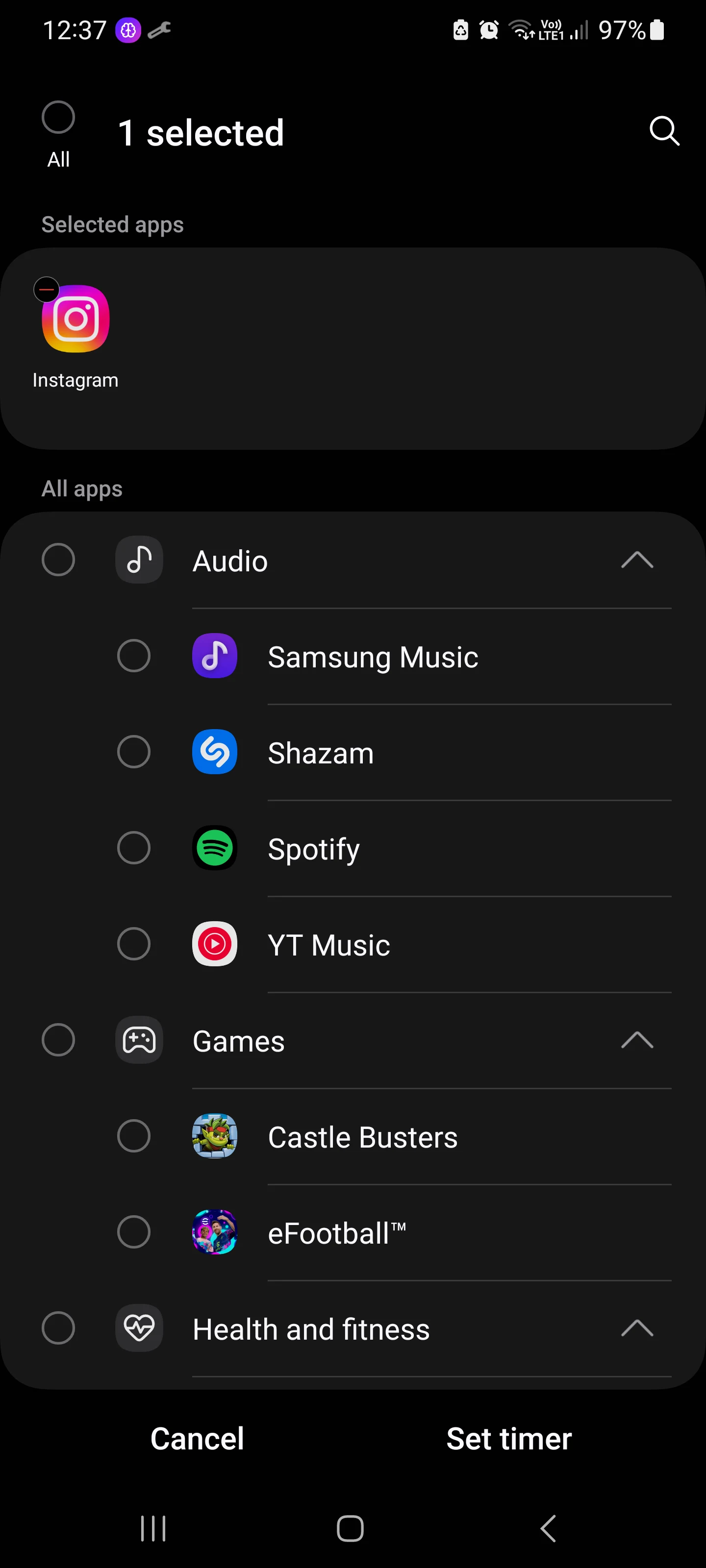
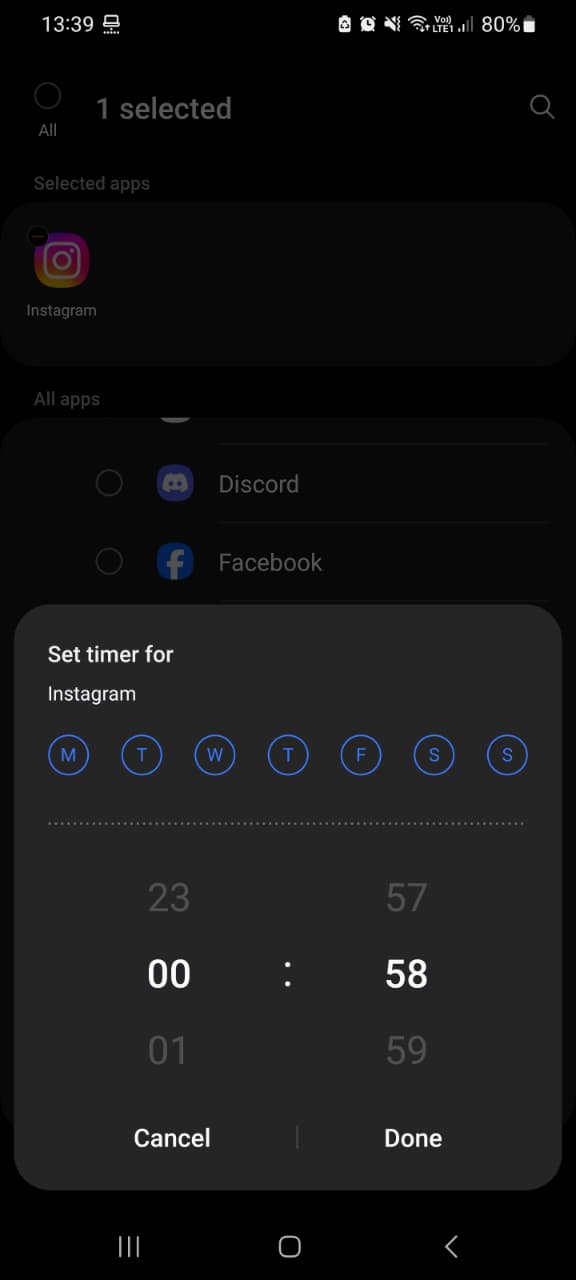
For blocking specific apps step by step, see how to block apps on Android.
3. App limits PIN: make your timers harder to undo
The biggest complaint about Digital Wellbeing is that you can delete a timer in two taps. Google added an App limits PIN for that:
- Open Settings → Digital Wellbeing → App limits → App limits PIN.
- Turn on PIN for app time limits.
- Unlock your phone, then choose a 4-digit PIN for app limits.
Now changing or removing a timer requires that PIN. If you cannot trust yourself with the PIN, ask someone else to set it. Exact menu names can vary by device (Google's help page).
4. Focus mode: pause distracting apps during work or study
Focus mode pauses the apps you choose for a set period:
- Open Settings → Digital Wellbeing → Focus mode.
- Select the apps that distract you.
- Tap Turn on now, or set a schedule for your work or study hours.
You can take a short break or turn it off early, which makes it flexible, but also easy to skip.
5. Bedtime mode: wind down at night
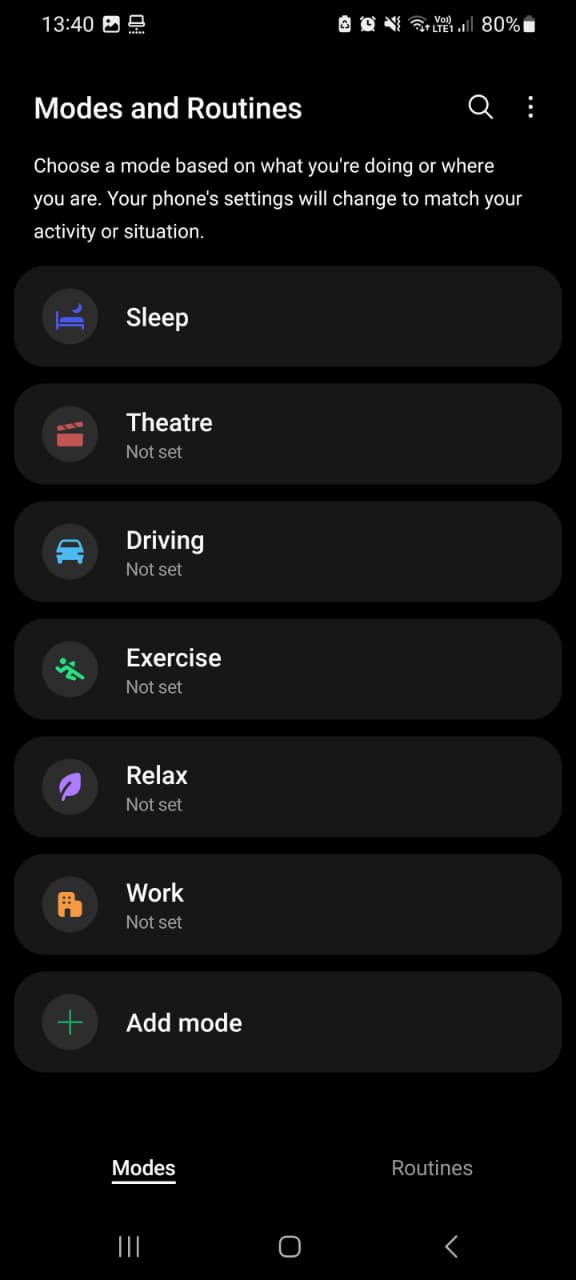
Bedtime mode helps you put your phone down at night. You can schedule it and choose options such as a grayscale screen and Do Not Disturb, so your phone becomes less tempting before sleep. On Samsung, the same idea is called Sleep mode (it was formerly called Bedtime mode).
6. Pause Point: a pause before distracting apps (Android 17)
Pause Point is a newer Digital Wellbeing feature in Android 17. It does not block apps. Instead, it adds a short delay before you open a distracting app, so you can decide if you really want to open it (MakeUseOf). At launch it was not available on every Android phone, so check whether your device has it.
7. Website timers in Chrome
Digital Wellbeing can also show and limit websites you visit in Chrome on your phone:
- Open the Digital Wellbeing dashboard and tap Chrome (tap Show all apps if needed).
- Tap Show sites to see time spent on each website.
- Next to a site, tap Set site timer and choose a limit.
8. Screen time widget
On Android 9 and later, add the screen time widget to your home screen to see your top three apps for the day: touch and hold the home screen, tap Widgets, and drag the Digital Wellbeing widget into place.
9. Parental controls with Family Link
Digital Wellbeing also links to Google Family Link, which lets parents see a child's app activity and set limits from their own phone. This guide focuses on managing your own phone.
Can You Uninstall or Disable Digital Wellbeing?
On most phones, Digital Wellbeing is part of the system and cannot be fully uninstalled. Samsung states that its Digital Wellbeing feature cannot be removed or disabled (Samsung). You can simply not use its timers and modes, and you can manage the usage data it keeps from Digital Wellbeing → More → Manage your data (Google).
Why Digital Wellbeing Sometimes Is Not Enough
Digital Wellbeing works well for simple limits. Many users, including in Reddit discussions, say it feels weak for a few reasons:
| Limitation | What happens | What helps |
|---|---|---|
| Easy to undo | You delete the timer when you want to keep scrolling | Turn on the App limits PIN |
| One timer per app | You limit Instagram, then switch to TikTok | One shared limit across apps |
| Phone only | Your distraction moves to your laptop | A blocker for your desktop browser |
| Pauses are optional | Focus mode breaks are one tap away | Schedules, or a stricter tool |
Digital Wellbeing vs Mindova
| Digital Wellbeing | Mindova | |
|---|---|---|
| Price | Free, built in | Free plan + Pro |
| Daily limit per app | Yes (App timers) | Yes |
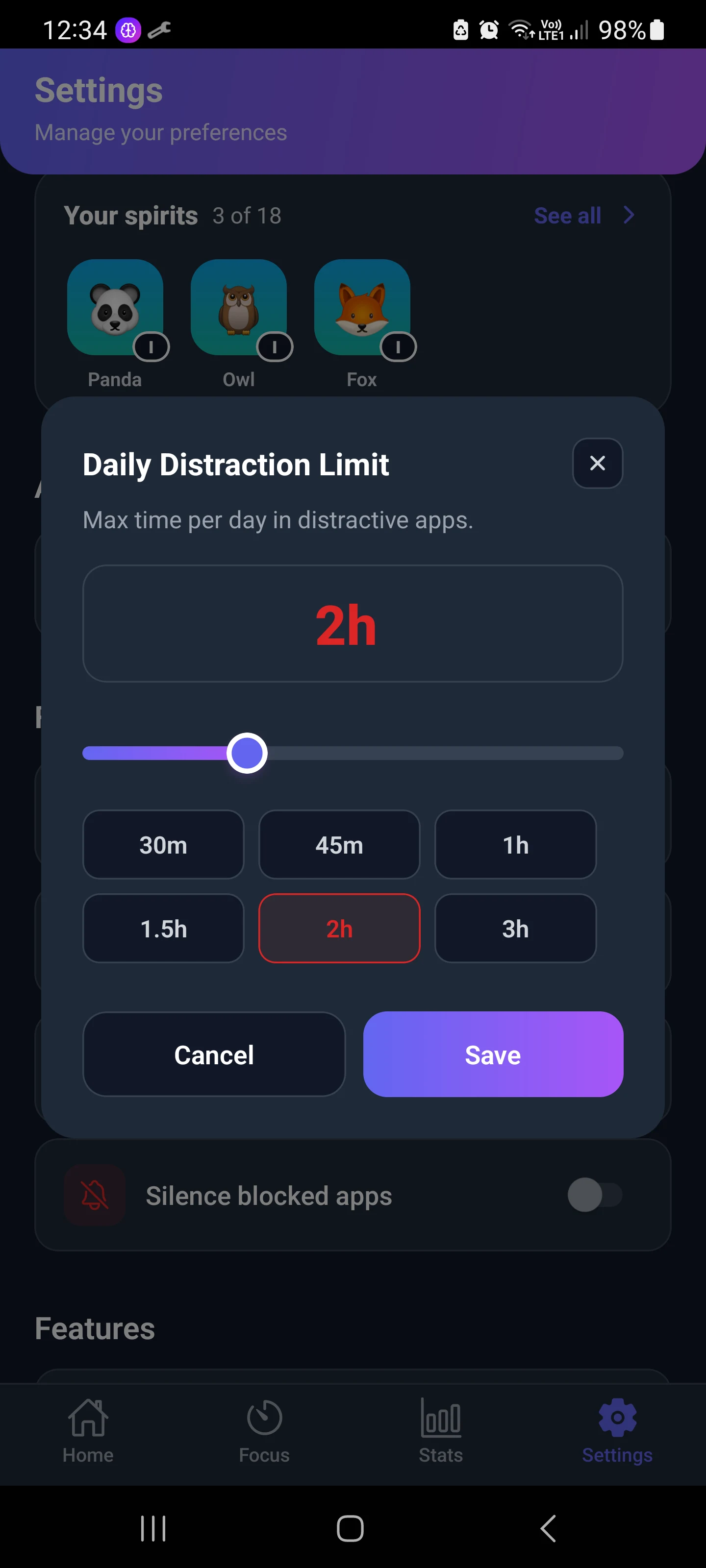
| One limit across all distracting apps | No | Yes (Daily Distraction Limit) |
| Focus sessions | Focus mode | Focus Sessions |
| Desktop websites | No | Yes (browser extension) |
| Usage insights | Yes | Yes |
Mindova for Android adds what Digital Wellbeing lacks: you can give each distracting app its own limit and one Daily Distraction Limit shared by all of them, so switching from Instagram to TikTok does not reset the clock. The browser extension does the same for distracting websites on your computer.
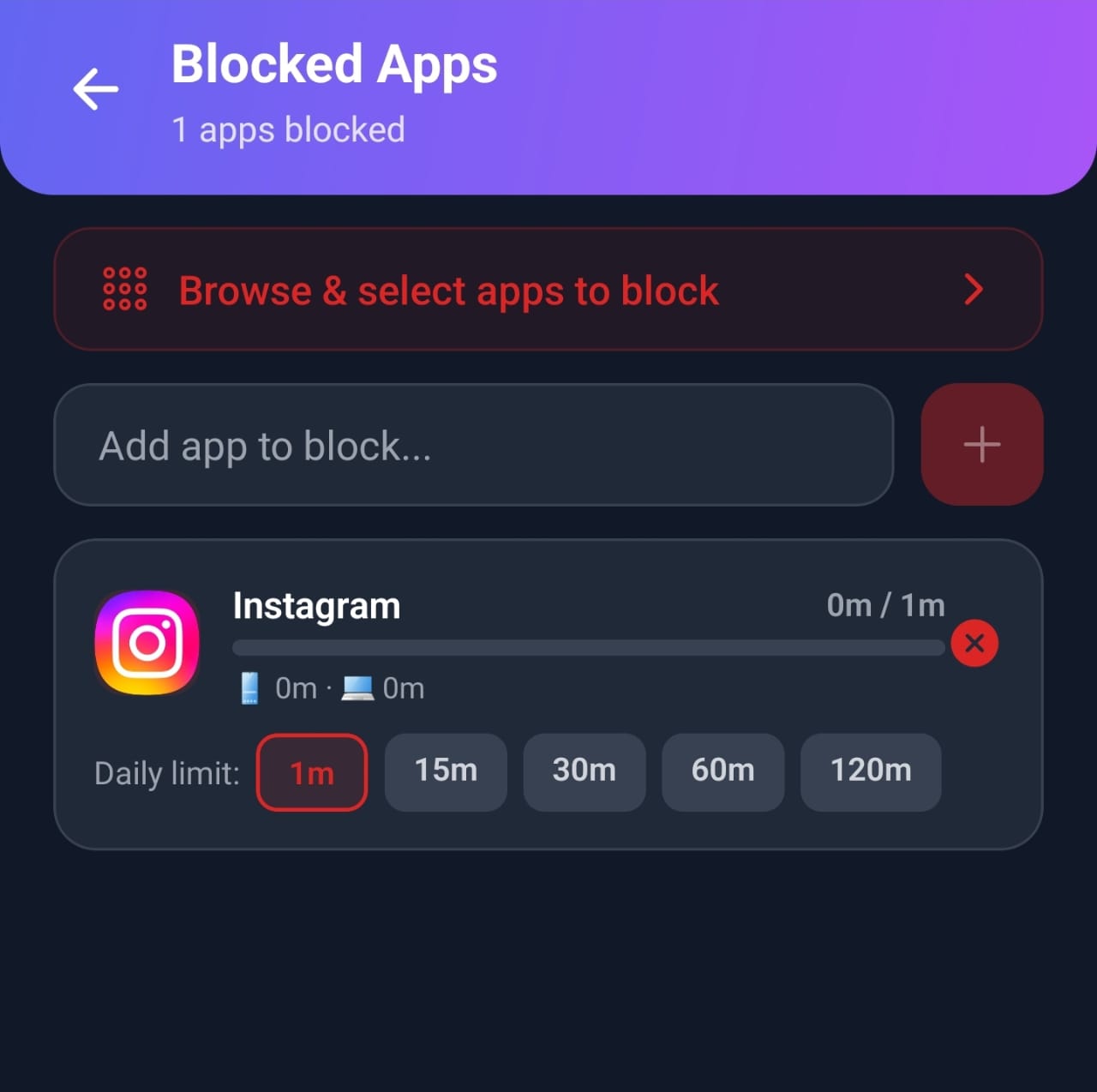
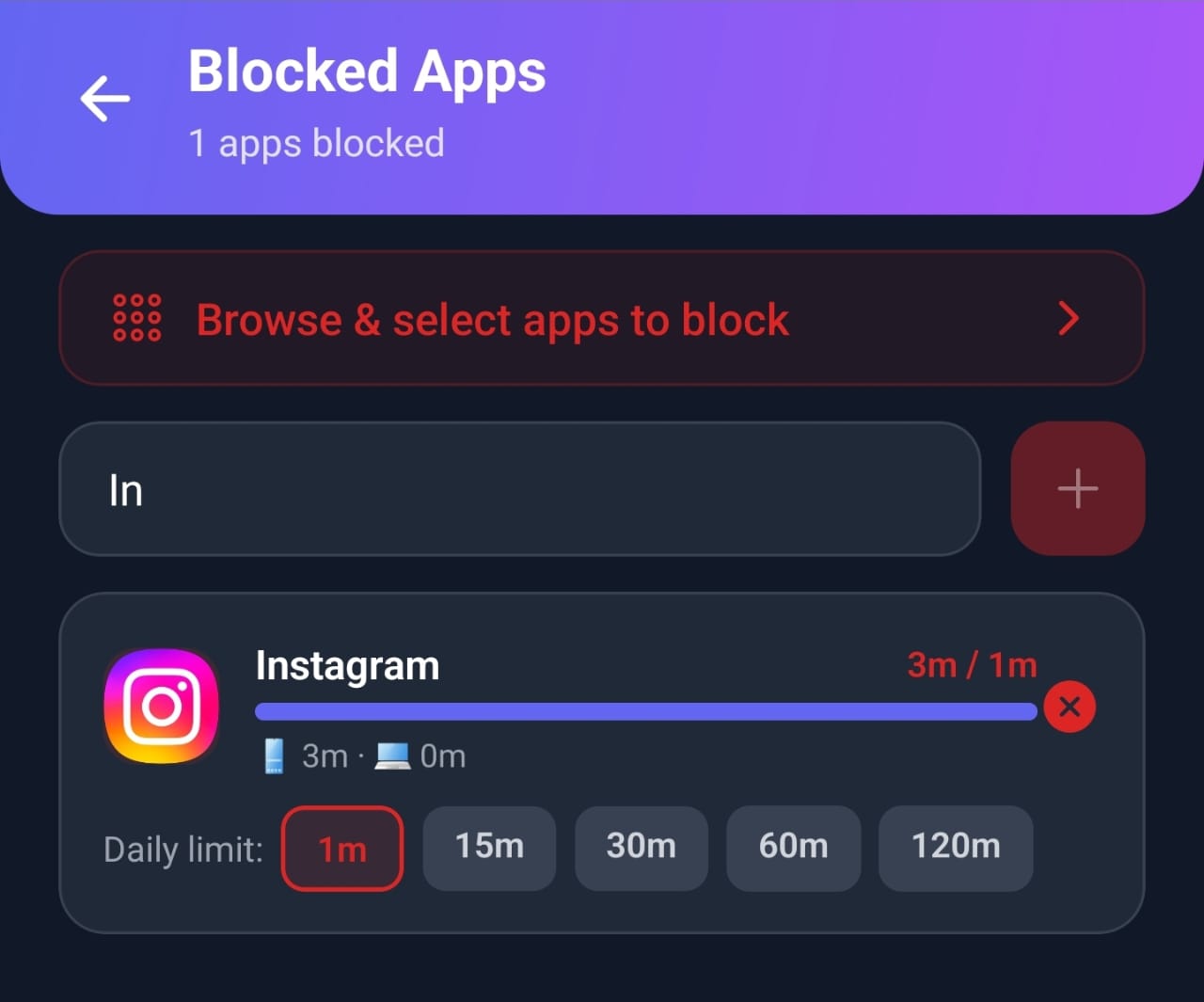
When we tested Mindova with Instagram and a one-minute daily limit, it showed the limit as reached after one minute of use and interrupted access to the app.
Mindova has a Free plan with no credit card required (up to 3 blocked apps or sites and 10 Focus Sessions a month). Mindova Pro removes the limits for $4.99/month or $39.99/year, and you can try Pro free for 7 days. See Mindova pricing.
To compare more tools, see the best apps to limit screen time and the best app blockers for Android.

Block distractions. Stay focused with Mindova.
Block distracting websites and apps, set limits, and protect your focus time across your browser and phone.
Free plan, no credit card • Try Pro free for 7 days
Frequently Asked Questions
What is the Digital Wellbeing app used for?
It shows how you use your phone (screen time, unlocks, notifications) and helps you set limits with App timers, Focus mode, and Bedtime mode.
Is Digital Wellbeing free?
Yes. It is built into Android on supported phones, and there is nothing to buy.
Where is Digital Wellbeing on my phone?
On most phones it is in Settings → Digital Wellbeing & parental controls. On Samsung, it is in Settings → Digital Wellbeing. You can also search for it in Settings.
Is it okay to uninstall Digital Wellbeing?
On most phones you cannot fully uninstall it, because it is part of the system. If you do not want to use it, simply do not turn on its timers or modes.
Does Digital Wellbeing work on Samsung?
Yes. Samsung Galaxy phones have their own Digital Wellbeing with screen time, App timers, a Screen time goal, and Sleep mode.
Can Digital Wellbeing block apps completely?
It can pause an app for the rest of the day when its App timer runs out, or during Focus mode. For a stronger daily limit across several apps, use an app blocker such as Mindova.
What is the Android version of Screen Time?
Digital Wellbeing is Android's equivalent of Apple's Screen Time.
Start With One Timer
Digital Wellbeing is already on your phone. Open it today, look at your top three apps, and set an App timer on the first one. If you want to see what your daily number adds up to over a year, try our screen time calculator. For a complete plan, see how to reduce screen time.
Less scrolling. More focused time.
Use Mindova to block distracting websites and apps, set daily limits, and create protected time for studying, working, or deep focus.
- Browser ExtensionChrome, Edge, Brave, Opera & Vivaldi
- Android AppBlock and limit distracting apps on Android.
- iPhone AppControl distracting apps and protect your focus on iPhone.


Start free — no credit card needed. Try Pro free for 7 days whenever you like.
Mouhsine
Admin
Passionate about helping people achieve peak mental performance through evidence-based strategies and mindful technology use.
Related Articles
How Much Screen Time Is Too Much for Adults? (And How to Tell)
There is no official screen time limit for adults. Learn the benchmarks experts use, the signs your screen time is too high, and how to calculate your own number.

Digital Detox: What Is It, and Does It Actually Help?
Learn what a digital detox really is, what research says about its benefits, and how to reduce distracting technology without quitting every screen.
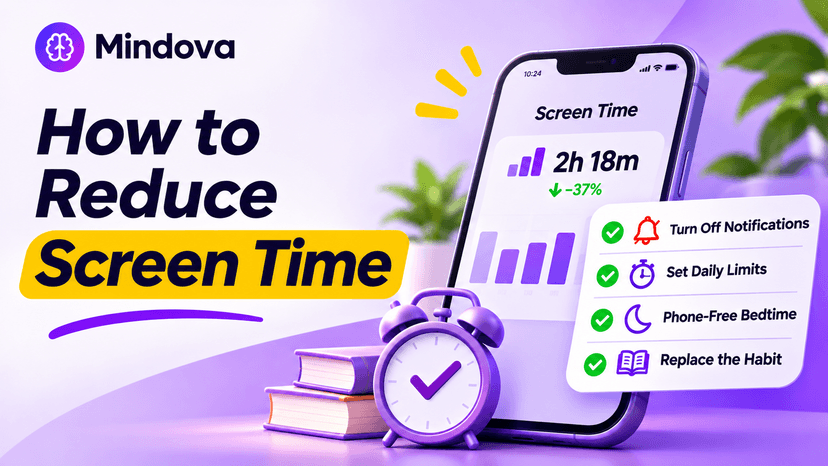
How to Reduce Screen Time: A Practical Plan That Actually Works
Learn how to reduce screen time on your phone and computer: check your real usage, add friction, set app limits, and replace the habit. A step-by-step plan.
Comments
Be the first to comment.