How to Block X (Twitter) on Android Without Deleting It
Written by Mouhsine
Admin
Published November 3, 2026 · Updated November 10, 2026
X (formerly Twitter) is useful for news, work updates and following people you care about. The problem is how easily one quick check turns into a long scroll through the For You feed.
If you want to block X on your Android phone without deleting the app or losing your account, you have four practical options: set a daily App timer with Android Digital Wellbeing, pause X during work or study with Focus mode, use an app blocker such as Mindova to give X its own daily allowance, or block x.com everywhere with Private DNS.
Quick answer: To block the X (Twitter) app on Android, open Settings → Digital Wellbeing & parental controls, tap Dashboard, select X, and set an App timer. When the timer runs out, Android pauses X until midnight.
Looking to block a person on X rather than the app? Open their profile, tap the three-dot menu and choose Block. This guide is about limiting your own use of X.
Which X blocking method should you use?
| Method | Device | Best for | Does it block X? | Cost |
|---|---|---|---|---|
| Digital Wellbeing App timer | Android | A simple daily limit for X | Yes, after the timer runs out, until midnight | Free, built into Android |
| Focus mode | Android | Pausing X during work or study hours | Yes, while Focus mode is on | Free, built into Android |
| Mindova for Android | Android | Limits for X and other distracting apps, plus Focus Sessions | Yes, after your allowance is used | Free plan + Pro |
| Private DNS (for example NextDNS) | Android | Blocking x.com and twitter.com in every browser | Yes, while Private DNS is on | Free plan available |
Does the X app have its own time limit?
At the time of writing, the X app does not include a built-in daily time limit, so you need your phone's own tools or an app blocker to restrict it.
Method 1: Set a daily App timer for X with Digital Wellbeing
Digital Wellbeing is built into most Android phones, including Pixel and Samsung devices. It is the quickest free way to put a daily cap on X.
Step 1: Open Digital Wellbeing
Open Settings and tap Digital Wellbeing & parental controls. On Samsung phones, the menu is called Digital Wellbeing and parental controls.
Step 2: Find the X app
Tap Dashboard (on some phones, tap the usage chart), then scroll through your apps and tap X.
Step 3: Set your daily allowance
Tap App timer, choose how much time you want to allow each day (for example 15 minutes), and confirm.
What happens when the X timer runs out?
When you reach your limit, Android pauses X for the rest of the day. The app icon turns grey and the app will not open until the timer resets at midnight.
Keep in mind that an App timer is a soft limit. You can remove it from Settings in a few seconds, so it works best as a reminder rather than a strict lock. On many phones you can add an App limits PIN (Settings → Digital Wellbeing → App limits → App limits PIN), which asks for a 4-digit PIN before a limit can be changed. It only works as a real lock if someone else chooses the PIN.
Method 2: Pause X during work or study with Focus mode
Focus mode is useful when X is fine in the evening but not during the day.
- Open Settings → Digital Wellbeing & parental controls.
- Tap Focus mode.
- Select X and any other distracting apps.
- Tap Turn on now, or set a schedule such as weekdays from 9:00 to 17:00.
While Focus mode is on, X is paused. Android lets you take a short break from Focus mode if you really need X, which keeps the block flexible. Focus mode controls when you can use X. It does not limit how long you use it once Focus mode is off, so many people combine it with an App timer.
Method 3: Block or limit X with Mindova for Android
If X is one of several apps that keep pulling you in, you can manage them together with Mindova. Mindova's Android app is designed to control selected native Android apps. It supports individual app limits, an overall Daily Distraction Limit, Focus Sessions and activity insights.
Step 1: Install Mindova
Download Mindova: Focus & App Blocker from Google Play.
Sign in and complete the setup instructions shown in the app. Review the Android permissions Mindova asks for before you enable app blocking and usage tracking.
Step 2: Select X
In Mindova, find X in your list of installed apps and mark it as a distracting app. This lets you restrict X without treating every app on your phone as a distraction. Messaging, maps and work apps can stay unrestricted.
Step 3: Set an individual app limit
Give X a daily allowance, for example 15 minutes. You keep the app installed for notifications or quick checks, but you decide in advance how long you want to spend on it. Once that allowance is used, Mindova interrupts access to X.
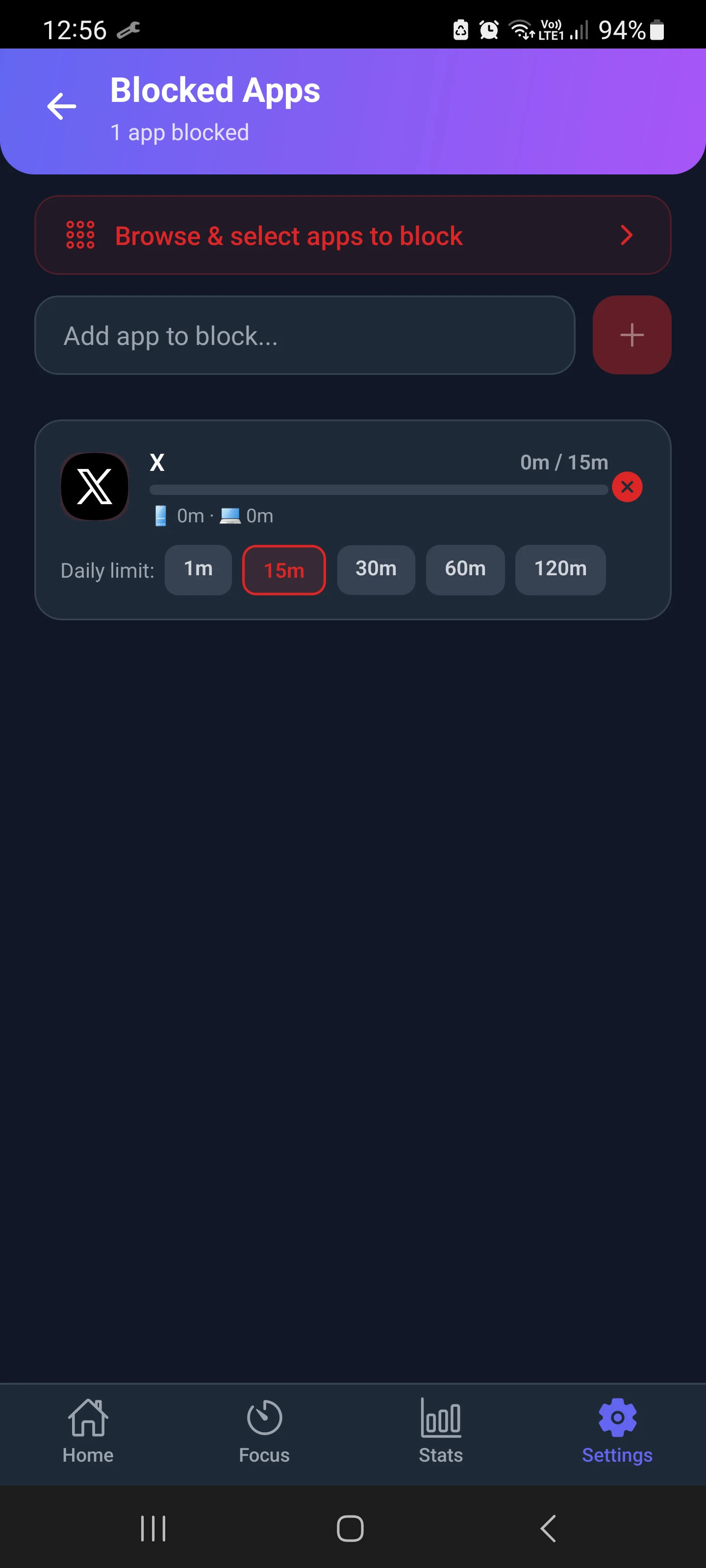
We set X to 15 minutes on our own phone (screenshot above). We also tested the full workflow, including what happens when the limit is reached, with Instagram on Android. You can see the results in our guide to blocking the Instagram app on Android.
When does Mindova make more sense than Digital Wellbeing?
- Several apps, one budget: the Daily Distraction Limit counts X, Instagram, TikTok and other distracting apps together.
- Focus Sessions: start a focused work period on demand instead of relying on a fixed schedule.
- Phone and computer: the same Mindova account also works with the browser extension, which can block X (Twitter) on Chrome on your computer.
If X is your only problem app, the free Digital Wellbeing App timer may be enough.

Block distractions. Stay focused with Mindova.
Block distracting websites and apps, set limits, and protect your focus time across your browser and phone.
Free plan, no credit card • Try Pro free for 7 days
Method 4: Block X in your phone's browser with Private DNS
Limiting the X app does not block the X website. If you start opening x.com or twitter.com in Chrome instead, you need to block the website too. A filtering DNS service such as NextDNS can block x.com and twitter.com in every browser on your phone:
- Create a free NextDNS account and open your configuration.
- In Denylist, add x.com and twitter.com.
- Copy your personal DNS hostname from the Setup tab (it ends in dns.nextdns.io).
- On your phone, open Settings → Network & internet → Private DNS (on Samsung: Connections → More connection settings → Private DNS).
- Choose Private DNS provider hostname, paste your hostname and save.
Because the block works at the network level, it usually stops the X app from loading new content as well. It stays active until you turn Private DNS off, so it is stricter than an App timer.
On supported devices, Digital Wellbeing can also show the websites you visit in Chrome and set timers for individual sites. On a computer, use the Mindova browser extension and follow our guide to blocking X (Twitter) on Chrome.
X still opens after setting a limit?
Check these points before assuming the block is not working:
- Which method is active? An App timer, Focus mode, Mindova and Private DNS are separate settings.
- Has the allowance been used? X stays available until today's time is consumed.
- Is Focus mode actually on? If you use a schedule, check that the current time is inside it.
- Are Mindova's permissions still enabled? Some phones turn off background apps to save battery. Check that the permissions you granted during setup are still active.
- Are you using X in a browser? App limits do not cover x.com in Chrome. Use Private DNS or website timers.
Frequently asked questions
Can I block X on Android without deleting the app?
Yes. Digital Wellbeing App timers, Focus mode, Mindova and Private DNS all restrict X while keeping the app and your account.
How do I block myself from using X?
Pick a limit you cannot ignore easily: a short App timer, a Focus mode schedule during work hours, or a Mindova daily allowance. For a stricter block, add x.com and twitter.com to a Private DNS denylist.
Can I block X completely?
Focus mode blocks X completely while it is on, and Private DNS blocks it until you turn it off. For an all-day block, set a very short App timer or a small Mindova allowance.
Can I block X in my browser?
Yes. Use Private DNS on Android, or the Mindova extension on a computer.
How do I put a lock on X?
Android App timers and Focus mode are easy to switch off by default. On many phones you can protect App timers with an App limits PIN in Digital Wellbeing; ask someone else to choose it if you want a real lock. On Android, Private DNS or a dedicated blocker adds more friction.
How do I get rid of X completely?
If you want to stop using X for good, you can deactivate your account in the X app under Settings and privacy → Your account → Deactivate your account. If you only want a break, blocking the app is easier to undo.
Does X have a built-in screen time limit?
Not at the time of writing. Use Android Digital Wellbeing or an app blocker instead.
Does this work on Samsung phones?
Yes. Samsung phones include Digital Wellbeing under Settings → Digital Wellbeing and parental controls. Menu names can vary slightly between Android versions.
Can I block only the For You feed?
Not with these methods. They restrict the whole X app. If you mainly want less algorithmic content, switch to the Following tab and set a daily limit.
Does Mindova have a free plan?
Yes. The free plan needs no credit card and lets you block up to 3 apps or sites, with 10 Focus Sessions a month and 7 days of stats. Pro costs $4.99/month or $39.99/year, removes the limits and adds Cloud Sync. You can try Pro free for 7 days.
Choose a limit you can actually keep
You do not need to delete X to use it less. Start with a limit you will respect, such as 15 minutes a day, and tighten it once the habit sticks.
If X is part of a bigger pattern, see our guides to blocking TikTok on Android and blocking apps on Android.
Less scrolling. More focused time.
Use Mindova to block distracting websites and apps, set daily limits, and create protected time for studying, working, or deep focus.
- Android AppBlock and limit distracting apps on Android.
- Browser ExtensionChrome, Edge, Brave, Opera & Vivaldi
- iPhone AppControl distracting apps and protect your focus on iPhone.


Start free — no credit card needed. Try Pro free for 7 days whenever you like.
Mouhsine
Admin
Passionate about helping people achieve peak mental performance through evidence-based strategies and mindful technology use.
Related Articles
How to Block the YouTube App on Android Without Deleting It
Block the YouTube app on your Android phone without deleting it. Use Digital Wellbeing app timers, Focus Mode, YouTube's Shorts limit, or Mindova.
Brick Alternatives (2026): Cheaper and Free Ways to Block Apps on Android
Brick costs $59 and needs a puck you tap. Compare cheaper NFC cards, free open-source blockers and app-only options for Android, with official prices and honest trade-offs.
How to Block the Facebook App on Android Without Deleting It
Block or limit the Facebook app on Android without deleting it: app timers, Focus mode, disabling, archiving, and daily limits with Mindova.
Comments
Be the first to comment.