How to Block Porn Websites on Chrome 2026
Written by Mouhsine
Admin
Published September 27, 2026
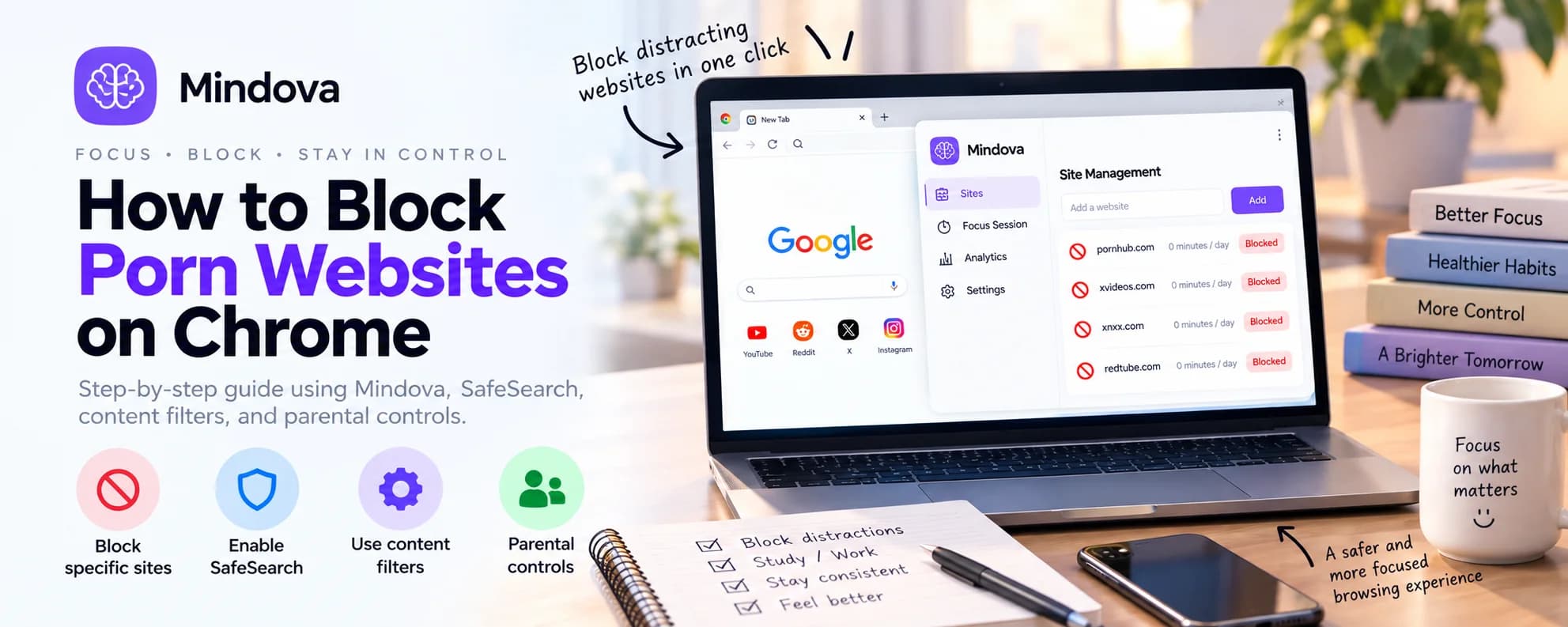
There is more than one way to block porn websites on Chrome, and the right method depends on what you are actually trying to prevent.
If you already know the websites you want to stop visiting, you can block those specific domains.
If you want Chrome to filter a broader category of adult websites automatically, you need a content-filtering method rather than a simple website blocklist.
If you only want explicit results removed from Google Search, SafeSearch can help.
And if you are managing a child's browsing, parental controls such as Google Family Link are designed for that use case.
Quick answer: If you want to block specific adult websites for yourself, add those domains to a website blocker such as Mindova and set their limit to 0 minutes/day. If you want automatic category-wide adult-content filtering, use a dedicated content or DNS filter. SafeSearch only filters Google Search results, while Family Link provides separate controls for a child's Chrome account.
| What you want to do | Method to consider |
|---|---|
| Stop yourself visiting specific known websites | Website blocker such as Mindova |
| Automatically filter many adult domains | Adult-content or DNS filter |
| Remove explicit results from Google Search | Google SafeSearch |
| Manage a child's Chrome browsing | Google Family Link |
| Make restrictions harder to bypass | Use more than one appropriate layer |
Can Chrome Block Adult Websites by Itself?
Chrome does not include a simple personal setting that automatically blocks every adult website on the internet.
Several Chrome features can help with related problems, but they do different jobs.
For example:
SafeSearch can filter explicit content from Google Search results.
Family Link can provide website restrictions for a child's managed Google account.
Browser extensions can block websites according to the rules supported by that extension.
DNS or network filters can block domains classified as adult content before the browser connects to them.
That distinction matters.
Turning on SafeSearch is not the same as blocking direct access to an adult website.
And manually blocking one website is not the same as automatically detecting every adult website online.
Choose the method based on the problem you actually want to solve.
Method 1: Block Specific Porn Websites on Chrome With Mindova
If you already know which websites you want to stop visiting, a manual blocklist can be the simplest approach.
The current public Mindova browser extension lets you add websites individually and give each one an Individual Site Limit.
Set a website to:
0 minutes/day
and Mindova blocks access when you try to visit it.
This works best when your goal is:
I know the websites I keep going back to, and I want to stop opening them in my browser.
Mindova is not presented as an automatic adult-content detector.
You choose the domains you want to control.
Step 1: Install Mindova
Install Mindova in Chrome and sign in.
7-day free trial for new users. No credit card required to start. View pricing.
If this is your first time configuring the extension, see the Mindova Setup Guide.
Step 2: Add the Website to Blocked Sites
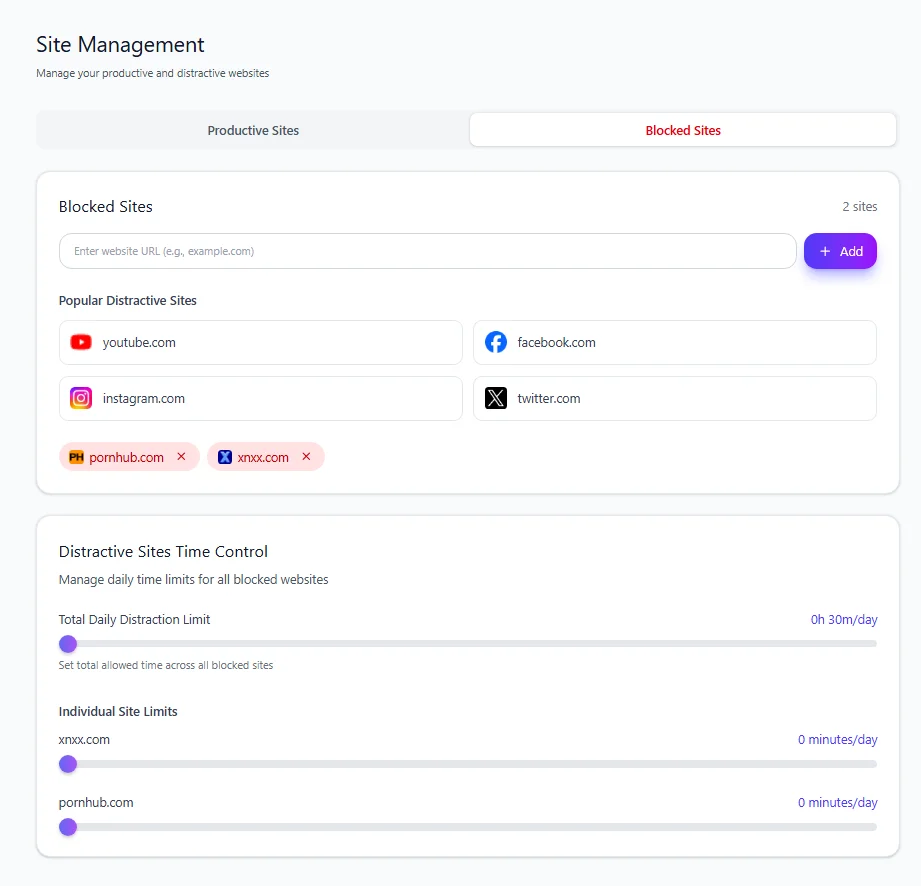
Open Mindova and go to:
Site Management → Blocked Sites
Enter the domain you want to restrict and add it to your list.
You do not need to include a particular article, page, or video URL.
Add the main website domain you want Mindova to control.
Step 3: Set the Website to 0 Minutes Per Day
Once the website is added, find its Individual Site Limit.
Set it to:
0 minutes/day
In Mindova, zero does not mean unlimited.
It means the website is blocked when you try to visit it.
If there is a website you still want limited access to rather than a complete block, you can use a higher daily allowance instead.
For example:
15 minutes/day
But if the goal is to prevent normal access entirely through this workflow, use 0 minutes/day.
Step 4: Test the Block
After saving the rule, open the website in Chrome.
Mindova should interrupt access instead of allowing the website to load normally.
If the site was already open when you changed the rule, refresh the tab or close it and reopen the website.
Also confirm that Mindova shows:
Active & Protecting
If the rule still does not behave as expected, check that the correct domain appears under Blocked Sites and visit the Mindova Help Center.
What this method does not do
This distinction is important.
The current public Mindova browser extension does not automatically scan the internet and identify every pornographic or adult website.
It also does not provide category-based adult-content detection.
Mindova is useful here when you know the domains you want to stop visiting and want to block those websites in your supported desktop browser.
If you need automatic adult-category filtering, use a filtering method designed for that purpose.
Method 2: Turn On Google SafeSearch
If the problem is explicit content appearing in Google Search, turn on SafeSearch.
SafeSearch is designed to filter explicit results from Google Search.
That may include explicit:
- websites;
- images;
- videos;
- and other search results.
But there is an important limitation:
SafeSearch is not a general website blocker.
If someone already knows the address of an adult website and enters that address directly into Chrome, SafeSearch is not designed to stop the browser from opening that domain.
Think of SafeSearch as:
Filter what appears in Google Search
rather than:
Block every adult website on Chrome
That makes SafeSearch useful as one layer, but it may not be enough when your goal is direct website restriction.
Google also notes that no content filter is perfectly accurate.
Method 3: Use an Adult-Content or DNS Filter
If you do not want to manually identify every website, a category-based filter is a different type of solution.
DNS filtering services can classify domains and refuse to resolve websites that fall into restricted categories such as adult content.
For example, family-oriented DNS services can provide an adult-content filtering mode.
This works differently from Mindova.
Manual website blocking
You decide:
Block this specific domain.
Category filtering
The filtering provider decides:
This domain belongs to an adult-content category, so block it.
That can make category filtering more appropriate when your goal is:
Block a broad range of known adult websites without creating the entire list myself.
Some DNS services can be configured:
- on one computer;
- through the operating system;
- in a browser using secure DNS;
- or at the router/network level.
A router-level configuration can potentially affect multiple devices using that network, depending on how the devices and network are configured.
Examples of adult-content DNS filtering
Cloudflare's 1.1.1.1 for Families includes a resolver option intended to block malware and adult-content domains.
CleanBrowsing also provides Family and Adult filtering options designed to restrict adult-content domains.
These are examples of a different product category rather than features built into Mindova.
Limitations of DNS filtering
Automatic classification is useful, but it is not perfect.
A domain may be:
- incorrectly categorized;
- missed by the filter;
- newly created;
- hosting both acceptable and explicit content;
- or accessed through another domain that has not been categorized yet.
A DNS filter also works primarily at the domain level.
It generally cannot understand the context of every individual page inside a mixed-content platform.
That is why a layered setup can sometimes make more sense than expecting one tool to solve every possible case.
Method 4: Use Google Family Link for a Child
If you are trying to protect a child's browsing rather than manage your own habits, use controls designed for family management.
Google Family Link can apply Chrome web restrictions to a child's managed Google account.
Available controls include options to:
- try to block explicit websites;
- allow or block specific websites;
- allow only approved websites;
- and manage requests to access blocked sites.
Google describes its explicit-site option as an attempt to block sexually explicit websites and also warns that no filter is perfect.
This is an important distinction from a self-control browser extension.
Use:
Mindova when you are controlling your own browsing habits.
Use:
Family Link when you are managing a child's Google account and Chrome access.
Does Family Link block every adult website?
No filtering system should be presented as perfect.
Google explicitly warns that its explicit-site filter may not catch everything.
On desktop computers, there is another limitation worth understanding: Family Link's Chrome settings apply to the child's managed Chrome experience.
Google notes that on Windows, Mac, or Linux, a child may be able to sign out of Chrome, use another Chrome profile, or access another browser where those Chrome-specific settings do not apply.
So do not assume that a Chrome account restriction automatically becomes a complete device-wide restriction.
SafeSearch vs Website Blocking vs Adult-Content Filtering
These tools are easy to confuse because they can all be described as ways to “block porn.”
They actually solve different problems.
| Method | Main purpose | Automatically detects adult sites? | Blocks a specific known site? |
|---|---|---|---|
| Mindova | Personal website control | No | Yes |
| Google SafeSearch | Filter explicit Google results | Search results only | No |
| Adult-content DNS filter | Category-based domain filtering | Yes, based on provider classification | Usually |
| Google Family Link | Managed child browsing | Yes, through Google's filtering option | Yes |
If you know exactly what you need to stop visiting, manual website blocking can be enough.
If you want broad automatic filtering, category filtering is the better match.
If the concern is a child's browsing, parental controls are usually more appropriate.
Can You Permanently Block Porn on Chrome?
Not reliably with an ordinary browser extension alone.
Chrome lets users manage installed extensions, including turning them off or removing them.
Chrome also handles extension access to Incognito mode separately.
That means you should not describe a normal Chrome extension as an impossible-to-bypass permanent block.
Mindova is designed to create useful blocking rules and friction around websites you choose to restrict.
It is not currently presented as:
- an irreversible Locked Mode;
- a system-wide adult-content filter;
- automatic porn detection;
- or a permanent anti-bypass solution.
If you need stronger restrictions, consider whether the controls need to exist outside the browser itself.
Depending on your situation, that might mean:
- managed parental controls;
- DNS filtering;
- router-level filtering;
- administrator-controlled settings;
- or combining more than one appropriate layer.
The stronger the requirement, the less you should rely on one ordinary browser setting.
Does Incognito Mode Bypass Website Blocking Extensions?
Do not assume that an extension automatically runs in Chrome Incognito mode.
Chrome manages Incognito access separately for extensions.
Users can view an extension's details and, where supported, choose whether it is allowed to run in Incognito.
If blocking in Incognito matters to you, verify the extension's actual behavior and permissions rather than assuming the normal browsing setup automatically carries over.
For strict filtering requirements, this is another reason a browser extension alone may not be enough.
What If You Only Want to Stop Yourself From Visiting a Few Sites?
Do not make the setup more complicated than necessary.
If the problem is:
I keep returning to the same two or three websites.
you may not need a network-wide adult-content filtering system.
Start with those specific domains.
Add them to your blocklist.
Set them to:
0 minutes/day
Then use your browser normally.
This is similar to blocking any other website that repeatedly interrupts something more important.
If you want to understand that workflow more generally, see our guide on how to block distracting websites.
What If You Need Adult Websites Blocked Across Multiple Browsers?
A browser extension normally applies to the supported browser where it is installed and configured.
If you configure a rule only in Chrome, do not assume the same rule automatically applies to every other browser on the computer.
If your requirement is:
Block this category across browsers or across the network
then device-level, DNS-level, router-level, or managed filtering may fit the requirement better.
If your requirement is:
Stop me opening these specific websites while I use Chrome for work or study
then a browser-level block may be simpler.
What If the Website Is Still Opening?
If you are using Mindova to block a specific domain and it still opens, check the following.
Confirm the domain is in Blocked Sites
Open:
Site Management → Blocked Sites
and confirm that the domain appears there.
Confirm the limit is zero
For an immediate block, use:
0 minutes/day
A higher number gives the website an allowance instead of blocking it immediately.
Use the main domain
Avoid adding only one individual page.
The workflow is designed around controlling a website/domain.
Refresh existing tabs
If the site was already open before you changed the rule, refresh the tab or close it and reopen the website.
Confirm Mindova is active
Check that the extension shows:
Active & Protecting
If everything appears correct but the website still behaves differently, visit the Mindova Help Center.
Frequently Asked Questions
How do I block porn websites on Chrome?
If you know the specific websites you want to block, add their domains to a website blocker such as Mindova and set their Individual Site Limits to 0 minutes/day.
If you want automatic filtering of many adult websites, use an adult-content filtering solution instead of relying only on a manual blocklist.
Is there a porn blocker built into Chrome?
Chrome does not provide one universal personal setting that automatically blocks every pornographic website.
Google offers separate tools for different needs, including SafeSearch for Google Search results and Family Link controls for managed child accounts.
Does Google SafeSearch block porn websites?
SafeSearch is designed to filter explicit content from Google Search results.
It should not be treated as a general website blocker that prevents direct access to every adult domain.
How do I block all adult websites automatically?
Use a filtering product designed to classify and block adult-content domains, such as an adult-content DNS or parental-control filter.
Automatic filtering is broader than manually blocking individual websites, although no automatic filter should be assumed to catch every website perfectly.
Can Mindova automatically detect porn websites?
No.
The current public Mindova browser extension lets you control websites that you add to your blocking rules.
It is not currently an automatic adult-content classification or pornography-filtering system.
Can Mindova block a porn website completely?
For a domain you add to Mindova's Blocked Sites, setting the Individual Site Limit to 0 minutes/day blocks the website when you try to visit it through the supported browser workflow.
Can I permanently block porn on Chrome?
An ordinary browser extension should not be described as permanently impossible to bypass.
Chrome allows users to manage, disable, and remove extensions, and extension behavior in Incognito is handled separately.
If you need stronger restrictions, consider additional parental, device, DNS, router, or administrator-controlled layers.
Does Mindova block adult websites on Android or iPhone?
Not with the current public Mindova browser extension.
This guide covers website blocking in supported desktop Chromium browsers.
For mobile or child-focused filtering, use controls designed for those environments.
Is Mindova free?
New users can try Mindova free for 7 days.
No credit card is required to start.
Continued access after the trial requires a Monthly or Annual plan.
Choose the Right Kind of Block
“Block porn on Chrome” can mean several different things.
If you know the websites you personally want to stop visiting, block those specific domains.
If explicit Google results are the problem, turn on SafeSearch.
If you want broad automatic adult-category filtering, use a content or DNS filter built for that job.
If you are managing a child's browsing, use parental controls designed for managed accounts.
Do not expect one browser setting to solve every version of the problem.
For personal website control, Mindova can block the specific domains you choose, give useful sites daily limits, and help create more deliberate browsing boundaries.
Mouhsine
Admin
Passionate about helping people achieve peak mental performance through evidence-based strategies and mindful technology use.
Related Articles
How to Block X (Twitter) on Chrome and Set a Daily Limit 2026
Block X (Twitter) on Chrome with a tested browser method. Use Mindova to block x.com or twitter.com, set a daily limit, and stay focused
How to Block Websites on Microsoft Edge: 3 Methods
Block websites on Microsoft Edge with Mindova, Microsoft Family Safety, or Windows. Choose the best method for personal focus, family, or system-wide blocking.
How to Block Online Distractions Without Blocking Work Sites
Block online distractions without losing access to websites you need for work. Learn how to keep essential sites available, limit useful distractions, and block the rest
Comments
Be the first to comment.
Ready to protect your focus?
Block distracting sites, set daily limits, and run focus sessions. Mindova is free.