How to Block Websites on Opera and Opera GX
Written by Mouhsine
Admin
Published September 29, 2026
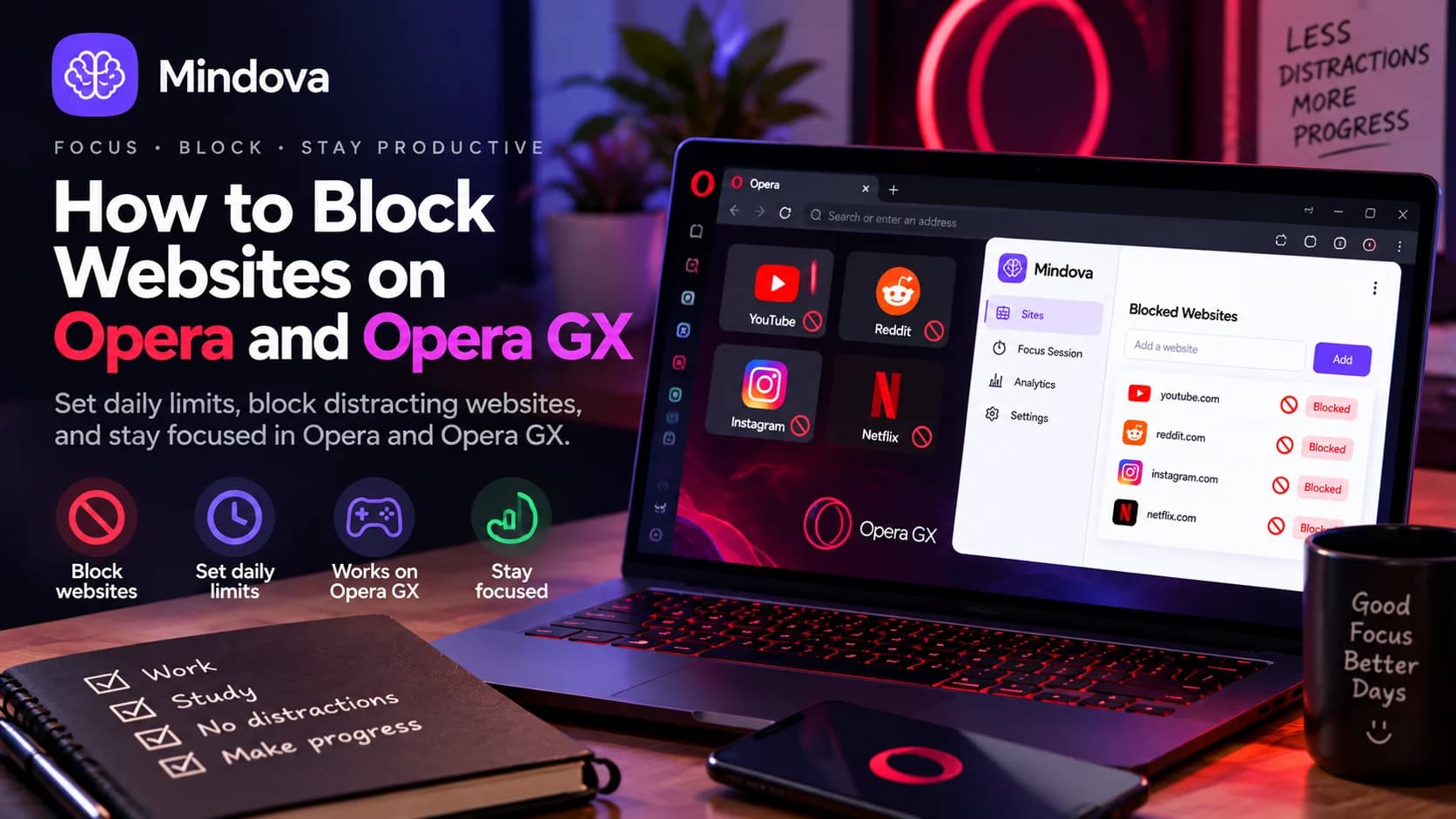
Opera and Opera GX include useful privacy, performance, and website controls, but those tools are not the same as completely blocking a distracting website.
For example, Opera can block ads and manage site permissions. Opera GX also includes gaming-focused tools such as CPU, RAM, and network limiters.
But if your goal is:
I do not want to open Reddit, YouTube, Instagram, Netflix, or another distracting website while I work or study.
you need a website-blocking rule rather than an ad blocker or bandwidth limiter.
With Mindova, you can add a website to your Blocked Sites list, block it with a 0-minute daily limit, give it a larger daily allowance, or restrict distracting websites during a Focus Session.
Mindova works on both Opera and Opera GX.
Quick answer: Install Mindova in Opera or Opera GX, open Site Management → Blocked Sites, add the domain you want to restrict, and set its Individual Site Limit to 0 minutes/day for an immediate block. If you still need some access, choose a higher daily allowance instead.
Does Opera Have a Built-In Website Blocker?
Opera includes several built-in controls for websites.
You can manage things such as:
- cookies;
- JavaScript;
- images;
- notifications;
- camera and location permissions;
- pop-ups and redirects;
- ads and trackers.
Opera GX also includes additional gaming-oriented tools such as CPU, RAM, and network limiters.
These features are useful, but they are not the same as creating a personal blocklist for arbitrary distracting websites.
For example:
Opera Ad Blocker
Blocks supported advertising and related page elements.
Opera Site Settings
Control permissions and certain types of website behavior.
Opera GX Network Limiter
Controls how much network bandwidth the browser can use.
Website blocker
Controls whether you can access a website you choose.
If you want to stop yourself from opening an entire distracting website, a website-blocking extension is the more direct tool.
If you are dealing with several distracting websites rather than one specific site, start with our broader guide on how to block distracting websites.
Opera Ad Blocker vs Website Blocker
The names sound similar, but they solve different problems.
| Tool | What it controls |
|---|---|
| Opera / Opera GX Ad Blocker | Advertising and trackers |
| Opera Site Settings | Permissions and website behavior |
| Opera GX Network Limiter | Browser bandwidth usage |
| Mindova website blocking | Access to selected websites |
| Mindova Individual Site Limits | Daily time allowed on individual websites |
| Mindova Focus Sessions | Distracting websites during a focused period |
Turning on Opera's Ad Blocker does not mean:
Block reddit.com.
It means:
Reduce or remove supported advertising while I browse.
If the entire website is the distraction, you need a different type of rule.
Step 1: Install Mindova in Opera or Opera GX
Mindova installs through the Chrome Web Store and works with supported Chromium-based desktop browsers, including Opera and Opera GX.
Open the Mindova Chrome Web Store listing from Opera or Opera GX and follow the browser's extension installation prompt.
After installation:
- Open Mindova from your browser extensions.
- Sign in.
- Open the Mindova dashboard.
- Confirm that Mindova is active.
7-day free trial for new users. No credit card required to start. View pricing.
Step 2: Add the Website You Want to Block
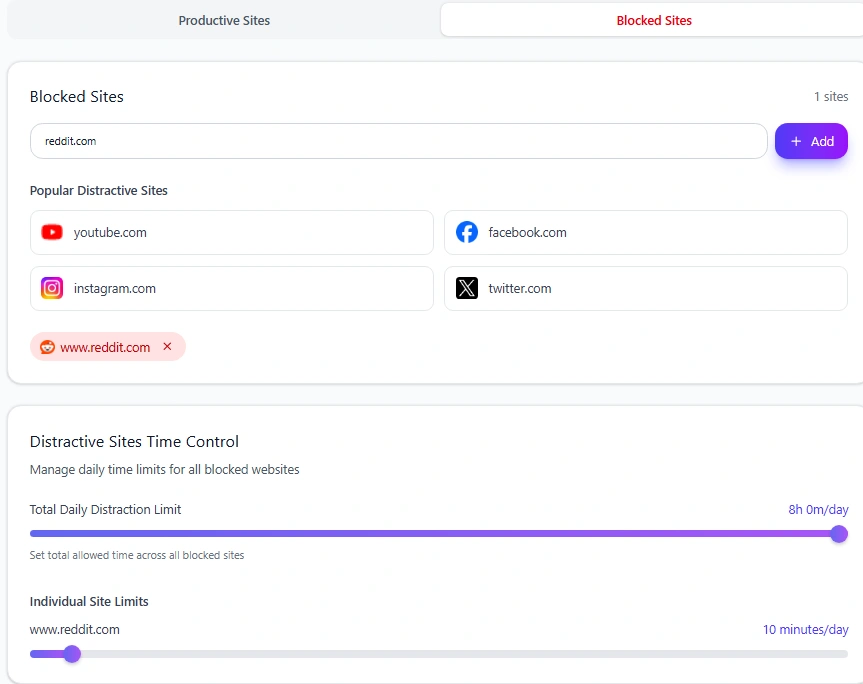
Open Mindova and go to:
Site Management → Blocked Sites
Enter the website domain you want to control.
For example:
reddit.com
Then add it to your Blocked Sites list.
You can use the same approach for websites such as:
youtube.cominstagram.comfacebook.comx.comtiktok.comtwitch.tvnetflix.com
Use the main domain when your goal is to control access to the website as a whole.
Step 3: Choose How Much Access the Website Gets
After adding the website, find its Individual Site Limit.
You now have two main options.
Option 1: Block the Website Completely
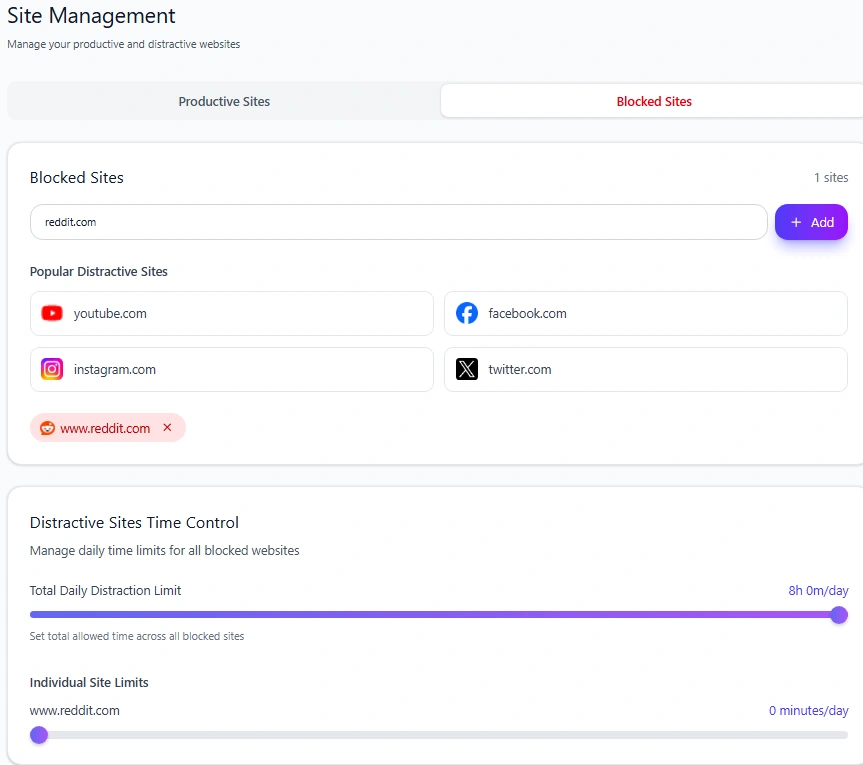
Set the Individual Site Limit to:
0 minutes/day
In Mindova, zero means the website is blocked when you try to visit it.
It does not mean unlimited access.
For example:
reddit.com → 0 minutes/day
can make sense if Reddit has no useful role during the time you are trying to protect.
If Reddit is a recurring distraction for you, see our dedicated guide on how to block Reddit on Chrome. The same website-level idea applies when using Mindova in supported Chromium browsers.
Option 2: Set a Daily Website Limit
Some websites are useful but easy to overuse.
YouTube is a good example.
You may need it for:
- tutorials;
- lectures;
- product demonstrations;
- technical explanations;
- research.
Instead of blocking YouTube completely, you can give it an Individual Site Limit.
For example:
youtube.com → 30 minutes/day
The number is only an example.
Choose a limit that matches how you actually want to use the website.
This creates a middle ground between:
Never use this website.
and:
Leave it available without limits.
If YouTube is one of your biggest distractions, see how to block YouTube or set a daily limit.
If you regularly need certain distracting websites for legitimate work, our guide on how to block distractions without blocking useful websites explains how to separate essential, limited, and fully blocked sites.
Step 4: Test the Website Block
After saving the rule, open the website in Opera or Opera GX.
If you configured:
0 minutes/day
Mindova should interrupt access instead of letting you browse the website normally.
If you gave the website a higher daily allowance, it remains available while time is still available.
Once that allowance is consumed, Mindova displays its Focus Time screen.
Use a Focus Session When You Only Need Temporary Blocking
You may not want a website blocked for the entire day.
Maybe Reddit is useful after work.
Maybe YouTube is fine during your free time.
Maybe Netflix only becomes a problem while you are studying.
In that case, use a Focus Session.
Before starting:
- Decide what you are going to work on.
- Mark websites you genuinely need as Productive.
- Start a Focus Session.
- Work during the focused portion of the session.
During the work portion of a Mindova Focus Session, websites that are not explicitly marked Productive are blocked.
This is useful when your rule is:
I do not need this website during this focused session.
rather than:
I never want to visit this website.
Does Mindova Work on Opera GX?
Yes.
Mindova also works in Opera GX.
The core Mindova controls remain the same:
Blocked Sites → Individual Site Limits → Focus Sessions
Opera GX looks different from standard Opera and includes additional gaming-oriented features, but that does not change the basic website-blocking workflow.
If you use Opera GX on the same computer where you study, work, and play games, you could organize websites like this:
Keep available
- documentation;
- university websites;
- Google Docs;
- research tools;
- work dashboards.
Give a daily limit
- YouTube;
- Reddit;
- social media websites;
- forums.
Block when you do not need them
- Netflix;
- Twitch;
- entertainment sites;
- websites you repeatedly open without a reason.
The right list depends on what you actually need.
Opera GX Network Limiter Is Not a Website Time Limit
Opera GX includes a Network Limiter inside GX Control.
It can restrict the amount of network bandwidth used by the browser.
That can be useful when you want more bandwidth available for a game or another application.
But bandwidth and attention are different problems.
A Network Limiter does not mean:
Allow me 20 minutes of Reddit today.
And it does not mean:
Block Netflix while I study.
For those situations, use an Individual Site Limit or a Focus Session.
If Netflix is one of your biggest browser distractions, see our guide on how to block Netflix on Chrome or set a daily limit.
Can You Block Only Part of a Website?
Mindova's current website-blocking workflow is designed around controlling a website or domain.
It does not provide fine-grained blocking for individual features inside every platform.
For example, this workflow is not designed to separately block:
- only YouTube Shorts;
- only Instagram Reels;
- one Twitch streamer;
- one Reddit community;
- one Netflix show.
If the whole website is useful but one feature is distracting, completely blocking the domain may be too aggressive.
A daily allowance can sometimes be the better option.
Website Still Opening in Opera or Opera GX?
If a website remains accessible after you configured Mindova, check the setup.
Confirm the website is in Blocked Sites
Open:
Site Management → Blocked Sites
and make sure the correct domain appears there.
Check the Individual Site Limit
For an immediate block, use:
0 minutes/day
A higher value gives the website a daily allowance.
Refresh an existing tab
If the site was already open before you changed the rule, refresh the tab or close it and reopen the website.
Confirm Mindova is active
Make sure the extension is running and protecting the browser session.
Check the browser environment
If you use both Opera and Opera GX, make sure Mindova is installed and configured in the browser where you are opening the distracting site.
Installing it in Opera does not automatically mean it is configured in Opera GX.
Check the extension manager
Open Opera's extensions manager and confirm that Mindova is enabled.
If the setup appears correct but the site still behaves differently, visit the Mindova Help Center.
What Mindova Does Not Do on Opera
It is useful to be clear about the limits of browser-level blocking.
The current public Mindova extension does not provide:
- native desktop application blocking;
- native iPhone or Android app blocking;
- system-wide blocking outside the browser;
- recurring clock-based blocking schedules;
- an irreversible Locked Mode;
- automatic enforcement across every device you own.
Mindova is designed primarily for people who want practical control over their own browser habits.
If you are still deciding what type of blocker fits your needs, compare the best website blockers for focus.
Does Blocking a Website in Opera Also Block It in Chrome?
Not automatically.
Browser extensions apply where they are installed and configured.
If Mindova is installed only in Opera, do not assume that the same website is automatically blocked in Chrome, Edge, Brave, or another browser.
If you regularly switch browsers, install and configure Mindova in the supported browser environments where you want the rules to apply.
Mindova supports:
- Google Chrome;
- Microsoft Edge;
- Brave;
- Opera;
- Opera GX;
- Vivaldi.
Opera vs Opera GX: Is the Blocking Process Different?
For Mindova, the core process is the same.
Opera
- Install Mindova.
- Add the distracting website.
- Choose an Individual Site Limit.
- Use Focus Sessions when needed.
Opera GX
- Install Mindova.
- Add the distracting website.
- Choose an Individual Site Limit.
- Use Focus Sessions when needed.
Opera GX adds gaming-oriented browser features, but you do not need a separate Mindova blocking method just because you use GX.
Frequently Asked Questions
How do I block a website on Opera?
Install Mindova, open Site Management → Blocked Sites, add the website domain, and set its Individual Site Limit to 0 minutes/day if you want it blocked immediately.
How do I block websites on Opera GX?
Use the same Mindova workflow in Opera GX.
Add the website to Blocked Sites and choose the Individual Site Limit you want.
Use 0 minutes/day for an immediate website block.
Does Opera have a built-in website blocker?
Opera provides built-in controls for ads, trackers, permissions, JavaScript, notifications, pop-ups, and other website behavior.
Those controls are different from a personal blocklist designed to stop you from opening arbitrary distracting websites.
For that use case, use a compatible website-blocking extension.
Is Opera GX's Ad Blocker the same as a website blocker?
No.
Opera GX's Ad Blocker is designed to remove supported advertising and trackers.
A website blocker controls access to the website itself.
Does Opera GX's Network Limiter block websites?
No.
The Network Limiter restricts browser bandwidth.
It is not a per-site access or daily-time control.
Can I set a daily time limit for a website on Opera?
Yes.
With Mindova, add the site to Blocked Sites and give it an Individual Site Limit greater than zero.
What does 0 minutes/day mean in Mindova?
It means the website is blocked when you try to visit it.
It does not mean unlimited access.
Can I block websites only while studying or working?
Yes.
Use a Mindova Focus Session when you want distracting websites unavailable during a defined focused period.
Can Mindova block desktop games in Opera GX?
No.
Mindova's current public product is a browser extension and does not block native desktop applications or games.
Does Mindova block mobile apps?
No.
The current public Mindova extension controls websites in supported desktop browsers.
It does not block native iOS or Android apps.
Is Mindova free?
New users can try Mindova free for 7 days.
No credit card is required to start.
Continued access after the trial requires a Monthly or Annual plan.
Block the Website, Not Everything Else
You do not need to turn Opera or Opera GX into a completely restricted browser to protect your focus.
Start with the websites that are actually causing the problem.
If a website has no useful role during your work, set it to:
0 minutes/day
If you still need it occasionally, give it a reasonable daily allowance.
If you only need distractions out of the way during one focused work or study period, use a Focus Session.
And if several websites are causing the same problem, build a small distraction list instead of relying on willpower every time you open a new tab.
The useful question is not:
How can I block as much of the internet as possible?
It is:
Which websites keep taking me away from what I intended to do?
Start there.
Mouhsine
Admin
Passionate about helping people achieve peak mental performance through evidence-based strategies and mindful technology use.
Related Articles
How to Block X (Twitter) on Chrome and Set a Daily Limit 2026
Block X (Twitter) on Chrome with a tested browser method. Use Mindova to block x.com or twitter.com, set a daily limit, and stay focused
How to Block Websites on Microsoft Edge: 3 Methods
Block websites on Microsoft Edge with Mindova, Microsoft Family Safety, or Windows. Choose the best method for personal focus, family, or system-wide blocking.
How to Block Online Distractions Without Blocking Work Sites
Block online distractions without losing access to websites you need for work. Learn how to keep essential sites available, limit useful distractions, and block the rest
Comments
Be the first to comment.
Ready to protect your focus?
Block distracting sites, set daily limits, and run focus sessions. Mindova is free.