How to Block Distracting Websites and Stay Focused 2026
Written by Mouhsine
Admin
Published August 13, 2026 · Updated August 18, 2026
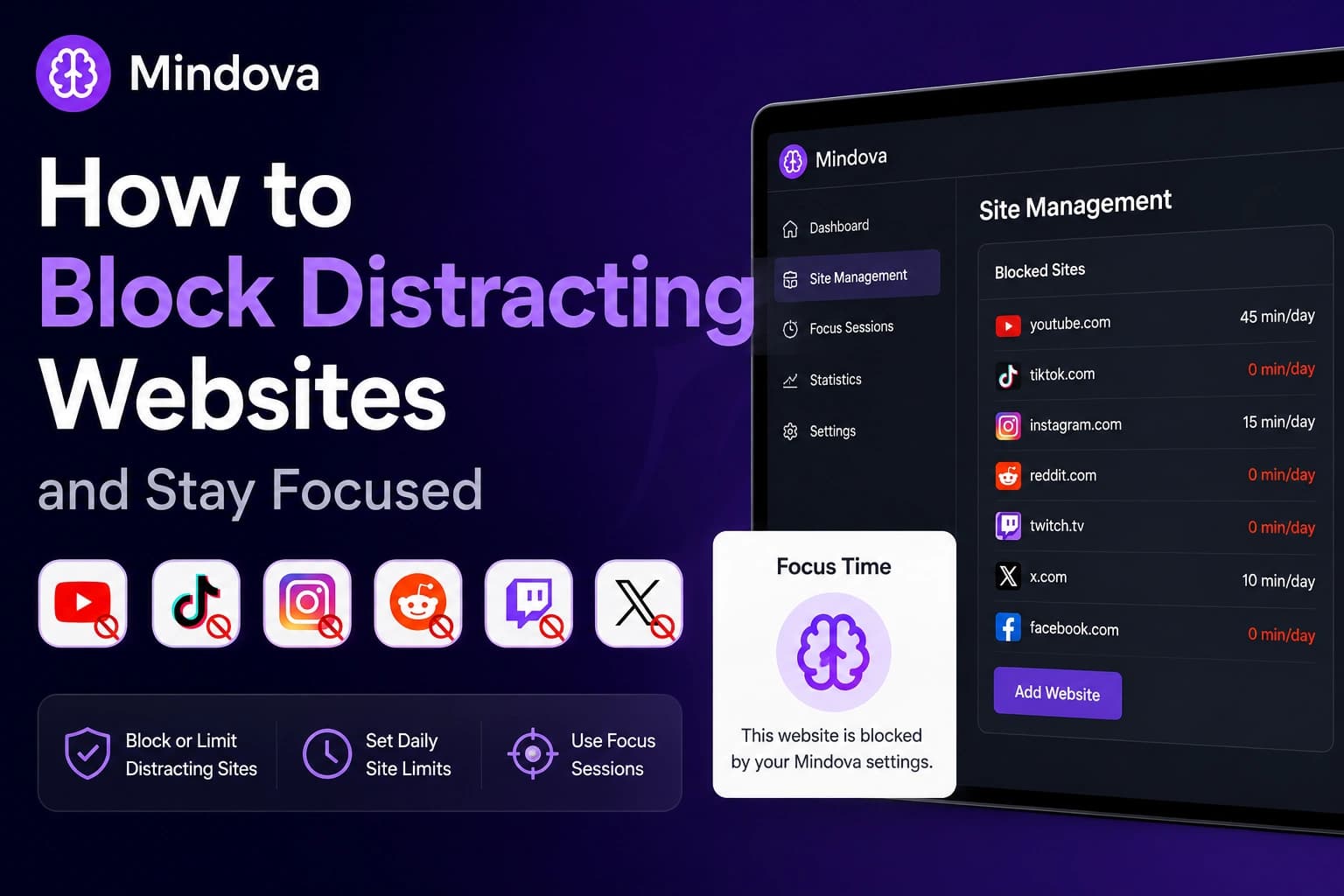
The hardest part of blocking distracting websites is not adding them to a list. It is deciding which sites should be blocked completely and which ones you still genuinely need.
You might want TikTok unavailable while you work but still need YouTube for tutorials. Reddit may help with research, while Twitch or Netflix are mainly entertainment. Instagram, LinkedIn, Discord, or Pinterest can be useful in one situation and distracting in another.
A better approach is to give different websites different rules.
With Mindova, you can manage multiple distracting websites from one place, give each site its own daily limit, set a website to zero minutes when you want it blocked immediately, and use Focus Sessions when you want stricter boundaries.
Quick answer: Open Site Management → Blocked Sites, add the websites that repeatedly distract you, then decide how much access each one should get. Use 0 minutes/day for sites you want blocked by default, a daily allowance for useful-but-distracting sites, and Focus Sessions when you need a stricter work or study period.
Important: Mindova controls website access inside supported desktop browsers. It does not block native mobile apps or individual accounts, channels, posts, Reels, streamers, or other features inside a platform.
Start with your own distraction list
There is no universal list of websites everyone should block.
A student may need YouTube for lectures but lose time on TikTok and Twitch.
Someone working in marketing may genuinely need Instagram, LinkedIn, Reddit, Pinterest, or X.
For someone else, the main distractions may be Netflix, shopping sites, news, forums, or Discord.
A useful question is:
Which websites do I repeatedly open when I intended to be doing something else?
Mindova separates browsing into three categories:
- Productive — websites you explicitly mark as useful.
- Distracting — websites you explicitly decide are distractions.
- Neutral — websites you have not classified yet.
Neutral matters.
An unclassified documentation site, email service, work dashboard, or unfamiliar website is not automatically treated as a distraction.
Neutral browsing can still be recorded, but it does not count toward your daily distraction limit.
Block, limit, or allow: choose the right rule
Not every distracting website needs the same restriction.
Block it completely
If you do not need a website during work or study, set its Individual Site Limit to:
0 minutes/day
In Mindova, zero does not mean unlimited.
It means the website is blocked when you try to visit it.
This can work well for sites you tend to open automatically and rarely need during an important task.
Give it a daily allowance
Some distracting websites are also useful.
YouTube may contain tutorials. Reddit may help with troubleshooting. LinkedIn may be part of your job. Instagram or Pinterest may be useful for content research.
Instead of blocking those sites completely, give them a realistic daily allowance.
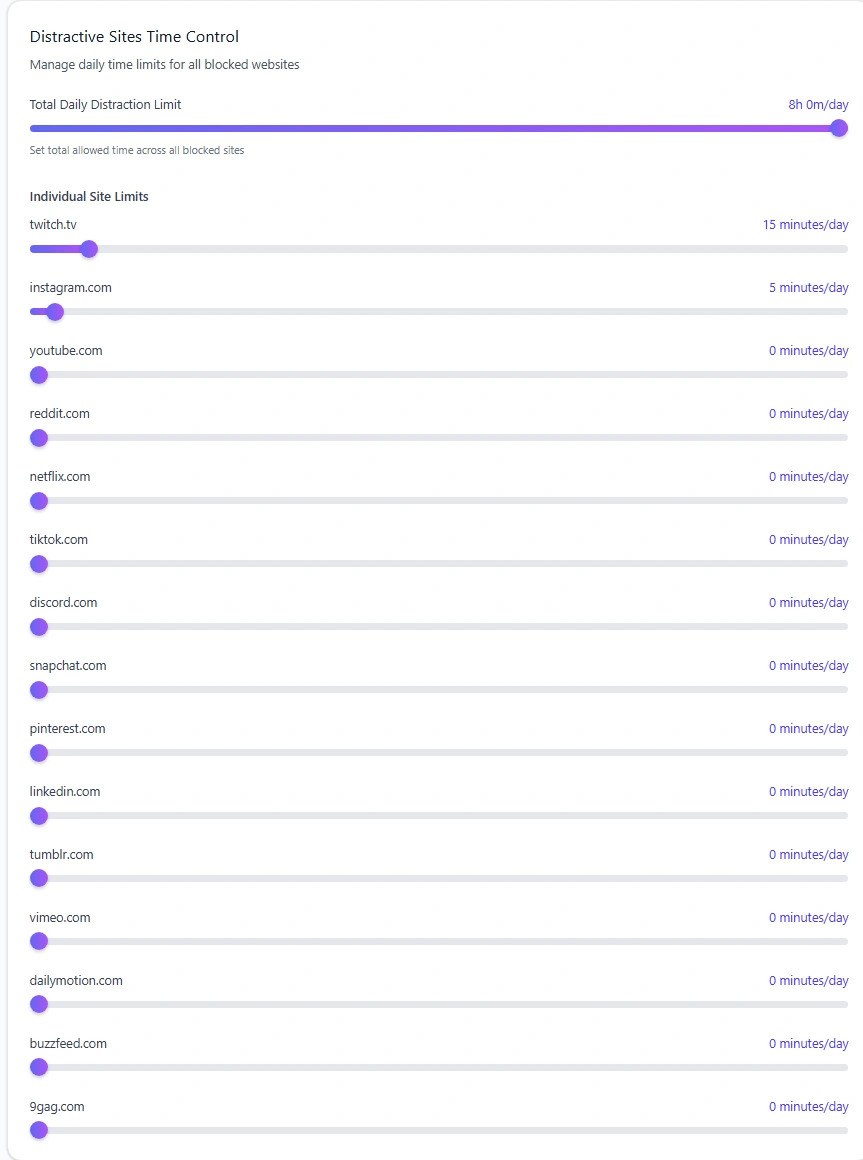
Mindova supports Individual Site Limits from 0 to 240 minutes per day, in 5-minute steps.
The goal is not to choose the smallest possible number.
It is to decide how much access you actually need before you start browsing.
Use a Focus Session
A daily limit controls access across your day.
A Focus Session solves a different problem: protecting a specific period when you want fewer distractions.
During the work portion of a Mindova Focus Session, websites that are not explicitly marked Productive are blocked, including Neutral websites.
That makes Focus Sessions useful for studying, writing, coding, reading, or other focused work.
How to block a distracting website with Mindova
The basic workflow is simple.
1. Install Mindova
Install Mindova and sign in.
If you have not configured it yet, start with the Mindova Setup Guide.
2. Open Site Management
Go to:
Site Management → Blocked Sites
3. Add the website
Enter the domain you want to control.
For example:
reddit.com
tiktok.com
youtube.com
twitch.tv
Then select Add.
4. Choose its Individual Site Limit
Use:
0 minutes/day
when you want the website blocked immediately.
Choose a higher limit when you still need some daily access.
5. Test the rule
Open the website.
When the restriction applies, Mindova interrupts access with its Focus Time screen instead of letting browsing continue normally.
Testing the rule is useful because it confirms that the domain behaves the way you expected.
Block multiple distracting websites from one place
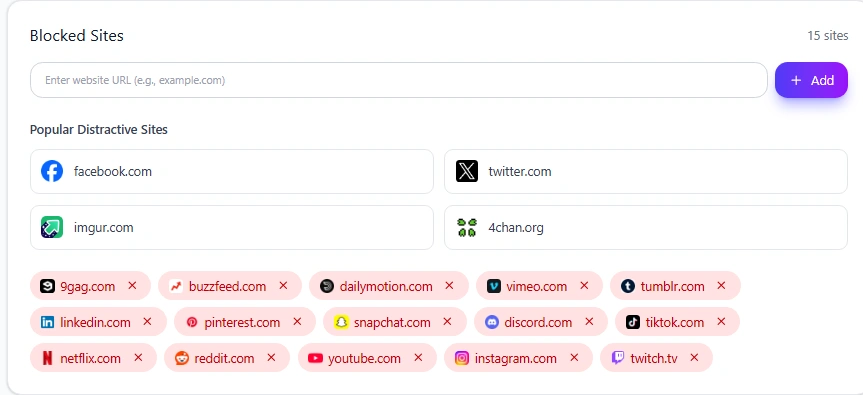
You do not need a separate blocking tool for every website.
Mindova lets you keep multiple domains inside the same Blocked Sites list and manage their limits from one screen.
For example, one setup could look like:
- TikTok → 0 minutes/day
- Reddit → 0 minutes/day
- Netflix → 0 minutes/day
- Instagram → 5 minutes/day
- Twitch → 15 minutes/day
- YouTube → 45 minutes/day
These are examples only, not recommended limits for everyone.
The important part is that each website can follow a different rule.
Individual Site Limits vs Total Daily Distraction Limit
Mindova provides two separate layers of control.
An Individual Site Limit answers:
How much time do I want on this specific website?
The Total Daily Distraction Limit answers:
How much time do I want across all websites I marked as distracting?
For example, Instagram, Reddit, TikTok, YouTube, X, and Twitch can each have their own rule while also contributing to your overall distraction allowance.
This matters because sometimes removing one distraction simply moves the behavior somewhere else.
You stop opening TikTok, then start checking Reddit.
You restrict Reddit, then YouTube becomes the next place you browse.
Managing individual websites and distracting browsing as a group can help with that pattern.
Neutral websites do not count toward this overall distraction limit.
Websites we have tested with Mindova
We use platform-specific tests rather than assuming every website behaves exactly the same way.
YouTube
YouTube can be useful for tutorials and research but easy to keep watching after the useful video ends.
See how to block YouTube on Chrome.
TikTok
TikTok can be blocked immediately or given a small daily browser allowance.
See how to block TikTok on Chrome.
Instagram combines useful messaging or professional activity with Reels, Explore, and feed browsing.
See how to block Instagram on Chrome.
Facebook may still be useful for Groups, Marketplace, events, or work while the feed becomes distracting.
See how to block Facebook on Chrome.
X / Twitter
X can be useful for news and professional updates while also encouraging frequent checking.
Reddit can solve a real problem in one thread and then lead into much longer unrelated browsing.
See how to block Reddit on Chrome.
Twitch
Live streams often have no obvious stopping point, which makes Twitch especially suited to a daily viewing limit.
See how to block Twitch on Chrome.
Other websites you can add
Mindova is not limited to platforms that already have dedicated guides.
You can also add domains such as:
- Netflix — streaming
- Pinterest — visual browsing
- Discord — web communities and conversations
- LinkedIn — networking and feed browsing
- Snapchat — browser access where available
- Quora — questions and discussions
- Tumblr — feeds and communities
- Vimeo — video browsing
- Dailymotion — video browsing
- 9GAG — entertainment feeds
- Imgur — images and community browsing
- Patreon — creator content
- news sites
- shopping sites
- forums
- any other domain that repeatedly pulls you away from what you intended to do
These websites are not automatically distractions.
Add them only when they are actually a problem for you.
What happens when a website reaches its limit?
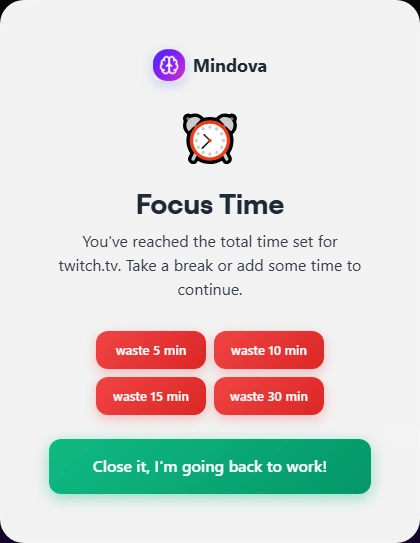
When a website reaches its allowed time, Mindova displays its Focus Time screen instead of letting you continue automatically.
You can close the site or deliberately add more time.
Temporary extensions can include:
- 5 minutes
- 10 minutes
- 15 minutes
- 30 minutes
Mindova tracks overtime separately instead of silently resetting the original rule.
This means Mindova creates a decision point rather than an irreversible lock.
If you genuinely need more time, you can take it.
If you opened the website automatically, the interruption gives you a chance to stop.
Example setup for studying
Suppose YouTube is required for lessons while social and entertainment sites are not.
Your setup might look like:
- YouTube → enough time for lessons
- TikTok → 0 minutes
- Instagram → 0 minutes
- Twitch → 0 minutes
- Netflix → 0 minutes
- Reddit → small research allowance
Then use a Focus Session while reading, writing, or solving problems.
You do not need to block the entire internet.
The goal is to keep useful websites available while reducing unnecessary browsing.
Example setup for work
Work is more complicated because distracting platforms may also be useful tools.
You might need:
- LinkedIn for recruiting
- Instagram for publishing
- YouTube for training
- Reddit for troubleshooting
- X for industry research
- Pinterest for design inspiration
If you need a website regularly, blocking it completely may create unnecessary friction.
Give useful sites realistic daily allowances and reserve 0 minutes/day for websites you do not need during work.
Use Analytics to improve your rules
Your first blocklist does not need to be perfect.
Mindova Analytics can help you review:
- Productive Time
- Distracting Time
- Focus Time
- Sites Blocked
- Most Visited Websites
- Most Blocked Websites
- Productivity Score
- activity trends
Two distinctions matter.
Focus Time is not Productive Time.
Focus Time measures time spent in Focus Sessions. Productive Time measures browsing on websites you marked Productive.
Also:
Productive Time + Distracting Time is not all browsing time.
Neutral browsing is separate and does not push you toward your distraction limit.
A simple cycle is:
set a rule → use it → review what happened → adjust the rule
Does Mindova work on Brave, Edge, Opera and Vivaldi?
Yes.
Mindova also works on supported Chromium-based desktop browsers including:
- Microsoft Edge
- Brave
- Opera
- Vivaldi
The same core workflow applies:
add the domain → choose its limit → use Focus Sessions when you need stricter focus
What Mindova does not block
It is important to separate website blocking from other types of blocking.
The current Mindova browser workflow does not:
- block native iPhone or Android apps;
- block one Instagram Reel;
- block a specific YouTube channel;
- block one Reddit user or subreddit;
- block a specific Twitch streamer;
- block Twitch ads;
- block another X account;
- selectively block one Netflix show;
- act as a parental-control system.
Mindova controls website access inside supported desktop browsers.
That is different from controlling individual accounts, feeds, videos, or native applications.
A distracting website is still opening
Check the basics first.
Make sure Mindova is active
Confirm that the extension shows:
Active & Protecting
Check Blocked Sites
Open:
Site Management → Blocked Sites
Make sure the correct domain appears there.
Check the Individual Site Limit
For an immediate block, use:
0 minutes/day
If the website still has available time, it may remain accessible.
Refresh the tab
If the website was already open before you changed the rule, refresh it.
If necessary, close the tab and open the website again.
Check your Focus Session
If you are relying on a Focus Session, confirm that the work session is actually running.
If the settings look correct but the website still behaves differently, visit the Mindova Help Center.
Frequently asked questions
What websites should I block to focus?
Start with websites you repeatedly open without a clear reason or that regularly take more time than you planned.
There is no universal list.
Can I block several websites?
Yes. You can keep multiple domains in the same Mindova Blocked Sites list and manage their limits from one place.
Can I completely block a website?
Yes. Set its Individual Site Limit to 0 minutes/day.
Can different websites have different limits?
Yes. You can completely block one site while giving another a daily allowance.
Is it better to block a website or limit it?
Block it when you do not need it.
Use a daily limit when it still has a useful role.
Use a Focus Session when you need stricter boundaries for a particular period.
Can I block distracting websites only while working?
Use a Focus Session when you need a stricter work or study period.
Does Mindova work on Brave or Edge?
Yes. Mindova supports Chromium-based desktop browsers including Brave and Microsoft Edge.
Does Mindova block mobile apps?
Not currently. This guide covers website blocking in supported desktop browsers.
Build a blocklist that matches your real behavior
The goal is not to block the largest number of websites possible.
It is to make access more deliberate.
Block the sites you do not need.
Limit useful-but-distracting websites.
Use Focus Sessions when you need stricter boundaries.
Then review what actually happened and adjust your setup.
Mouhsine
Admin
Passionate about helping people achieve peak mental performance through evidence-based strategies and mindful technology use.
Related Articles
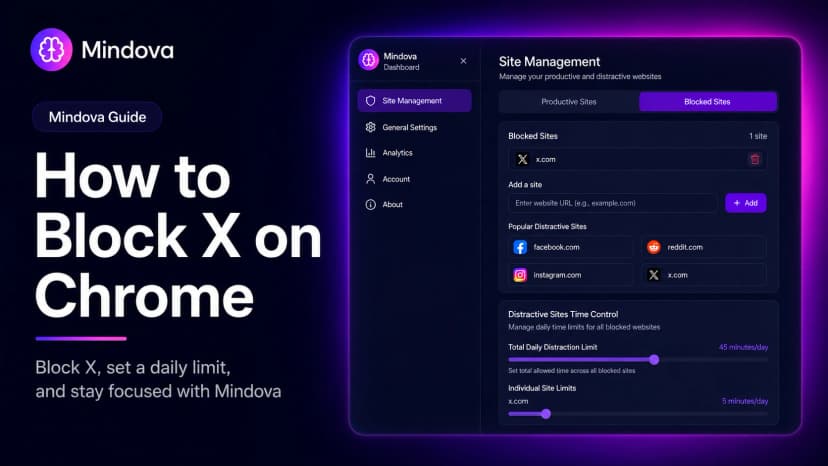
How to Block X (Twitter) on Chrome and Set a Daily Limit 2026
Block X (Twitter) on Chrome with a tested browser method. Use Mindova to block x.com or twitter.com, set a daily limit, and stay focused
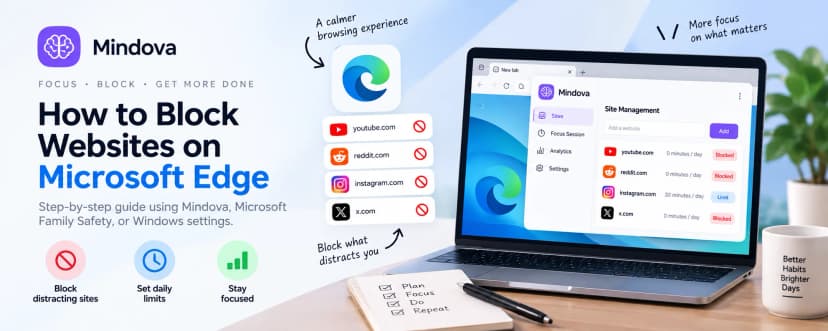
How to Block Websites on Microsoft Edge: 3 Methods
Block websites on Microsoft Edge with Mindova, Microsoft Family Safety, or Windows. Choose the best method for personal focus, family, or system-wide blocking.
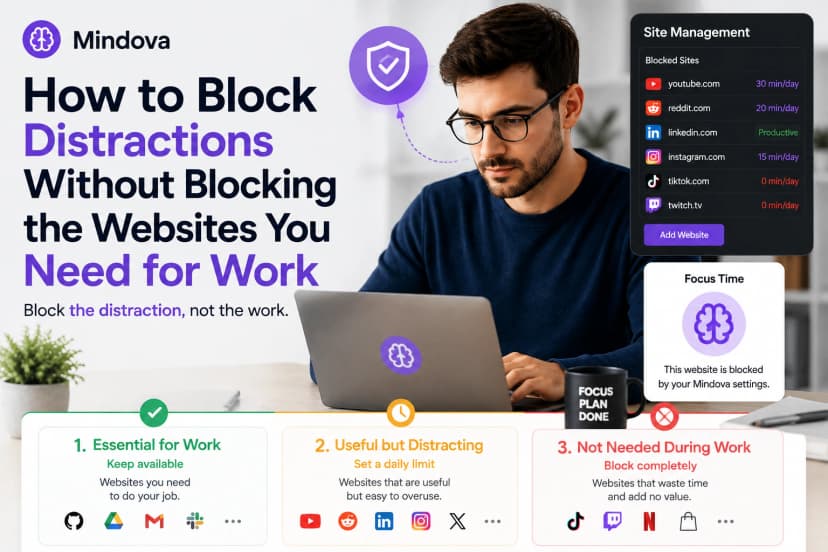
How to Block Online Distractions Without Blocking Work Sites
Block online distractions without losing access to websites you need for work. Learn how to keep essential sites available, limit useful distractions, and block the rest
Comments
Be the first to comment.
Ready to protect your focus?
Block distracting sites, set daily limits, and run focus sessions. Mindova is free.