How to Block Websites on Microsoft Edge: 3 Methods
Written by Mouhsine
Admin
Published September 15, 2026 · Updated September 22, 2026
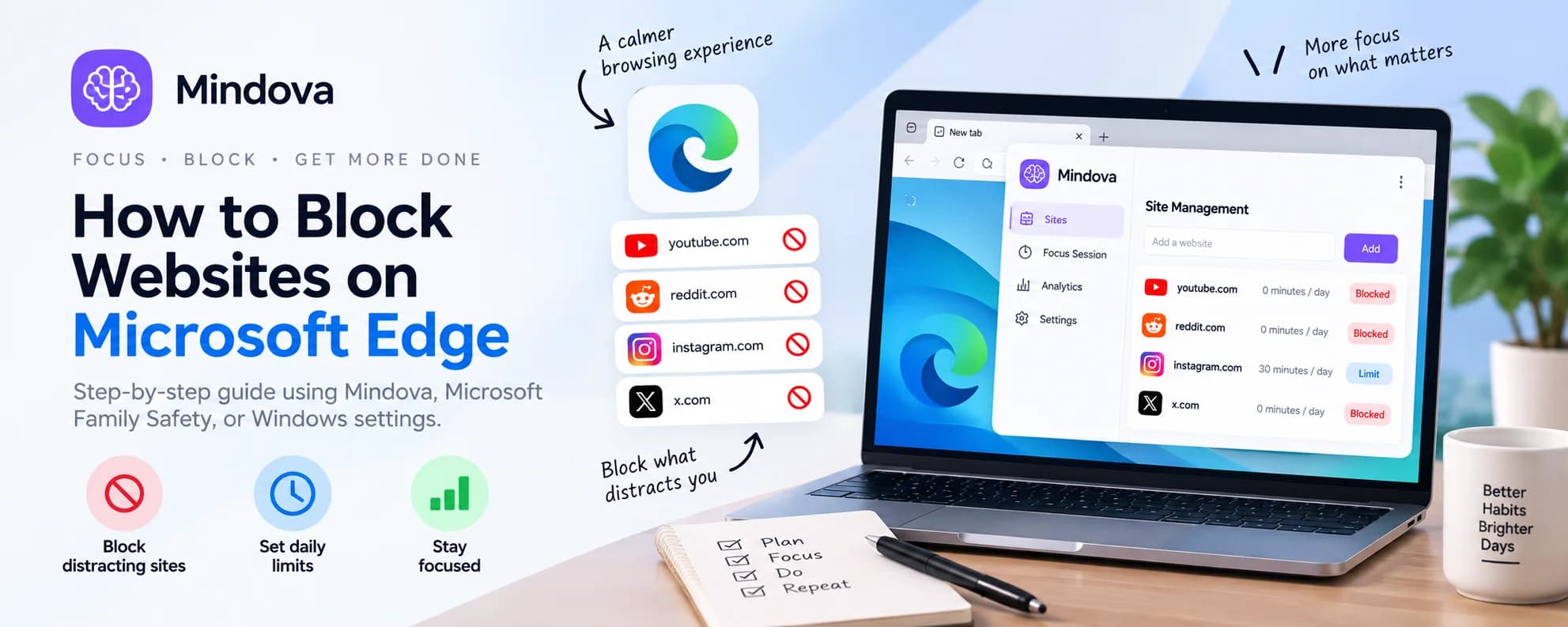
Microsoft Edge does not include a simple personal website blacklist in its standard browser settings.
If you want to block distracting websites for yourself, a website-blocking extension is usually the most practical option. If you are managing a child or family member, Microsoft Family Safety is designed for that use case. And if you need a restriction that applies beyond Edge, a Windows-level method may be more appropriate.
Quick answer: For personal focus, install Mindova in Microsoft Edge, add the website under Site Management → Blocked Sites, and set its Individual Site Limit to 0 minutes/day for a full browser block. If you are managing a child or family member, use Microsoft Family Safety instead. For restrictions that need to apply beyond Edge, consider a Windows-level method.
| Your goal | Method to consider |
|---|---|
| Block distracting websites for yourself | Mindova |
| Give yourself a daily website limit | Mindova |
| Block sites during focused work or study | Mindova Focus Sessions |
| Manage websites for a family member | Microsoft Family Safety |
| Apply a domain restriction beyond Edge | Windows-level method |
If you want a broader overview before choosing a method, see our guide on how to block distracting websites.
Can You Block a Website Directly in Microsoft Edge?
Not through a simple personal website blacklist in Edge's standard settings.
Microsoft Edge includes controls for cookies, permissions, pop-ups, tracking protection, notifications, and other website behavior.
Those settings can change what a website is allowed to do, but they are different from preventing yourself from opening the website.
For example, blocking cookies from a website does not necessarily stop you from visiting that website.
If your goal is simply:
Do not let me open this website while I am trying to work or study.
you will usually need a website-blocking extension or another restriction method.
Method 1: Block Websites on Edge With Mindova
For personal focus and self-management, a browser blocker gives you more flexibility than simply making a website permanently unavailable.
The current public Mindova browser extension supports Microsoft Edge and other supported Chromium-based desktop browsers.
You can use it to:
- block a website completely;
- give one website its own daily time allowance;
- manage different limits for different sites;
- or use a Focus Session when you want fewer distractions during a specific work or study period.
Step 1: Install Mindova in Microsoft Edge
Microsoft Edge can install compatible extensions from the Chrome Web Store.
Open the Mindova listing in Edge and install the extension.
If Edge asks you to allow extensions from another store, choose Allow extensions from other stores, review the permissions, and continue with the installation.
7-day free trial for new users. No credit card required to start. View pricing.
If Edge displays the additional permission prompt:
If this is your first time configuring Mindova, follow the Mindova Setup Guide before continuing.
Step 2: Add the Website You Want to Block
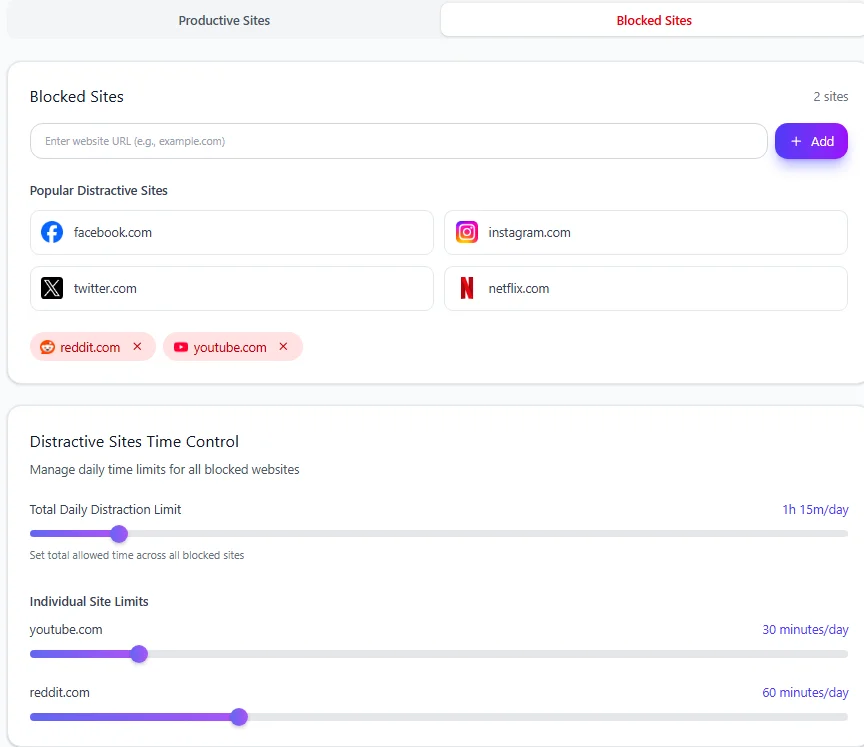
Open Mindova and go to:
Site Management → Blocked Sites
Then enter the domain you want to control.
For example:
youtube.com
or:
reddit.com
Using the main domain creates a website-level rule instead of targeting one individual article, video, or page.
Step 3: Block the Website or Give It a Daily Limit
Once the website has been added, decide whether you want it completely unavailable or simply limited.
For an immediate block, set its Individual Site Limit to:
0 minutes/day
In Mindova, zero does not mean unlimited.
A zero-minute allowance means the website is blocked when you try to visit it.
You can also choose a higher allowance when the website is useful but easy to overuse.
For example:
YouTube → 30 minutes/day
That may make more sense if you sometimes need YouTube for tutorials but do not want one useful video to turn into an hour of unrelated browsing.
The right limit depends on how you use the website. There is no single number that works for everyone.
If video is your main distraction, see our dedicated guide on how to block YouTube on Chrome and supported Chromium browsers.
Step 4: Test the Rule
After saving the setting, open the website in Microsoft Edge.
If you selected 0 minutes/day, Mindova should interrupt access instead of allowing normal browsing.
If the website was already open when you changed the setting, refresh the tab or close it and open the site again.
The full workflow is:
add website → choose limit → test the result
Daily Limits vs Focus Sessions
An Individual Site Limit and a Focus Session solve different problems.
An Individual Site Limit controls how much time you allow yourself on one website across the day.
A Focus Session is useful when you want distracting websites unavailable during a particular work or study period.
For example, you might allow yourself some Reddit time during the day but start a Focus Session when you need an uninterrupted hour to finish an important task.
During the work portion of a Focus Session, websites that are not marked Productive can be restricted.
If you need GitHub, Google Docs, documentation, or another work website during the session, mark it as Productive before you begin.
If Reddit is one of your main distractions, see how to block Reddit for a platform-specific setup.
Method 2: Block Websites for a Family Member With Microsoft Family Safety
Mindova is designed around personal focus and self-management.
If you are managing web access for a child or another member of a Microsoft family group, Microsoft Family Safety is designed for that situation.
A family organizer can configure web and search filtering for a managed family member and add specific websites to allowed or blocked lists.
The exact interface can change, but the general workflow is:
- Open Microsoft Family Safety.
- Select the family member you want to manage.
- Open the web or content filtering controls.
- Find the allowed and blocked website settings.
- Add the website you want to restrict.
The managed family member needs to use the supported Microsoft setup for those web filters to apply.
This distinction matters because personal focus and parental or family management are different problems.
Use Mindova when you want to control your own browsing habits.
Use Microsoft Family Safety when you are managing another family member's access.
Can Family Safety Set a Daily Limit for One Website?
Not in the same way as a self-management browser blocker with per-site daily allowances.
Microsoft Family Safety provides screen-time controls for supported apps and games, but website time limits do not work like a normal:
Reddit → 20 minutes/day
rule.
So if your goal is:
I want to give myself 20 minutes of Reddit per day.
an Individual Site Limit is a more direct fit.
If your goal is:
I do not want this managed family member visiting Reddit.
Family Safety is designed for that type of restriction.
Method 3: Block a Website Beyond Microsoft Edge on Windows
A browser extension controls the browser where it is installed and configured.
If you specifically need a restriction that affects domain resolution more broadly on a Windows computer, one technical option is the Windows hosts file.
A hosts-file rule can redirect a hostname locally so that the website does not resolve normally.
This is a more technical approach than using a browser extension.
It may require:
- administrator access;
- editing a system file;
- separate handling for different hostnames or subdomains;
- troubleshooting when a website uses an unexpected domain;
- and manual changes when you want to remove or modify the restriction.
It also does not give you Mindova-style features such as:
- per-site daily allowances;
- quick changes from a focus dashboard;
- Focus Sessions;
- or flexible limits for useful-but-distracting websites.
A Windows-level method therefore makes more sense when your requirement is broader technical restriction rather than flexible personal focus.
If your real goal is simply:
Stop me opening Reddit while I work.
a browser-based rule is usually much simpler.
Should You Block a Website or Set a Daily Limit?
Not every distracting website needs a permanent block.
Sometimes the better question is how the website should fit into your day.
| Situation | Approach to consider |
|---|---|
| You do not need the website | 0-minute block |
| You still need it occasionally | Daily allowance |
| You only want it unavailable during focused work | Focus Session |
| The website is necessary for your task | Keep it available |
| You need it during a Focus Session | Mark it Productive |
| You are managing another family member | Microsoft Family Safety |
YouTube is a good example.
If you never need YouTube while working, a complete browser block may be reasonable.
But if you regularly use tutorials, lectures, or product demonstrations, limiting your daily browsing can be more practical than removing access entirely.
Reddit can create the same problem.
It may contain useful technical discussions or research, while also making it easy to move from one thread to another for much longer than you intended.
The goal is not always to eliminate access.
It is to give the website a rule that matches how you actually want to use it.
If you are still comparing approaches, our guide to the best website blockers for focus explains the differences between several types of distraction-blocking tools.
Website Still Opening in Microsoft Edge?
If the website is still accessible after you configured Mindova, check the following.
Make Sure Mindova Is Enabled
Open your Microsoft Edge extension settings and confirm that Mindova is installed and enabled.
Also check that you are using the same Edge profile where you installed Mindova.
Microsoft Edge supports multiple browser profiles, so an extension configured in one profile may not be active in another.
Check the Domain
Confirm that the correct website appears under:
Site Management → Blocked Sites
Use the main domain where possible.
For example:
reddit.com
rather than the URL of one individual Reddit post.
Check the Individual Site Limit
If you want the website blocked immediately, confirm that its Individual Site Limit is:
0 minutes/day
A higher value gives the website a daily allowance instead of blocking it immediately.
Refresh an Existing Tab
If the website was already open before you changed the rule, refresh the page or close the tab and reopen the website.
Check Edge Extension Permissions
Open Edge's extension settings and confirm that Mindova is enabled and has the permissions required for the websites you want it to manage.
If the extension was installed from the Chrome Web Store, also confirm that Edge allowed the installation correctly.
Check Your Edge Profile
If you use multiple Edge profiles, make sure Mindova is installed and configured in the profile where you are trying to block the website.
A rule configured in one browser profile should not be assumed to apply automatically to another profile.
If everything appears correct but the website still behaves differently, visit the Mindova Help Center.
Frequently Asked Questions
Can you block a website directly in Microsoft Edge?
Microsoft Edge does not provide a simple personal website blacklist in its standard browser settings for this use case.
For personal website blocking, you can use a compatible browser extension.
For managed family members, Microsoft Family Safety provides separate website filtering controls.
Can I block websites on Edge without an extension?
Yes.
Microsoft Family Safety can restrict websites for managed family members, while Windows-level methods can provide broader technical restrictions.
For ordinary personal focus, however, a browser extension is usually easier to configure and adjust.
Can Microsoft Family Safety set a daily time limit for one website?
Not like a normal per-site daily allowance.
Microsoft Family Safety can manage websites and provides time limits for supported apps and games, but website time limits do not operate like a rule such as:
Reddit → 20 minutes/day
Can I set a daily website limit in Microsoft Edge?
Yes, with a compatible website-blocking extension such as Mindova.
Instead of completely blocking a useful website, you can give it its own daily allowance.
How do I completely block a website on Edge with Mindova?
Add the website under Site Management → Blocked Sites and set its Individual Site Limit to:
0 minutes/day
The website will then be interrupted when you try to visit it through the supported browser workflow.
Does blocking a website in Edge also block it in Chrome?
Not necessarily.
Browser-extension rules apply where the extension is installed and configured.
If Mindova is configured only in Microsoft Edge, do not assume another browser will automatically use the same restriction.
A Windows-level restriction may have broader effects across browsers, depending on how it is configured.
Does Mindova work on Microsoft Edge?
Yes.
The current public Mindova browser extension supports Microsoft Edge as well as other supported Chromium-based desktop browsers including:
- Google Chrome
- Brave
- Opera
- Vivaldi
Can Mindova block one page without blocking the entire website?
This workflow is designed around controlling a website or domain rather than individual pages inside that website.
If you still need parts of a website regularly, a daily allowance may be more practical than blocking the entire domain.
Can I use Mindova during a focused study or work session?
Yes.
A Focus Session is useful when you want distracting websites unavailable during a specific period.
Mark websites you need during that session as Productive, then start the Focus Session.
Does this method block websites on Edge for iPhone or Android?
Not with the current public Mindova browser-extension workflow.
This guide covers Mindova on supported desktop Chromium browsers. Do not assume the same browser-extension setup applies to native mobile browsing.
Is Mindova free?
New users can try Mindova free for 7 days.
No credit card is required to start.
Continued access after the trial requires a Monthly or Annual plan.
Choose the Right Kind of Website Block
The best way to block websites on Microsoft Edge depends on what you are trying to accomplish.
For your own focus, Mindova gives you three useful approaches:
- block the website with a 0-minute limit;
- give the website its own daily allowance;
- or use a Focus Session during a specific period of work or study.
For a child or managed family member, Microsoft Family Safety is designed for family management and web filtering.
If you specifically need a technical restriction that extends beyond Microsoft Edge, a Windows-level approach may be more appropriate.
You do not have to treat every distracting website the same way.
Some sites should be blocked.
Others may simply need a limit.
The useful question is:
How much access do you actually want this website to have to your attention?
Mouhsine
Admin
Passionate about helping people achieve peak mental performance through evidence-based strategies and mindful technology use.
Related Articles
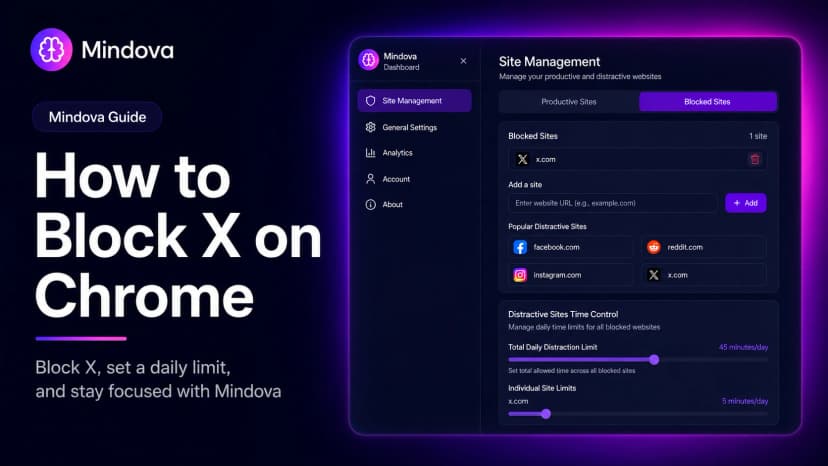
How to Block X (Twitter) on Chrome and Set a Daily Limit 2026
Block X (Twitter) on Chrome with a tested browser method. Use Mindova to block x.com or twitter.com, set a daily limit, and stay focused
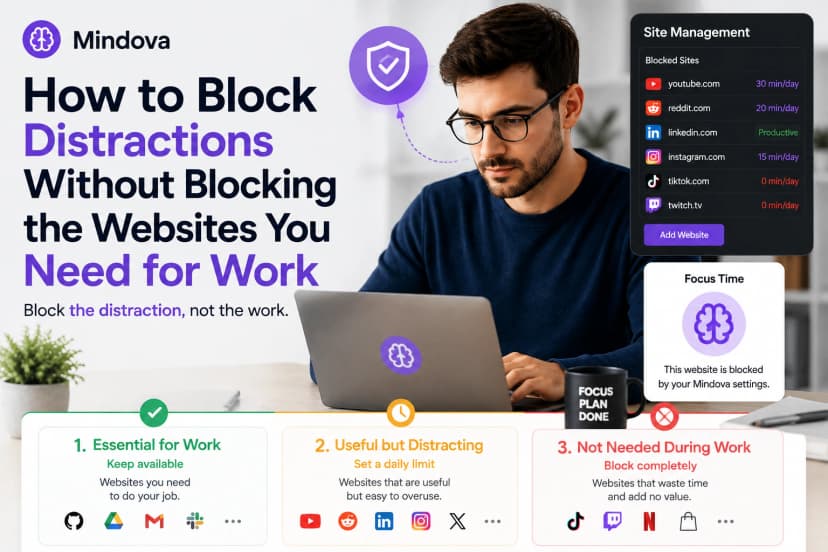
How to Block Online Distractions Without Blocking Work Sites
Block online distractions without losing access to websites you need for work. Learn how to keep essential sites available, limit useful distractions, and block the rest
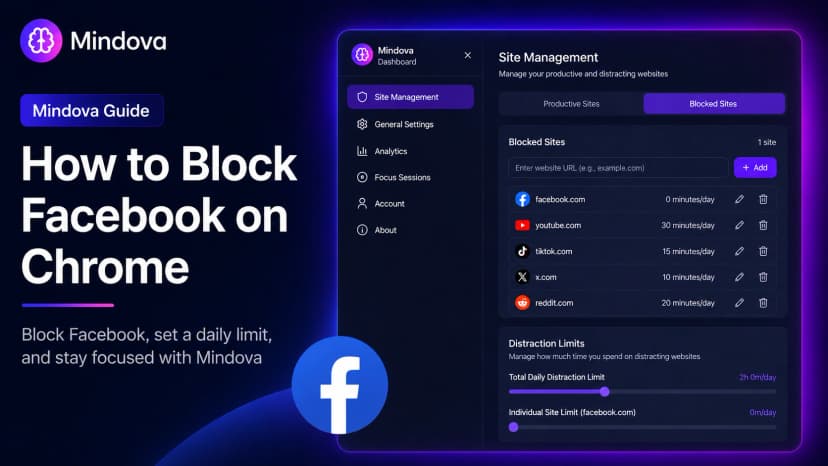
How to Block Facebook on Chrome and Set a Daily Limit 2026
Learn how to block Facebook on Chrome with Mindova, set a daily time limit, use Focus Sessions, and reduce distracting browsing on supported desktop browsers.
Comments
Be the first to comment.
Ready to protect your focus?
Block distracting sites, set daily limits, and run focus sessions. Mindova is free.