How to Block X (Twitter) on Chrome and Set a Daily Limit 2026
Written by Mouhsine
Admin
Published August 13, 2026 · Updated October 12, 2026

X can be useful for news, industry updates, professional conversations, and research. The problem is when you open it for one specific reason and end up scrolling much longer than you intended.
With Mindova, you can add X to your blocked websites, block it completely with a zero-minute limit, give it its own daily time allowance, and use Focus Sessions when you do not want the feed interrupting your work.
For this guide, we tested the current Mindova browser extension ourselves. We added twitter.com to Blocked Sites, set an individual limit of 5 minutes per day, opened x.com, and confirmed that Mindova interrupted access when the available time ran out.
If YouTube is another common distraction, follow our guide to blocking YouTube on Chrome.
Quick answer: To block X (Twitter) on Chrome with Mindova, open Site Management → Blocked Sites, add
twitter.com, and set its Individual Site Limit to 0 minutes/day for an immediate block. In our test, the same rule also applied when openingx.com. Use a higher limit if you still want some daily access.
Important: This guide explains how to restrict access to the X website in your desktop browser. It does not explain how to block another person or account on X. The browser extension does not restrict the native X mobile app, but Mindova also offers a separate Android app for restricting selected native apps. The iPhone app is coming soon.
What we tested
We tested this workflow using the current Mindova browser extension:
- Added
twitter.comto Blocked Sites. - Confirmed that it received its own Individual Site Limit.
- Set the limit to 5 minutes/day.
- Opened
x.comin the browser. - Confirmed that the rule also applied to
x.com. - Reached the available time limit.
- Confirmed that Mindova displayed the Focus Time screen for
x.com. - Confirmed that we could either leave X or temporarily add more time.
The screenshots in this guide come from the real Mindova interface used during the test.
Step 1: Install Mindova
Install the Mindova website blocker extension in Chrome.
7-day free trial for new users. No credit card required to start. View pricing.
After installation, open the extension and sign in.
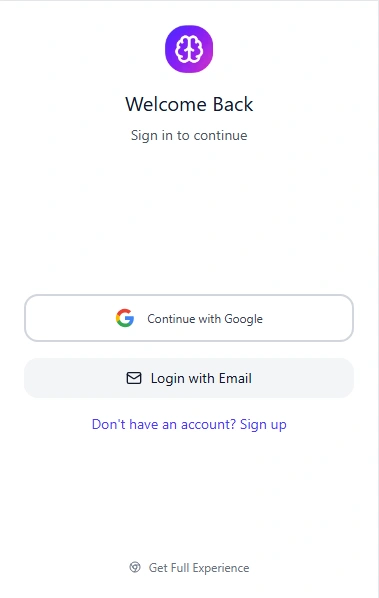
Mindova currently supports sign-in with Google or email.
If you are setting it up for the first time, follow the Mindova Setup Guide.
Step 2: Open Site Management
From the full Mindova dashboard:
- Select Site Management.
- Open the Blocked Sites tab.
- Find the field labelled Enter website URL.
X currently appears in Mindova's suggested distracting websites as twitter.com.
You can select it directly rather than manually typing the address.
Mindova is not limited to the suggested websites. Other domains can also be entered manually.
Step 3: Add X (Twitter) to Blocked Sites
Select the X/Twitter option or manually enter:
twitter.com

Then select Add.
The domain should now appear inside your Blocked Sites list.
Once added, Mindova gives it its own setting under Individual Site Limits.
During our test, we also opened:
x.com
The same rule applied and Mindova interrupted access when the available time was reached.
This matters because the dashboard currently displays the website as twitter.com, while the Focus Time screen identified the destination as x.com.
Step 4: Block X Completely or Set a Daily Limit
Mindova provides two separate controls:
- Total Daily Distraction Limit
- Individual Site Limits
They do different jobs.
Block X completely
If you want X blocked whenever you try to open it, set its Individual Site Limit to:
0 minutes/day
In Mindova, zero does not mean unlimited.
It means the website is blocked when you try to visit it.
This is the most direct setup if your goal is simply to stop opening X while you work or study.
Give X a daily allowance
You can also keep X available for a limited amount of time.
Under Individual Site Limits, twitter.com gets its own separate allowance.
During our test, we set it to:
5 minutes/day
A short limit can work when you only want enough time to check a message or a specific update.
If X is genuinely part of your work, you may need a longer allowance.
The useful part is that X does not need to have the same limit as every other distracting website.
Total Daily Distraction Limit
The Total Daily Distraction Limit controls the combined amount of time available across the websites you have classified as distracting.
For example, X, YouTube, Instagram, and Reddit can all contribute toward the same overall daily allowance.
This is useful when your goal is to reduce distracting browsing as a whole rather than focus only on X.
Step 5: Use a Focus Session when X should not interrupt you
A daily limit controls how much X you use across the day.
A Focus Session helps protect a specific period when you need your attention somewhere else.
A simple workflow is:
- Add X to Blocked Sites.
- Give it a realistic daily limit.
- Start a Focus Session before your most important task.
- Keep X closed while the session is active.
- Check your browsing activity later.
This is useful when you still need access to X during part of the day but do not want to keep checking the feed while working or studying.
What happens when your X time runs out?
We tested what happens after the individual allowance has been used.
When we tried to continue on X, Mindova displayed its Focus Time screen.
The message said that the total time set for x.com had been reached.
At that point, you can leave X by selecting:

Close it, I'm going back to work!
Or temporarily add:
- 5 minutes
- 10 minutes
- 15 minutes
- 30 minutes
This is an important part of how Mindova currently works.
It creates an intentional interruption rather than an irreversible lock.
If you genuinely need more time on X, you can add it.
If you opened X automatically without a clear reason, the interruption gives you a chance to close the site instead of continuing immediately.
Should you block X or just limit it?
The right setting depends on why you use X.
X is mostly a distraction
Set its Individual Site Limit to:
0 minutes/day
That blocks the website when you try to open it.
If a complete block feels too restrictive, use a small daily allowance instead.
You use X for news or professional updates
Give yourself enough time to complete the specific activity you opened X for.
For example, you might check a small number of accounts or messages, then leave when you are finished rather than continuing through the feed.
X is part of your work
If you use X for customer support, publishing, research, or professional conversations, blocking it for the entire day may create unnecessary friction.
Use an Individual Site Limit that reflects the work you actually need to complete.
Then use Focus Sessions during tasks that do not require X.
The goal is not to create the strictest possible rule. It is to make unplanned browsing less automatic.
If X is only one part of your distraction pattern, see how to manage multiple distracting websites with separate limits and Focus Sessions.
Use Analytics instead of guessing

After using Mindova for a while, open Analytics.
The dashboard can show information such as:
- Focus time.
- Productive time.
- Distracting time.
- Productivity score.
- Streak.
- Daily activity trends.
- Most visited websites.
- Most blocked websites.
Use those patterns to decide whether your X limit is doing what you intended.
If X is still taking more time than you want, reduce the allowance.
If the limit repeatedly interrupts legitimate work, increase it.
The number itself is not the goal. The goal is to make your browsing match how you intended to spend your time.
Blocking the X website is not the same as blocking an account
This distinction is important.
Mindova's workflow in this guide restricts access to the X website in your browser.
It does not use X's account-level blocking controls.
Mindova does not use this workflow to:
- Block another X account.
- Prevent a specific person from following you.
- Mute an account.
- Hide posts from one specific account.
- Block a specific hashtag.
- Remove individual posts from your feed.
Those are different actions from restricting access to x.com itself.
What Mindova does not do in this X workflow
The current browser-extension workflow described here does not:
- Block the native X mobile app through the browser extension.
- Block individual X accounts.
- Hide only the For You feed.
- Remove individual posts or accounts.
- Create an irreversible permanent X lock.
- Automatically apply the same rule to every device you own.
This guide covers Mindova's desktop browser experience. Mindova also provides a separate Android app for restricting supported native applications.
Can Mindova block the X app on Android?
Mindova also offers a native Android app that lets you select distracting applications and configure individual daily limits. If X appears in your installed-app list and is supported by Mindova's blocking workflow, you can classify it as distracting and assign a daily allowance.
This is different from restricting x.com in the browser extension. The Android app also includes an overall Daily Distraction Limit, Focus Sessions, and app-usage insights.
Our documented Android blocking test used Instagram, not X. We have not separately verified the X native-app blocking workflow in this guide.
Learn more about Mindova's Android app blocker
Get Mindova for Android on Google Play
X is still opening: troubleshooting
If X does not behave as expected, check your Mindova settings before reinstalling anything.
Make sure protection is active
Open the Mindova extension.
Confirm that Extension Status displays:
Active & Protecting
If protection is disabled, your website rules will not be applied.
Confirm that twitter.com is in Blocked Sites
Open:
Site Management → Blocked Sites
Make sure twitter.com appears in your blocked websites.
Check the Individual Site Limit
Look under Individual Site Limits.
For an immediate block, set X to:
0 minutes/day
If X still has unused time available, the site can remain accessible until that allowance has been consumed.
Try x.com directly
In our test, adding twitter.com also applied when we opened x.com.
If your browser behaves differently, add:
x.com
manually as an additional blocked domain.
Check the Total Daily Distraction Limit
Remember that the overall distraction limit and the individual X limit are different settings.
Review both before assuming that blocking is not working.
Refresh an already-open X tab
If X was already open when you changed the setting, refresh the page.
If necessary, close the tab and open x.com again.
Check your Focus Session
If you are relying on a Focus Session, make sure the session is currently active.
Get help
If the settings look correct but X still behaves differently from expected, visit the Mindova Help Center.
Frequently asked questions
How do I block X on Chrome?
Install Mindova, open Site Management → Blocked Sites, add twitter.com, and set its Individual Site Limit to 0 minutes/day if you want X blocked whenever you try to open it.
In our test, the same rule also applied when opening x.com.
how to block twitter website on Chrome?
The same Mindova workflow applies. Add twitter.com to Blocked Sites and set the Individual Site Limit to 0 minutes/day for a full block, or choose a higher allowance if you still need some daily access.
Does adding twitter.com also block x.com?
It did during our test with the current Mindova extension. When the available time ran out, Mindova displayed a Focus Time screen for x.com.
If your browser behaves differently, you can also add x.com manually.
Can I set a daily limit for X?
Yes. After adding the website, Mindova gives it an Individual Site Limit. During our test, we used a 5-minute daily allowance.
What happens when my X time runs out?
Mindova displays a Focus Time screen. You can leave the site or temporarily add 5, 10, 15, or 30 minutes.
Can I block X only while I work?
You can combine a blocked-site rule with a timed Focus Session when you need a protected work or study period.
Does this block another person on X?
No. This guide restricts access to the X website in your browser. It does not block or mute individual X accounts.
Can Mindova permanently block X?
The current Focus Time screen allows you to temporarily add more time, so Mindova is not presented here as an irreversible permanent lock.
Does Mindova block the X mobile app?
The Mindova browser extension only controls the X website in supported desktop browsers. Mindova also has a separate Android app that can apply daily limits to supported native applications, including X if it is available in the app selection.
Our documented native Android blocking test used Instagram. Mindova for iPhone is coming soon.
Explore Mindova's Android app blocker
Does Mindova work outside Chrome?
Mindova also works on supported Chromium-based desktop browsers, including Microsoft Edge, Brave, Opera, and Vivaldi.
Is Mindova free?
New users can try Mindova free for 7 days. No credit card is required to start. Continued access after the trial requires a Monthly or Annual plan.
Mouhsine
Admin
Passionate about helping people achieve peak mental performance through evidence-based strategies and mindful technology use.
Related Articles

How to Block Websites on Microsoft Edge: 3 Methods
Block websites on Microsoft Edge with Mindova, Microsoft Family Safety, or Windows. Choose the best method for personal focus, family, or system-wide blocking.
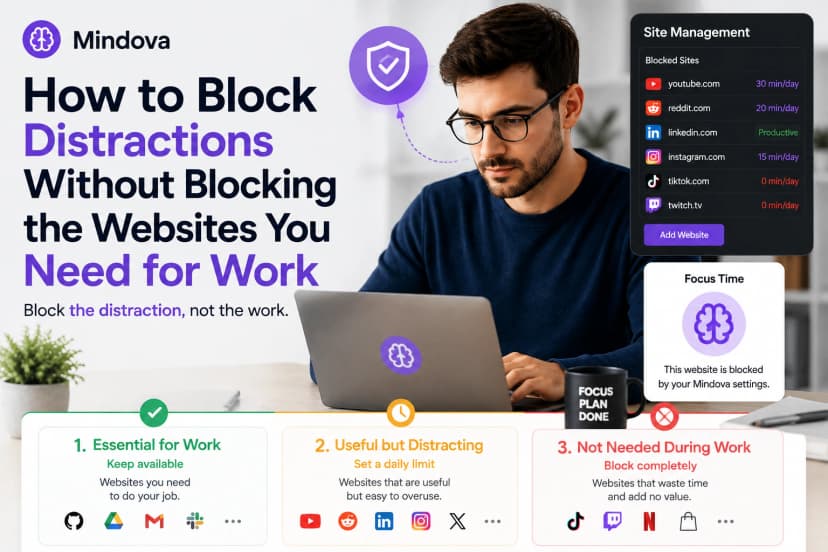
How to Block Online Distractions Without Blocking Work Sites
Block online distractions without losing access to websites you need for work. Learn how to keep essential sites available, limit useful distractions, and block the rest
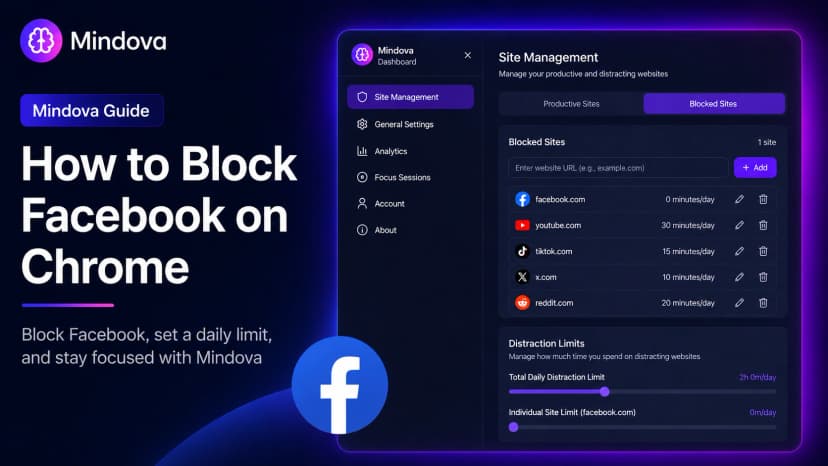
How to Block Facebook on Chrome and Set a Daily Limit 2026
Learn how to block Facebook on Chrome with Mindova, set a daily time limit, use Focus Sessions, and reduce distracting browsing on supported desktop browsers.
Comments
Be the first to comment.
Ready to protect your focus?
Block distracting sites, set daily limits, and run focus sessions. Mindova is free.