How to Block ChatGPT on Chrome When You Need to Focus
Written by Mouhsine
Admin
Published September 29, 2026
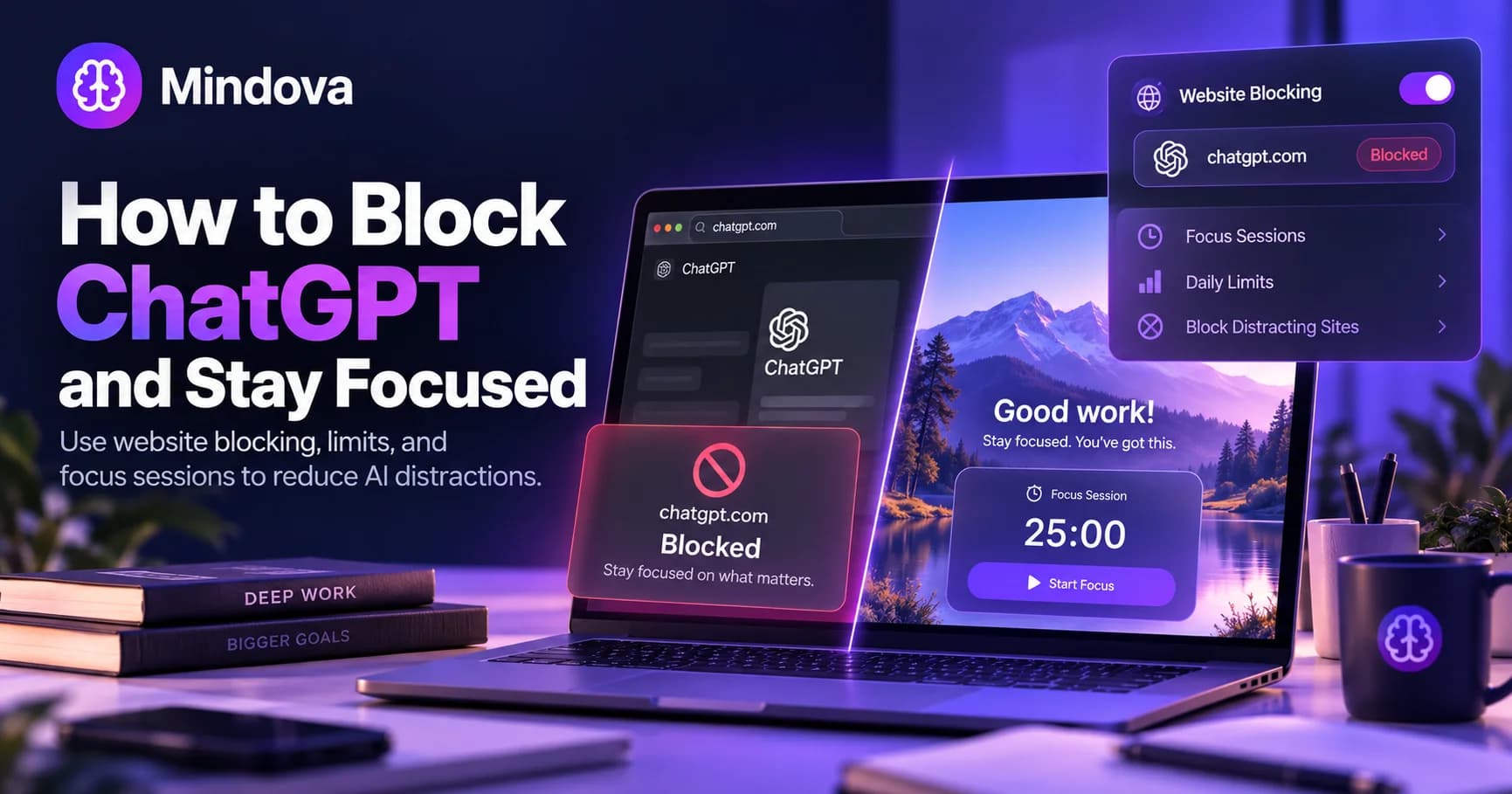
ChatGPT can be genuinely useful for research, writing, coding, brainstorming, and learning.
But a useful tool can still become a distraction if opening it becomes your first reaction whenever a task feels difficult.
You may want to write the first paragraph yourself, solve a problem before asking for help, finish a reading session without switching tabs, or simply stop checking ChatGPT every few minutes.
In that situation, you do not necessarily need to stop using AI completely.
You may just need more control over when you can access it.
With Mindova, you can block chatgpt.com in Chrome, give it a daily time allowance, or keep it unavailable during a Focus Session.
Quick answer: Add
chatgpt.comto Mindova's Blocked Sites list and set its Individual Site Limit to 0 minutes/day. We tested this setup in Chrome, and opening ChatGPT triggered Mindova's Focus Time screen instead of allowing normal access to the site.
Why Block ChatGPT If It Is Useful?
Blocking ChatGPT is different from blocking an entertainment website.
ChatGPT may be part of your actual workflow.
You might use it to:
- debug code;
- check a draft;
- brainstorm ideas;
- summarize information;
- explain a difficult concept;
- review something you have already written;
- help you get unstuck after trying a problem yourself.
The problem is not necessarily using ChatGPT.
The problem can be opening it automatically before you have decided whether you actually need it.
A useful rule is:
Try first. Use AI intentionally second.
For example, instead of asking ChatGPT to start every assignment, you might first make your own outline.
Instead of pasting a coding problem immediately, you might spend 20 minutes debugging it yourself.
Instead of asking for a summary before reading, you might read the material first and use AI afterward to test your understanding.
If digital distractions are affecting more than just ChatGPT, see our broader guide on how to block distracting websites.
How to Block ChatGPT on Chrome With Mindova
We tested this method directly in Chrome.
The setup is simple:
- Install Mindova.
- Add
chatgpt.comto Blocked Sites. - Set its Individual Site Limit to
0 minutes/day. - Open ChatGPT and test the rule.
Here is the full process.
Step 1: Install Mindova on Chrome
Install Mindova from the Chrome Web Store.
After installation:
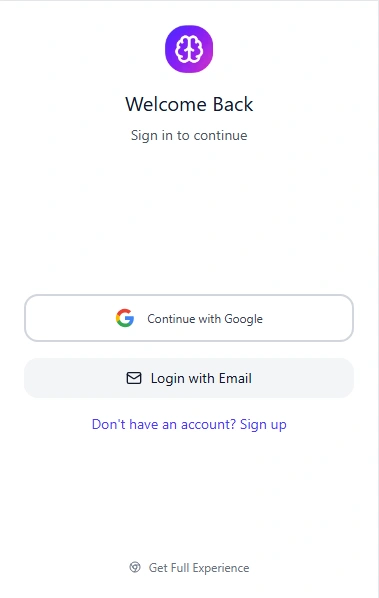
- Open the Mindova extension.
- Sign in.
- Open the dashboard.
- Make sure Mindova is active.
New users can try Mindova free for 7 days.
No credit card is required to start.
Continued access after the trial requires a Monthly or Annual plan.
Step 2: Add ChatGPT to Blocked Sites
Open Mindova and go to:
Site Management → Blocked Sites
Add:
chatgpt.com
You do not need to block openai.com just to control access to ChatGPT.
Blocking the broader OpenAI domain could also interfere with other OpenAI pages you may still want to use.
For normal ChatGPT focus blocking, use:
chatgpt.com
Step 3: Set Chatgpt To 0 Minutes Per Day
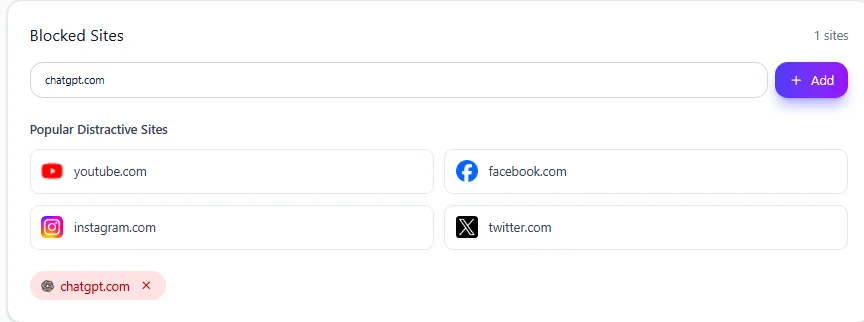
Find the Individual Site Limit for chatgpt.com.
Set it to:
0 minutes/day
In Mindova, zero means the website is blocked.
It does not mean unlimited access.
So your rule becomes:
chatgpt.com → 0 minutes/day
We Tested This Setup
We tested ChatGPT blocking in Chrome.
After adding chatgpt.com to Mindova and setting its Individual Site Limit to 0 minutes/day, opening ChatGPT triggered Mindova's Focus Time screen instead of allowing normal access to the site.
That means the 0-minute rule can be used when you want ChatGPT completely unavailable in Chrome.
Step 4: Open ChatGPT and Test the Block
After saving the rule, open:
chatgpt.com
Instead of continuing to ChatGPT normally, Mindova should interrupt access with its Focus Time screen.
Testing the rule immediately is important.
Do not assume a blocker is working just because the website appears in your settings.
Open the site and verify the result yourself.
You Do Not Have to Block ChatGPT Completely
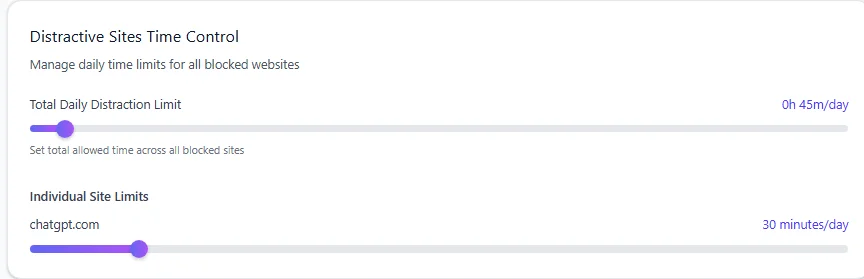
A complete block is not always the best choice.
ChatGPT may still be genuinely useful during part of your day.
In that case, give it a daily allowance instead.
For example:
chatgpt.com → 20 minutes/day
or:
chatgpt.com → 30 minutes/day
Those numbers are only examples.
Choose a limit based on how you actually want to use the tool.
The useful distinction is:
0 minutes/day
Use this when you do not want access.
Higher daily allowance
Use this when ChatGPT is useful but you want a boundary around it.
This can be especially helpful for students who still need AI for specific tasks but do not want it available for every moment of a study session.
If studying is the broader problem, see how to focus while studying without getting distracted.
Use a Focus Session Instead of Blocking ChatGPT All Day
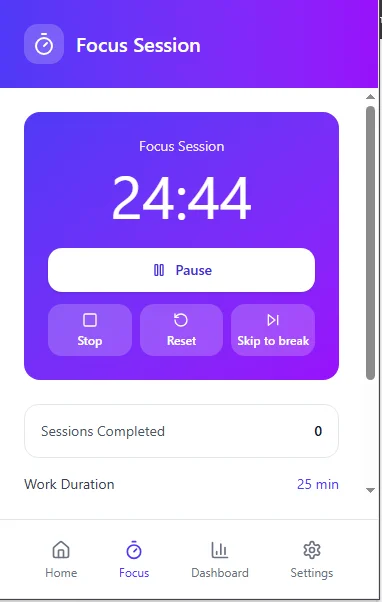
Sometimes you only need ChatGPT unavailable for one focused period.
For example:
- while writing a first draft;
- during a study block;
- while solving practice problems;
- while reading;
- during deep work;
- while trying to debug something yourself.
In that case, you can use a Mindova Focus Session instead of keeping ChatGPT blocked all day.
Before starting:
- Decide what you are going to work on.
- Mark the websites you genuinely need as Productive.
- Start the Focus Session.
- Work without opening unrelated sites.
During the focused work portion of the session, sites that are not marked Productive are blocked.
This gives you a useful rule:
ChatGPT can be available when I intentionally need it, but not while I am trying to think through this task myself.
If you often need useful websites while blocking everything else, see how to block distractions without blocking the websites you need for work.
Block the Reflex, Not Necessarily the Tool
ChatGPT can save time.
But saving time is not always the same as improving focus.
Imagine you are writing.
You reach a difficult paragraph.
Your normal reaction is:
open ChatGPT → ask it to continue
Instead, you could create a small delay:
try yourself → finish a rough version → use ChatGPT only if needed
The same principle works for coding:
debug first → inspect the error → try a fix → ask for help later
And for studying:
read → recall → answer → check with AI afterward
The goal is not to prove that you can do everything without AI.
It is to stop AI from becoming an automatic escape from effort.
A website limit creates a little friction between the urge to open ChatGPT and the action itself.
Sometimes that friction is enough to help you continue the task you already started.
ChatGPT Blocker vs ChatGPT Ad Blocker
These are not the same thing.
A ChatGPT website blocker stops or limits access to chatgpt.com.
A ChatGPT ad blocker is designed to remove advertising or promotional elements while still allowing you to use ChatGPT.
If your goal is:
I want ChatGPT unavailable while I work.
you need website blocking.
If your goal is:
I still want to use ChatGPT but do not want ads or promotional elements.
that is a different problem.
Mindova is being used here as a website blocker, not as a ChatGPT ad blocker.
Does Blocking ChatGPT Block Other AI Tools?
No.
Blocking:
chatgpt.com
does not automatically block every AI service on the internet.
You could still access other AI websites such as Gemini, Claude, Copilot, or Perplexity unless you separately decide to restrict them.
That is useful if ChatGPT is specifically the site causing the problem.
It also means you should not describe a ChatGPT block as an "AI block."
It is a rule for one website.
If you later find yourself simply switching from one AI tool to another, you may need to review the broader pattern rather than continuously adding random sites to your blocklist.
Does Blocking ChatGPT in Chrome Block the Mobile App?
No.
Mindova's current public product is a desktop browser extension.
Blocking chatgpt.com in Chrome does not block the native ChatGPT app on your phone.
It also does not provide system-wide blocking for native desktop applications.
This guide is specifically about controlling the ChatGPT website in supported desktop browsers.
If you can still open the native mobile app, that is outside the browser-level rule described here.
Does Blocking ChatGPT Also Block OpenAI.com?
Not if you only add:
chatgpt.com
That is intentional.
You may still want access to OpenAI documentation or other pages without having direct access to ChatGPT itself.
For this use case, start with the narrowest rule that solves the actual problem.
Do not block more of the web than you need.
Can Mindova Read My ChatGPT Conversations?
Mindova uses website and domain information to provide features such as website blocking, limits, and focus controls.
It is not designed to read the contents of your ChatGPT conversations or the text you type into a webpage.
The purpose of the rule is to recognize that you are accessing chatgpt.com and apply the focus setting you configured.
ChatGPT Still Opens? Check These Settings
If ChatGPT remains accessible after you create the rule, check the setup.
Confirm chatgpt.com Is in Blocked Sites
Open:
Site Management → Blocked Sites
and confirm that chatgpt.com appears there.
Check the Individual Site Limit
For a complete block, use:
0 minutes/day
A higher number gives ChatGPT a daily allowance instead.
Refresh the ChatGPT Tab
If ChatGPT was already open before you changed the rule, refresh the page or close the tab and open it again.
Confirm Mindova Is Active
Make sure the extension is enabled in Chrome.
Test in the Same Chrome Profile
If you use multiple Chrome profiles, confirm Mindova is installed and configured in the profile where you are opening ChatGPT.
What Mindova Does Not Do
Mindova is designed for personal browser focus and self-management.
The current public extension does not provide:
- native ChatGPT mobile app blocking;
- native desktop application blocking;
- system-wide AI blocking;
- an irreversible Locked Mode;
- recurring clock-based blocking schedules;
- automatic blocking of every AI website;
- organization-wide employee restrictions.
If you are an IT administrator trying to block ChatGPT across an organization, this is a different use case from the personal focus setup described in this guide.
If you are comparing different approaches to personal website blocking, see our guide to the best website blockers for focus.
Frequently Asked Questions
How do I block ChatGPT on Chrome?
Install Mindova, add chatgpt.com to Blocked Sites, and set its Individual Site Limit to 0 minutes/day.
We tested this configuration in Chrome, and opening ChatGPT triggered Mindova's Focus Time screen.
What website should I block for ChatGPT?
For normal ChatGPT web access, add:
chatgpt.com
You do not need to block the entire openai.com domain for this use case.
Does 0 minutes/day really block ChatGPT?
Yes.
In our Chrome test, chatgpt.com was configured with a 0-minute Individual Site Limit.
When ChatGPT was opened, Mindova interrupted access with its Focus Time screen.
Can I limit ChatGPT instead of completely blocking it?
Yes.
Give chatgpt.com an Individual Site Limit greater than zero.
For example, you could allow yourself a limited amount of ChatGPT usage each day instead of making it completely unavailable.
Can I block ChatGPT only while studying?
Yes.
You can use a Mindova Focus Session when you want distracting or unnecessary websites unavailable during a focused study period.
You do not have to keep ChatGPT blocked for the entire day.
Does this block ChatGPT on my phone?
No.
The current public Mindova extension controls websites in supported desktop browsers.
It does not block the native ChatGPT iOS or Android app.
Will blocking ChatGPT also block Gemini or Claude?
No.
A chatgpt.com rule applies to ChatGPT.
Other AI websites remain separate unless you choose to control them too.
Is Mindova free?
New users can try Mindova free for 7 days.
No credit card is required to start.
Continued access after the trial requires a Monthly or Annual plan.
Use ChatGPT When You Decide to Use It
ChatGPT does not need to be available every second of your workday to remain useful.
Sometimes the better setup is:
Write first.
Think first.
Try the problem first.
Then use AI when you have a specific reason to use it.
If you want ChatGPT completely unavailable in Chrome, set:
chatgpt.com → 0 minutes/day
If you still need it occasionally, give it a reasonable daily allowance.
If you only want it unavailable during focused work, use a Focus Session.
The goal is not to remove a useful tool.
It is to decide when the tool gets your attention.
Mouhsine
Admin
Passionate about helping people achieve peak mental performance through evidence-based strategies and mindful technology use.
Related Articles
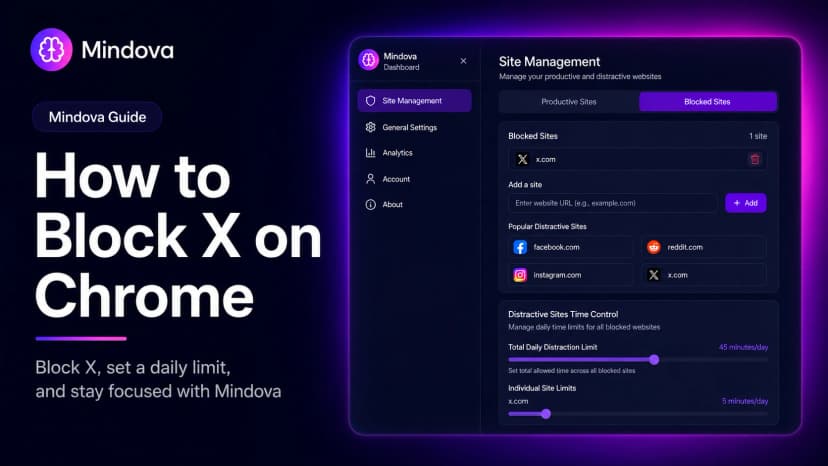
How to Block X (Twitter) on Chrome and Set a Daily Limit 2026
Block X (Twitter) on Chrome with a tested browser method. Use Mindova to block x.com or twitter.com, set a daily limit, and stay focused

How to Block Websites on Microsoft Edge: 3 Methods
Block websites on Microsoft Edge with Mindova, Microsoft Family Safety, or Windows. Choose the best method for personal focus, family, or system-wide blocking.
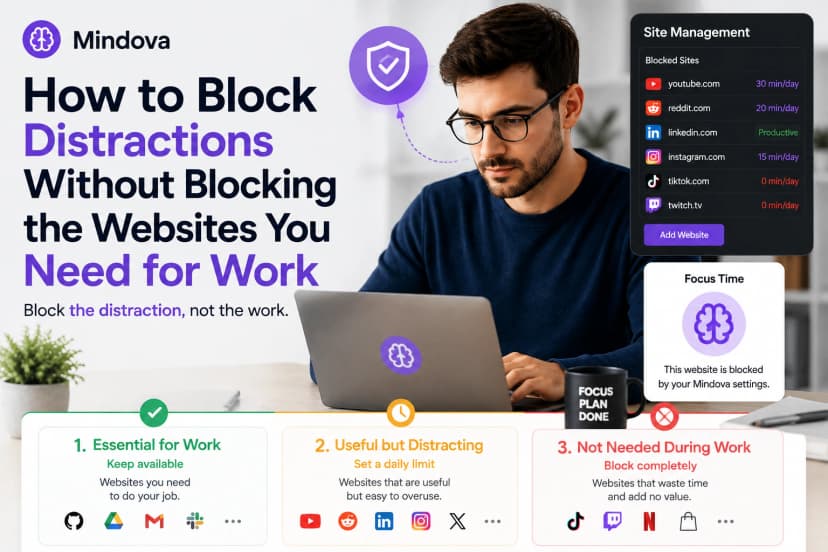
How to Block Online Distractions Without Blocking Work Sites
Block online distractions without losing access to websites you need for work. Learn how to keep essential sites available, limit useful distractions, and block the rest
Comments
Be the first to comment.
Ready to protect your focus?
Block distracting sites, set daily limits, and run focus sessions. Mindova is free.