How to Block Twitch on Chrome and Set a Daily Limit 2026
Written by Mouhsine
Admin
Published August 13, 2026 · Updated September 21, 2026
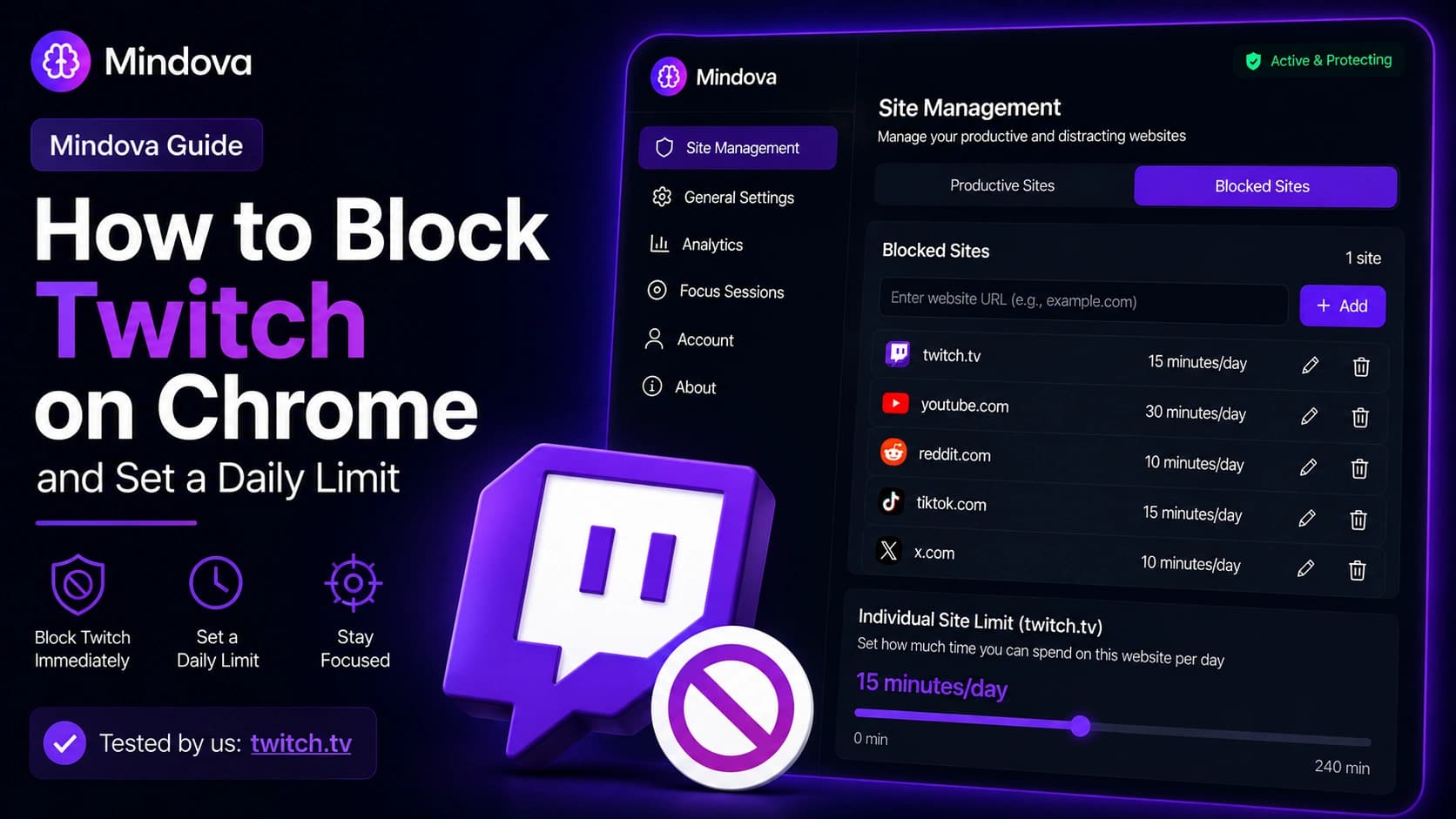
Twitch is easy to lose time on because there is rarely a natural stopping point. A stream can run for hours, and opening Twitch to check one creator can quickly turn into watching far longer than you planned.
If you want more control without removing Twitch completely, Mindova lets you block twitch.tv, give it a daily time allowance, or set the limit to zero when you do not want Twitch available at all.
For this guide, we tested Twitch with the current Mindova browser extension and confirmed that Mindova interrupted access to twitch.tv when its allowed time was reached.
Quick answer: To block Twitch on Chrome with Mindova, open Site Management → Blocked Sites, add
twitch.tv, and set its Individual Site Limit to 0 minutes/day for an immediate block. Choose a higher limit if you still want daily viewing time, or use a Focus Session when you only want Twitch unavailable during work or study.
Important: This guide blocks access to the Twitch website in your desktop browser. The current public Mindova browser extension does not block the native Twitch mobile app, Twitch ads, individual channels, or specific streamers.
Step 1: Install Mindova
Install Mindova in Chrome and sign in with Google or email.
7-day free trial for new users. No credit card required to start. View pricing.
If you have not configured the extension yet, start with the Mindova Setup Guide.
Step 2: Add Twitch to Blocked Sites
Open the Mindova dashboard and go to:
Site Management → Blocked Sites
Then:
- Enter
twitch.tv. - Select Add.
- Confirm that Twitch appears in your Blocked Sites list.
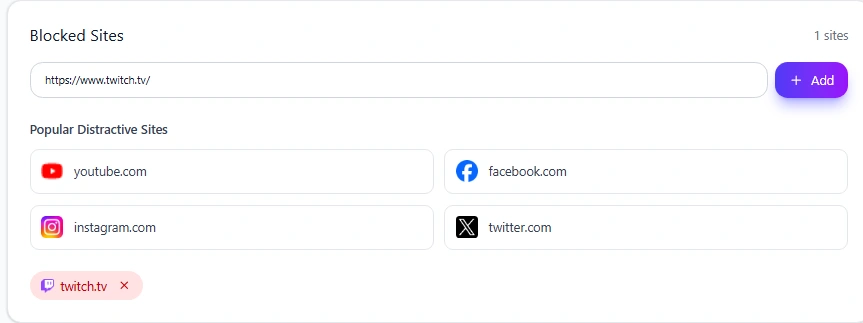
Once Twitch is added, Mindova gives it its own Individual Site Limit.
Step 3: Decide Whether to Block Twitch or Limit It
There is an important difference between blocking Twitch completely and simply giving yourself less time on it.
Block Twitch immediately
Set the Individual Site Limit to:
0 minutes/day
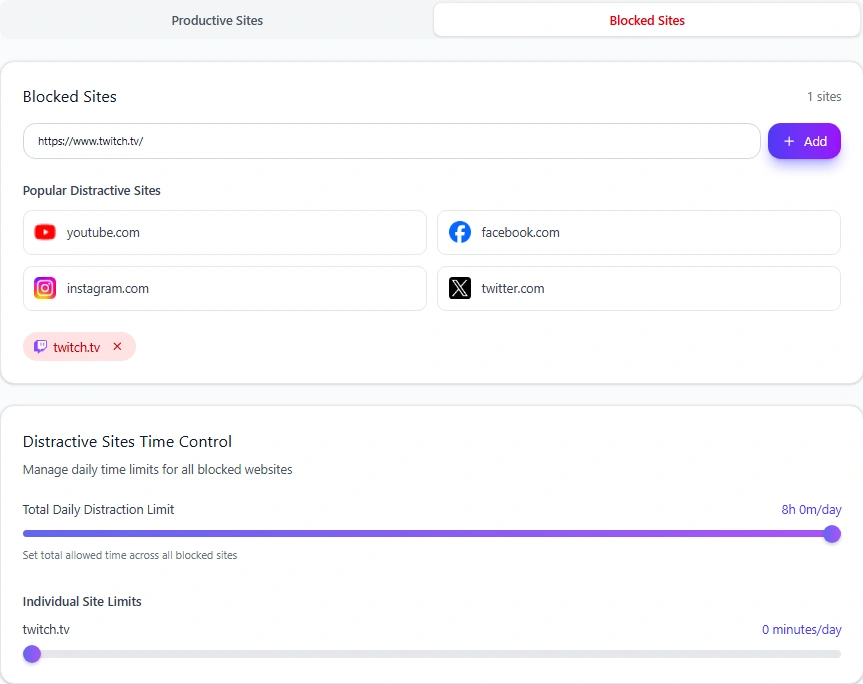
In Mindova, zero does not mean unlimited.
It means twitch.tv is blocked when you try to open it.
This works well when Twitch is something you only want available after work, studying, or another important task is finished.
Give Twitch a daily viewing allowance
You can also keep Twitch available for a limited amount of time.
Mindova supports per-site limits from 0 to 240 minutes per day, in 5-minute steps.
For our test, we also used:
15 minutes/day
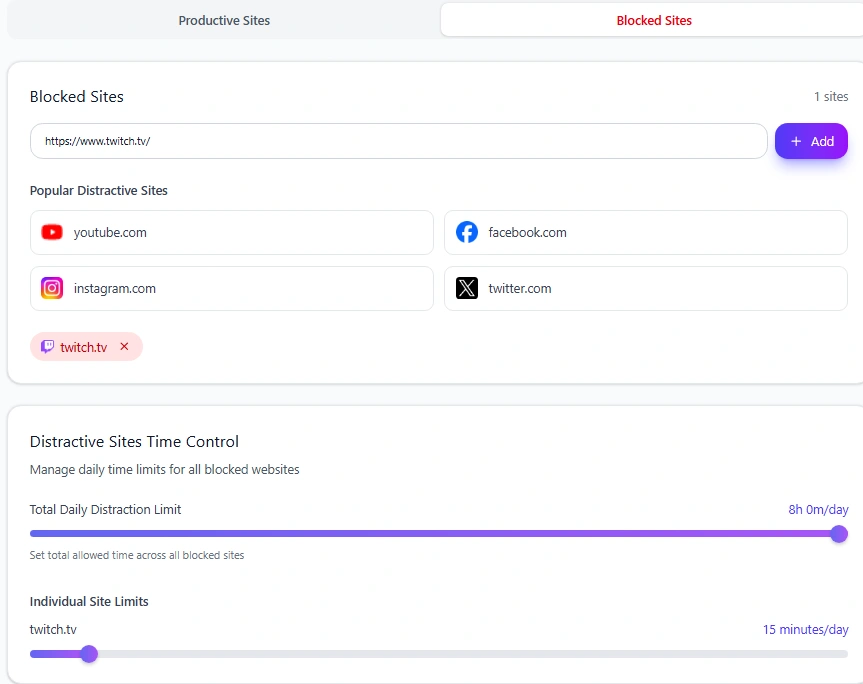
A daily allowance can be more useful than a full block if you follow specific streams but do not want Twitch running in the background for hours.
What Happens When Your Twitch Time Runs Out?
When Twitch reaches its Individual Site Limit, Mindova interrupts the site with its Focus Time screen.
We confirmed this directly on twitch.tv.
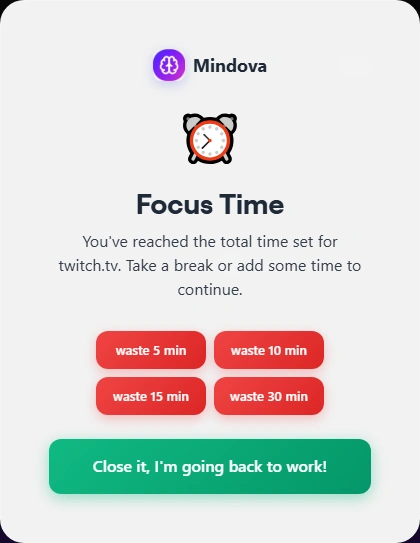
The screen tells you that the time set for twitch.tv has been reached.
You can close Twitch and return to your task, or deliberately add:
- 5 minutes
- 10 minutes
- 15 minutes
- 30 minutes
Mindova therefore creates a decision point rather than an irreversible lock.
That matters with Twitch because a stream may still be live when your limit ends. You can choose extra time if you genuinely want it, but continuing is no longer automatic.
Twitch Limit vs Your Overall Distraction Limit
Mindova has two separate controls.
An Individual Site Limit applies only to Twitch.
The Total Daily Distraction Limit applies across all websites you have classified as distracting.
For example, Twitch, YouTube, Reddit, TikTok, and X can all count toward one combined daily distraction allowance.
Neutral websites do not count toward that total.
If video is the bigger problem rather than Twitch specifically, see our guide to blocking YouTube. If endless browsing is another issue, see how to block Reddit.
If Twitch is part of a wider pattern of jumping between distracting sites, see our guide to blocking multiple distracting websites with separate daily limits.
Use Focus Sessions When You Do Not Need Twitch at All
A Twitch daily limit controls how much viewing time you allow across the day.
A Focus Session is better when you want Twitch unavailable during a specific period.
During the work part of a Mindova Focus Session, websites that are not explicitly marked Productive are blocked, including Neutral websites.
A practical setup is:
- Give Twitch its normal daily allowance.
- Mark the websites you actually need as Productive.
- Start a Focus Session before work or study.
- Return to Twitch after the session if you still want to watch.
This gives you flexibility without keeping Twitch accessible during every task.
Can Mindova Block One Twitch Channel or Streamer?
Not with the current public browser-extension workflow.
Mindova controls access to the twitch.tv domain as a whole.
It does not separately block:
- One Twitch channel
- One streamer
- Twitch chat
- Recommended streams
- Twitch ads
- Individual categories
If you still need Twitch for one creator or event, a daily allowance may be more practical than a zero-minute block.
Does This Work on Brave, Edge, Opera and Vivaldi?
Yes. The same Mindova workflow also works on supported Chromium-based desktop browsers including:
- Microsoft Edge
- Brave
- Opera
- Vivaldi
Add twitch.tv, set its Individual Site Limit, and use Focus Sessions when you need stricter focus.
Twitch Is Still Opening
First, confirm that twitch.tv appears under:
Site Management → Blocked Sites
Then check the Individual Site Limit.
For an immediate block, use:
0 minutes/day
If Twitch still has unused time available, it can remain accessible until that allowance is consumed.
If Twitch was already open when you changed the settings, refresh the tab or close it and open twitch.tv again.
Also confirm that Mindova shows:
Active & Protecting
If everything looks correct but Twitch still behaves differently, visit the Mindova Help Center.
Frequently Asked Questions
How do I block Twitch on Chrome?
Add twitch.tv to Mindova's Blocked Sites and set its Individual Site Limit to 0 minutes/day.
Can I set a daily time limit for Twitch?
Yes. Mindova supports per-site limits from 0 to 240 minutes per day in 5-minute steps.
Can I temporarily block Twitch while I work or study?
Yes. You can combine Twitch's normal daily limit with a Mindova Focus Session when you want Twitch unavailable during a specific work or study period.
Can Mindova block one Twitch streamer?
No. The current public browser-extension workflow controls Twitch as a website rather than individual channels or streamers.
Can Mindova block Twitch ads?
No. Mindova is a website and distraction blocker, not a Twitch ad blocker.
Does Mindova block the Twitch mobile app?
Not with the current public Mindova browser extension. This guide covers Twitch blocking in supported desktop browsers.
Can I block Twitch on Brave or Edge?
Yes. The same Mindova workflow applies on supported Chromium-based browsers including Brave and Microsoft Edge.
Is Mindova free?
New users can try Mindova free for 7 days. No credit card is required to start. Continued access after the trial requires a Monthly or Annual plan.
Watch Twitch When You Actually Choose To
The useful question is not always whether Twitch should be blocked forever. It is whether you want a live stream to decide how long your attention stays there.
Add twitch.tv to Mindova, use 0 minutes/day when you need a complete browser block, or give yourself a realistic viewing allowance when Twitch still has a place in your day.
Use Focus Sessions when you only want Twitch unavailable during a specific work or study period.
Mouhsine
Admin
Passionate about helping people achieve peak mental performance through evidence-based strategies and mindful technology use.
Related Articles
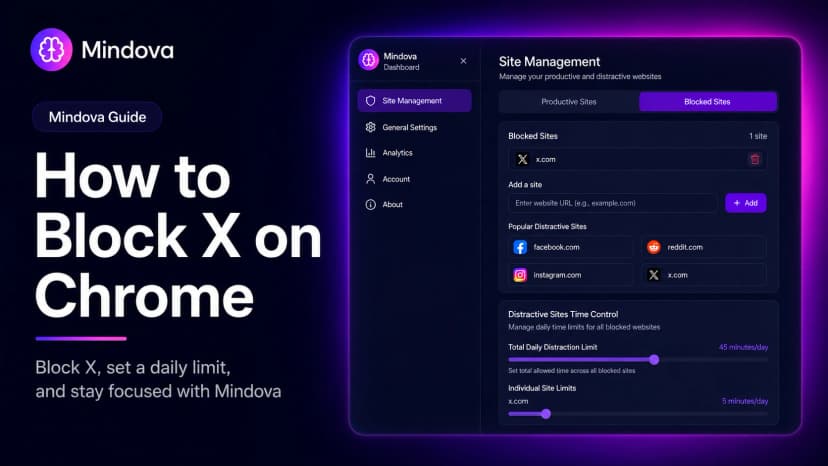
How to Block X (Twitter) on Chrome and Set a Daily Limit 2026
Block X (Twitter) on Chrome with a tested browser method. Use Mindova to block x.com or twitter.com, set a daily limit, and stay focused
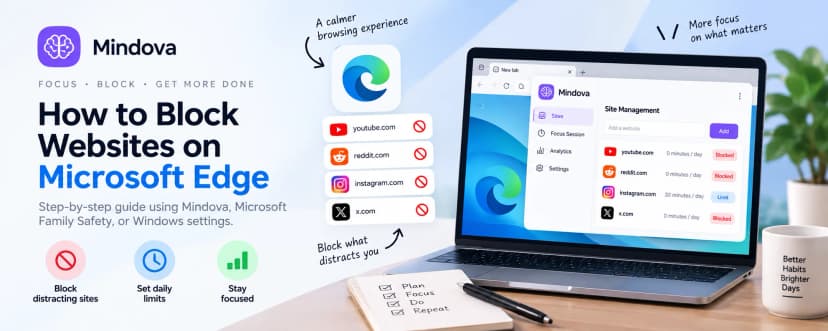
How to Block Websites on Microsoft Edge: 3 Methods
Block websites on Microsoft Edge with Mindova, Microsoft Family Safety, or Windows. Choose the best method for personal focus, family, or system-wide blocking.
How to Block Online Distractions Without Blocking Work Sites
Block online distractions without losing access to websites you need for work. Learn how to keep essential sites available, limit useful distractions, and block the rest
Comments
Be the first to comment.
Ready to protect your focus?
Block distracting sites, set daily limits, and run focus sessions. Mindova is free.