How to Check Screen Time on Android (Pixel, Samsung, and More)
Written by Mouhsine
Admin
Published November 5, 2026 · Updated November 10, 2026
Android tracks how long you use your phone, which apps take the most time, how often you unlock it, and how many notifications you get. The data is already on your phone. You just need to know where to look.
Quick answer: To check screen time on Android, open Settings → Digital Wellbeing & parental controls. The chart at the top shows your screen time today and your most-used apps. Tap the chart to see time per app, how many times you unlocked your phone, and notifications. On Samsung, open Settings → Digital Wellbeing and tap the weekly report icon in the top right corner to see your daily average for the week.
Menu names can be slightly different depending on your phone brand and Android version. The steps below follow Google's Digital Wellbeing help page and Samsung's Digital Wellbeing guide.
How to Check Screen Time on Android (Pixel and Most Phones)
- Open the Settings app.
- Tap Digital Wellbeing & parental controls.
- Look at the chart at the top. It shows your total screen time today and the apps you used most.
- Tap the chart to open the Dashboard. You can switch between:
- Screen time: which apps were on screen and for how long.
- Times opened: how often you unlocked your phone and opened each app.
- Notifications received: how many notifications you got and from which apps.
- Tap any app in the list to see its usage day by day, or to set a timer for it.
Can't find Digital Wellbeing?
Digital Wellbeing needs Android 9 (Pie) or later, so very old phones may not have it. On newer phones, use the search bar at the top of Settings and type "Digital Wellbeing" or "screen time." On some phones, you can also open Digital Wellbeing as an app: in Settings → Digital Wellbeing, turn on Show icon in the app list.
How to Check Screen Time on a Samsung Galaxy Phone
- Open Settings.
- Tap Digital Wellbeing (on some versions, Digital Wellbeing and parental controls).
- The main screen shows today's screen time, notifications received, and unlocks.
- To see the whole week, tap the weekly report icon (it looks like four vertical lines) in the top right corner. You will see your daily average screen time and the apps you used most during the week.
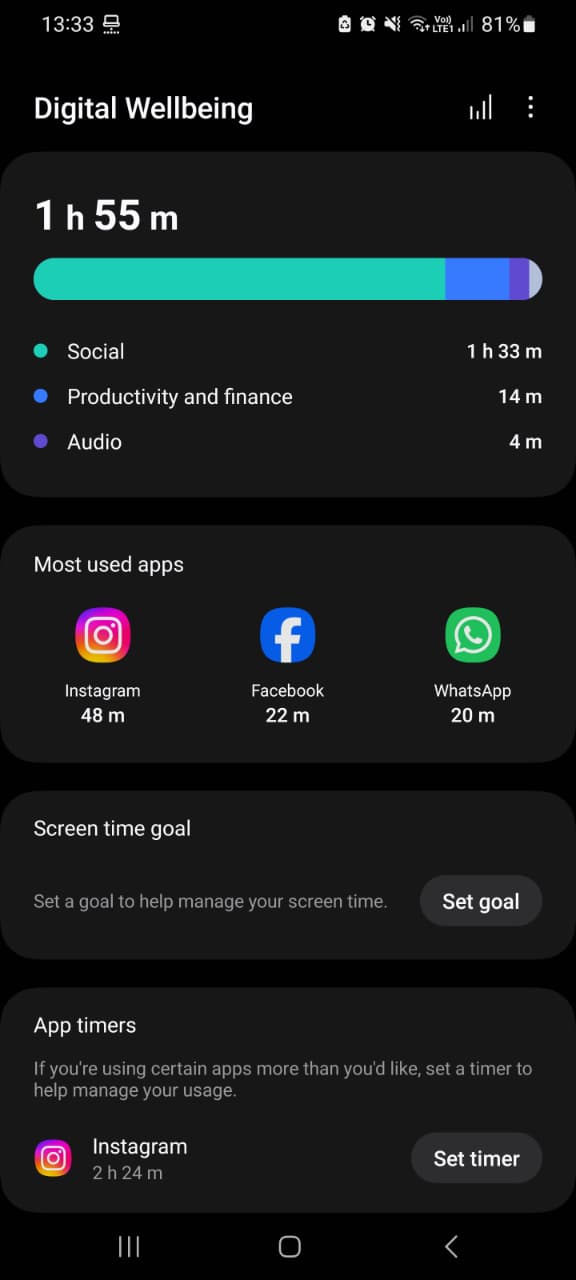
Samsung also lets you set a Screen time goal: tap Set goal under Screen time goal, choose hours and minutes, and tap Done. The tracker then shows each day's usage against your goal.
How to See Weekly Screen Time on Android
- Pixel and most phones: open the Digital Wellbeing dashboard and use the arrows or the bar chart at the top to move between days of the week.
- Samsung: use the weekly report icon in Digital Wellbeing, as above.
Look at the week, not just one day. One busy Sunday can make a single day look worse than your real habit.
How to See Time Spent on Websites in Chrome
If you browse a lot in Chrome on your phone, Digital Wellbeing can also show which websites take your time:
- Open Settings → Digital Wellbeing and tap the chart.
- Tap Chrome (tap Show all apps if you do not see it).
- Tap Show sites.
You will see the websites you visited and how long you spent on each one per day. From the same list, you can tap Set site timer next to a website to limit it.
Add a Screen Time Widget to Your Home Screen
On Android 9 and later, you can add a screen time widget that shows your top three apps for the day:
- Touch and hold an empty spot on your home screen.
- Tap Widgets.
- Find the screen time (Digital Wellbeing) widget, touch and hold it, and drag it where you want.
Seeing the number every time you unlock your phone is a simple reminder that works better than checking a report once a month.
How to Check Screen Time on Android Without Digital Wellbeing
Some phones, especially older ones or certain brands, do not include Digital Wellbeing, or name it differently. Options:
- Search Settings for "screen time," "usage," or "wellbeing." Many brands have their own version under a different name.
- Battery settings: the battery usage screen on many phones shows which apps used the most battery since the last full charge. It is a rough hint, not an exact screen time report.
- A screen time app: apps like Mindova, StayFree, or ActionDash show app usage once you give them usage access.
How to Check Your Child's Screen Time on Android
This guide is about your own phone. To see a child's screen time remotely, use Google Family Link if you manage your child's Google account. It shows their app activity and lets you set daily limits and bedtime from your own phone.
How to Understand Your Screen Time Report
Numbers alone do not change much. Use the report to answer three questions:
| What to check | Why it matters | What to do next |
|---|---|---|
| Total screen time | Shows your overall habit | Compare it with how much time you want to spend, not with other people |
| Top 3 apps | Usually most of your leisure time | These are the apps to limit first |
| Times opened / unlocks | Shows automatic checking | Many short checks often mean notifications or boredom triggers |
If your total is high mostly because of work apps, the problem is not your phone habit. If social media, video, or news apps are at the top, that is where small limits will make the biggest difference. Not sure if your number is too high? See how much screen time is too much for adults. For a full plan, see how to reduce screen time.
Want to see what your daily number adds up to over a week, a month, or a year? Enter it in our free screen time calculator, and see how much time you could reclaim with a small daily change.
What to Do After You Check Your Screen Time
Checking is step one. To actually use your phone less:
- Turn off non-essential notifications for your top apps.
- Set a daily limit on the apps that take the most time. In Digital Wellbeing, tap the app, then App timer. When the time is used, the app is paused until midnight.
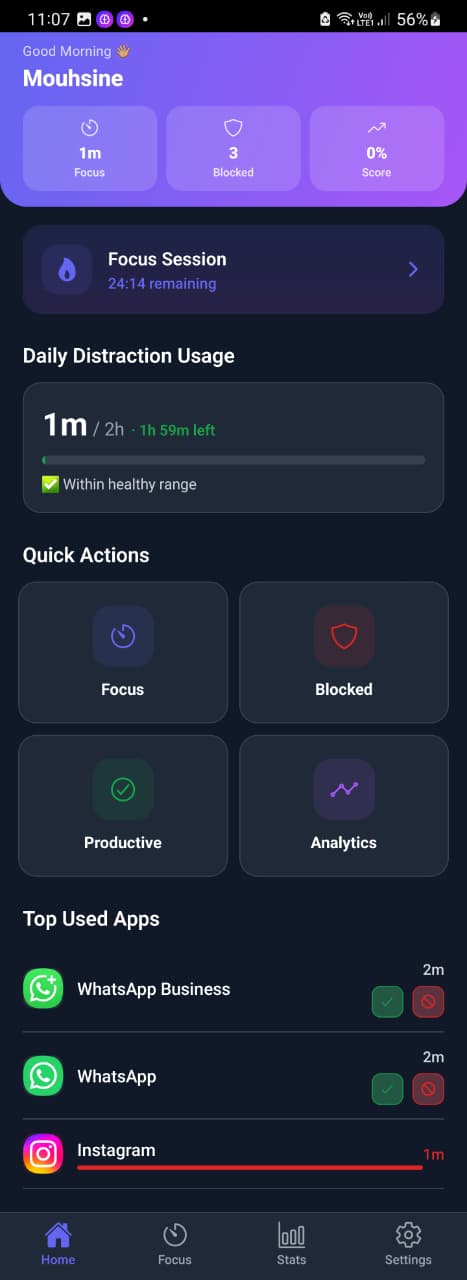
- Use one shared limit if you jump from app to app. Mindova for Android lets you give each distracting app its own limit and set one Daily Distraction Limit across all of them.
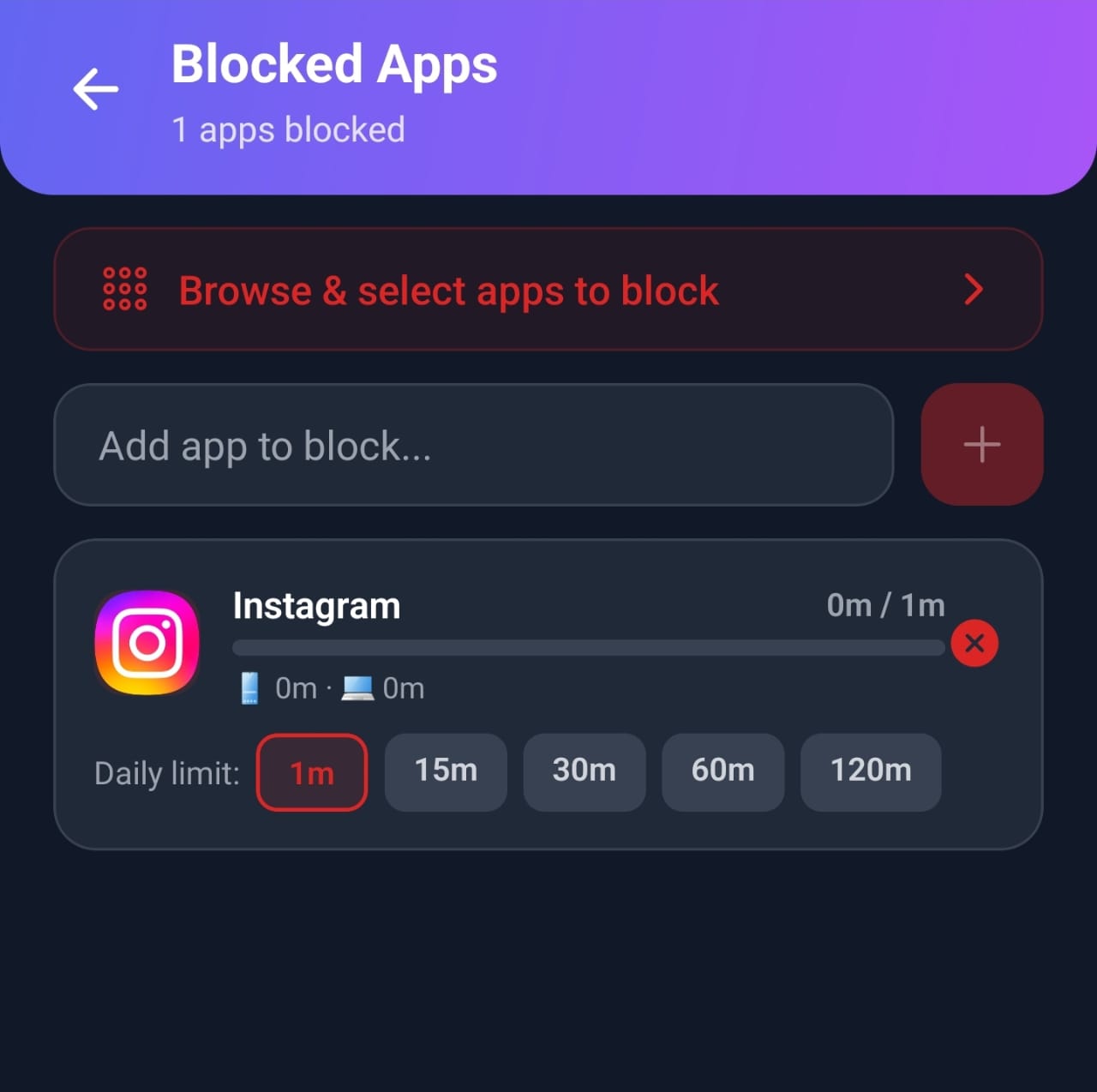
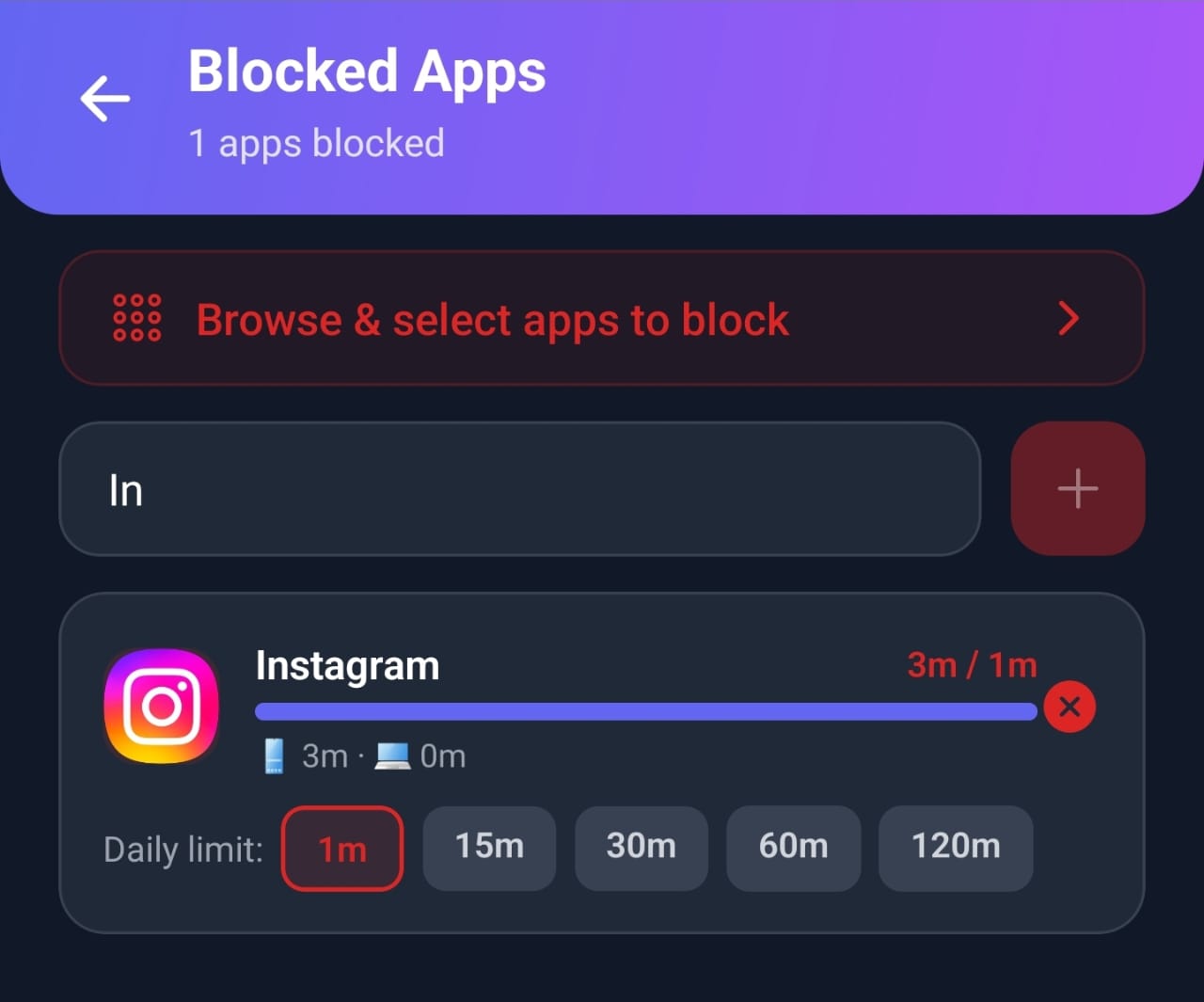
When we tested this with Instagram and a one-minute limit, Mindova showed the limit as reached after one minute of use and interrupted access to the app.
Step-by-step guides: how to block Instagram on Android, how to block TikTok on Android, and how to block any app on Android.
See App Usage in Mindova
Mindova's Android app includes app usage and focus insights, so you can see the time spent in the apps you marked as distracting next to your limits and Focus Sessions. If you also use the Mindova browser extension, you can track and limit distracting websites on your computer.
Mindova has a Free plan with no credit card required (up to 3 blocked apps or sites and 10 Focus Sessions a month). Mindova Pro removes the limits for $4.99/month or $39.99/year, and you can try Pro free for 7 days. See Mindova pricing.

Block distractions. Stay focused with Mindova.
Block distracting websites and apps, set limits, and protect your focus time across your browser and phone.
Free plan, no credit card • Try Pro free for 7 days
Frequently Asked Questions
What is Screen Time called on Android?
On Android, the equivalent of Apple's Screen Time is called Digital Wellbeing. On most phones it is under Settings → Digital Wellbeing & parental controls. Learn more in our Digital Wellbeing app guide.
Where is screen time on Android?
In Settings → Digital Wellbeing & parental controls on most phones, or Settings → Digital Wellbeing on Samsung. The chart at the top shows today's screen time.
How do I see my screen time for the whole day or week?
Tap the chart in Digital Wellbeing to open the dashboard and move between days. On Samsung, tap the weekly report icon in the top right corner of Digital Wellbeing.
How do I see how much time I spend on each app?
Open the Digital Wellbeing dashboard and choose Screen time. Apps are listed from most to least used. Tap an app to see its daily usage.
Can I check screen time on Android without an app?
Yes. Digital Wellbeing is built into most Android phones. You only need a separate app if your phone does not have it or you want extra features, such as one limit across several apps.
Does Android screen time include websites?
The Chrome entry in Digital Wellbeing can show the websites you visited and how long you spent on each one. Tap Chrome, then Show sites.
Can I check my child's screen time on Android?
Yes, with Google Family Link if you manage your child's Google account. This guide focuses on checking your own screen time.
When does Android screen time reset?
Daily usage and app timers reset at midnight.
Know Your Number, Then Change It
Checking your screen time takes less than a minute, and it usually shows that two or three apps take most of your free time. Start there: look at this week's report, pick your top app, and give it a daily limit.
If you want help keeping that limit, try Mindova for Android.
Less scrolling. More focused time.
Use Mindova to block distracting websites and apps, set daily limits, and create protected time for studying, working, or deep focus.
- Browser ExtensionChrome, Edge, Brave, Opera & Vivaldi
- Android AppBlock and limit distracting apps on Android.
- iPhone AppControl distracting apps and protect your focus on iPhone.


Start free — no credit card needed. Try Pro free for 7 days whenever you like.
Mouhsine
Admin
Passionate about helping people achieve peak mental performance through evidence-based strategies and mindful technology use.
Related Articles
How Much Screen Time Is Too Much for Adults? (And How to Tell)
There is no official screen time limit for adults. Learn the benchmarks experts use, the signs your screen time is too high, and how to calculate your own number.
Digital Wellbeing App: What It Is and How to Use It (2026 Guide)
What Android's Digital Wellbeing app does, where to find it, and how to use App timers, Focus mode, Bedtime mode, Pause Point, and the App limits PIN.

Digital Detox: What Is It, and Does It Actually Help?
Learn what a digital detox really is, what research says about its benefits, and how to reduce distracting technology without quitting every screen.
Comments
Be the first to comment.