How to Block Netflix on Chrome or Set a Daily Limit
Written by Mouhsine
Admin
Published September 28, 2026
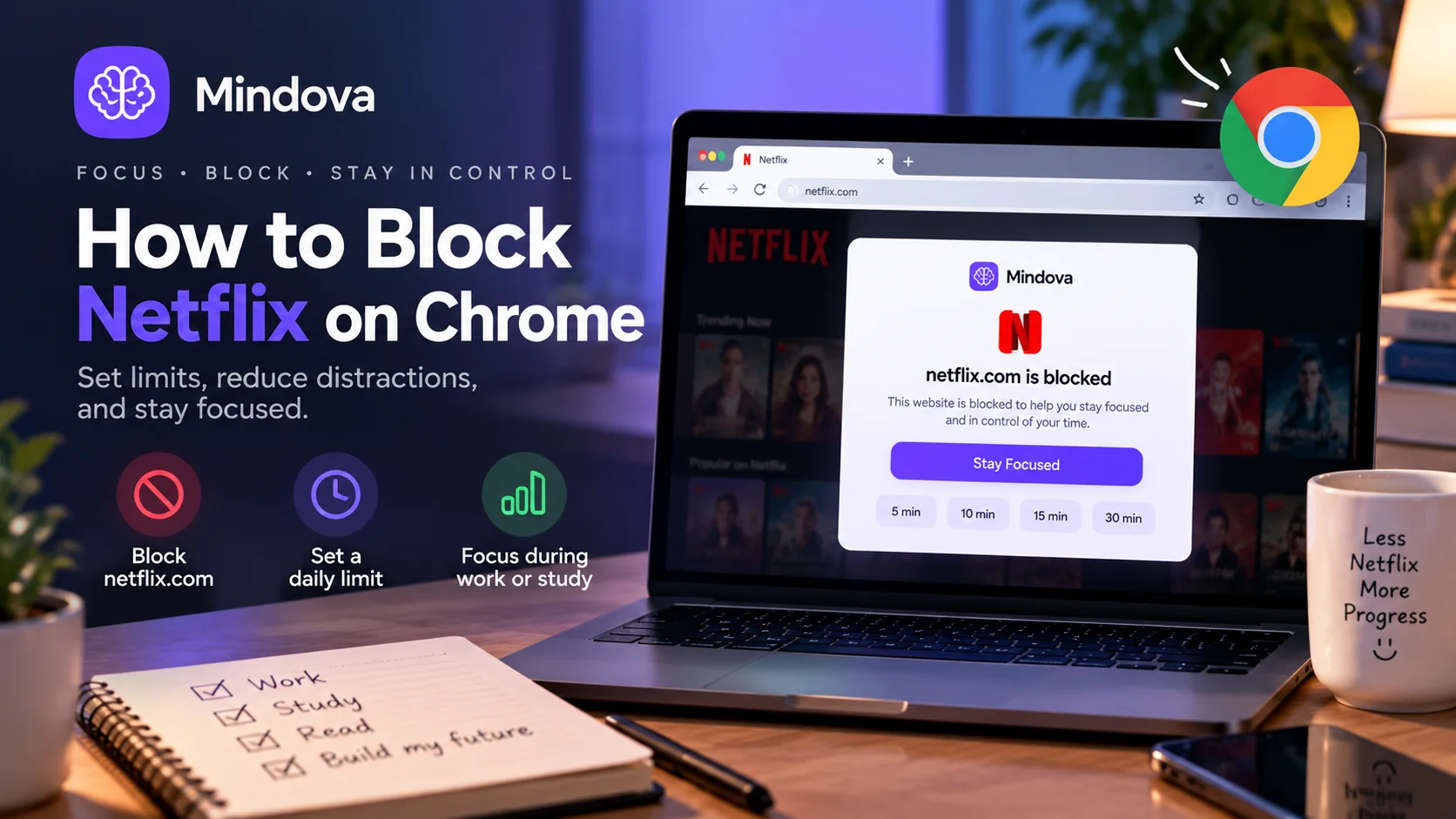
Netflix is easy to open when you want a break.
That becomes a problem when a short break turns into an episode, another episode, and work or studying keeps getting pushed back.
If Netflix is one of the websites you repeatedly open when you are supposed to be focusing, you do not necessarily have to stop using it completely.
You can:
- block
netflix.comin Chrome; - give Netflix a daily viewing allowance;
- or keep it unavailable during a focused work or study session.
We tested Netflix blocking with Mindova in Chrome.
After adding netflix.com to Blocked Sites and setting its Individual Site Limit to 0 minutes/day, opening Netflix triggered Mindova's Focus Time screen instead of allowing normal access to the site.
Quick answer: Open Mindova, go to Site Management → Blocked Sites, add
netflix.com, and set its Individual Site Limit to 0 minutes/day. In our Chrome test, Mindova interrupted access to Netflix with its Focus Time screen. If you still want some Netflix access, choose a higher daily allowance instead.
Important: This guide covers the Netflix website in supported desktop Chromium browsers. It does not block Netflix on a Smart TV, streaming device, or native mobile app.
Before Blocking Netflix, Consider Turning Off Autoplay
If your main problem is:
One episode keeps turning into another.
you may not need to block Netflix completely.
Netflix lets you turn off automatic playback of the next episode from your profile's playback settings.
In a browser:
- Open your Netflix account.
- Select the profile you want to change.
- Open Playback settings.
- Turn off Autoplay Next Episode.
This does not block Netflix.
You can still manually start another episode.
What it does is create a clearer stopping point between episodes.
If your problem is different — for example, you keep opening Netflix during study or work even when you did not plan to watch anything — a website block or daily limit is more useful.
Step 1: Install Mindova in Chrome
Install Mindova in Chrome and sign in.
7-day free trial for new users. No credit card required to start. View pricing.
If you are setting up Mindova for the first time, you can also use the Mindova Setup Guide.
Step 2: Add netflix.com to Blocked Sites
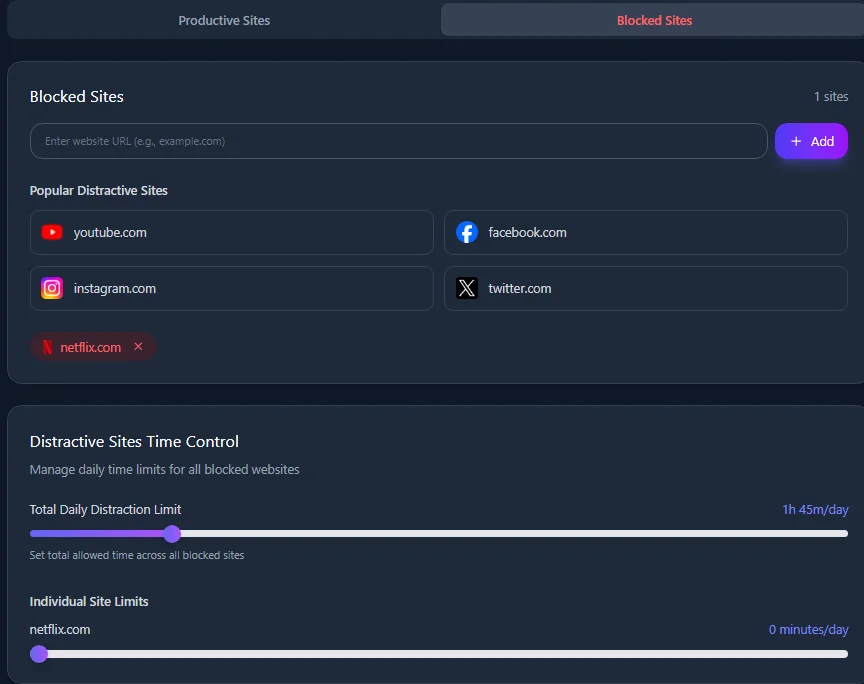
Open Mindova and go to:
Site Management → Blocked Sites
Then:
- Enter
netflix.com. - Add the website.
- Confirm that Netflix appears in your Blocked Sites list.
You do not need to add an individual movie, series, or watch-page URL.
The rule is applied at the website/domain level.
Step 3: Set Netflix to 0 Minutes Per Day
After adding Netflix, scroll to Individual Site Limits.
Set:
netflix.com → 0 minutes/day
In Mindova, 0 minutes/day means blocked.
It does not mean unlimited access.
We tested this exact setup in Chrome with netflix.com.
This setup is useful when Netflix has no place inside the hours you are trying to protect.
For example:
- during exam preparation;
- while writing;
- during work hours;
- before an important deadline;
- or when you know "just one episode" is likely to delay the task you intended to finish.
What Happens When You Open Netflix?
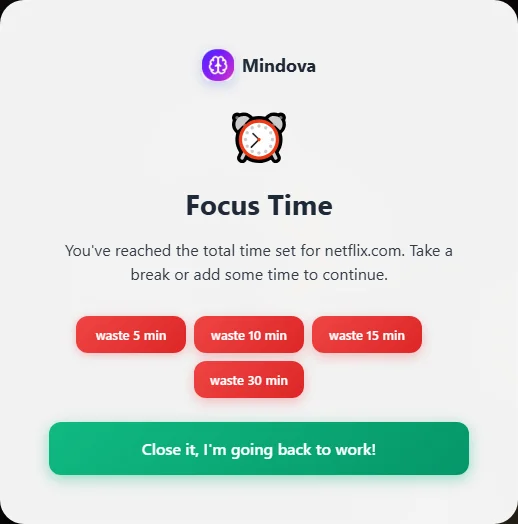
With netflix.com configured at 0 minutes/day, we opened Netflix in Chrome.
Mindova interrupted access with its Focus Time screen.
The screen identified netflix.com and gave us the option to close the distraction and return to work.
The Focus Time screen also provides deliberate options to add:
- 5 minutes;
- 10 minutes;
- 15 minutes;
- or 30 minutes.
That distinction matters.
Mindova is not designed as an irreversible Netflix lock.
It creates friction between:
I feel like opening Netflix.
and:
I am deliberately choosing to spend more time on Netflix.
Sometimes that pause is enough to return to what you originally planned to do.
Set a Daily Netflix Limit Instead of Blocking It Completely
Netflix does not have to be either completely blocked or completely unrestricted.
If you still want to watch Netflix during the day, give it an Individual Site Limit greater than zero.
For example:
Netflix → 30 minutes/day
or:
Netflix → 60 minutes/day
Those numbers are examples, not recommendations.
Choose a limit that matches how you actually want Netflix to fit into your day.
With a daily allowance, Netflix remains available while time is still available.
Once that allowance is consumed, Mindova interrupts access.
This can work well when your goal is:
I still want entertainment. I just do not want unlimited Netflix access.
Use a Focus Session When Netflix Should Only Be Blocked While You Work
A daily site limit and a Focus Session solve different problems.
An Individual Site Limit controls how much time you give Netflix across the day.
A Focus Session protects a specific period when you want distracting websites out of the way.
For example:
I want to work for the next 60 minutes without Netflix.
Before starting:
- Mark websites you genuinely need as Productive.
- Start a Focus Session.
- Work during the focused portion of the session.
- Return to entertainment afterward if you still want it.
During the work portion of a Mindova Focus Session, websites that are not explicitly marked Productive are blocked.
This is useful if you do not want Netflix permanently restricted but also do not want it available during your focused work.
If Netflix is interfering with studying specifically, see how to focus while studying.
Should You Block Netflix or Just Limit It?
The right setup depends on your actual problem.
| Situation | Better approach |
|---|---|
| You do not want Netflix available at all during normal browser use | Set Netflix to 0 minutes/day |
| You still want some Netflix every day | Use an Individual Site Limit |
| You only want Netflix unavailable during focused work | Use a Focus Session |
| The next episode keeps starting automatically | Turn off Netflix autoplay |
| You want to hide one movie or show from a profile | Use Netflix's own title restrictions |
| You need Netflix blocked across phones, TVs, and other devices | Browser blocking alone is not enough |
Do not make the rule stricter than the problem requires.
Netflix Website Blocking Is Not the Same as Netflix App Blocking
Mindova's current public product is a browser extension.
The workflow tested in this guide controls:
netflix.com inside supported desktop Chromium browsers.
That includes browsers such as:
- Google Chrome;
- Microsoft Edge;
- Brave;
- Opera;
- Vivaldi.
It does not mean Netflix is automatically blocked on every device you own.
This browser workflow does not block Netflix on:
- a Smart TV;
- a streaming stick;
- a game console;
- the native Netflix mobile app;
- or another device where Mindova is not controlling the browser.
If you need device-wide or household-wide restrictions, browser blocking alone may not match that requirement.
Can You Block Only One Netflix Show?
Not with this Mindova workflow.
Mindova controls access to the Netflix website rather than individual content inside Netflix.
It does not selectively block:
- one TV show;
- one movie;
- one genre;
- one Netflix profile;
- or individual Netflix recommendations.
If you are trying to prevent a specific movie or series from appearing on a profile, Netflix provides its own profile-level maturity and title restriction controls.
That is a different use case from blocking netflix.com because it is distracting you during work or study.
Does Mindova Block Netflix Ads?
No.
Mindova is not a Netflix ad blocker.
Its role in this guide is controlling access to the Netflix website and how much time you allow yourself to spend there.
Blocking Netflix ads is a separate problem.
What If Netflix Is Still Opening?
If Netflix is still accessible after configuring Mindova, check the setup.
Confirm netflix.com is in Blocked Sites
Open:
Site Management → Blocked Sites
and make sure:
netflix.com
appears there.
Check the Individual Site Limit
If you want Netflix blocked immediately, the limit should be:
0 minutes/day
A higher value gives the website an allowance.
Refresh an existing Netflix tab
If Netflix was already open before you changed the rule, refresh the tab or close it and open Netflix again.
Confirm Mindova is active
Check that Mindova is running and protecting the browser session.
Check your Chrome profile
If you use several Chrome profiles, confirm that Mindova is installed and configured in the same profile where you are opening Netflix.
If the setup appears correct but Netflix still behaves differently, visit the Mindova Help Center.
Blocking Netflix May Not Solve Every Distraction
There is another possibility worth considering.
You block Netflix.
Then you start opening YouTube.
You block YouTube.
Then Reddit becomes the new distraction.
If that happens, Netflix may not be the whole problem.
You may be looking for an easy escape whenever work becomes boring, difficult, or uncomfortable.
In that situation, repeatedly adding websites can help reduce easy distractions, but it is also worth looking at the task itself.
Ask:
What am I avoiding right before I open Netflix?
Maybe the next action is unclear.
Maybe the task feels too large.
Maybe you need a real break.
Or maybe several distracting websites need rules rather than only Netflix.
For a broader setup, see how to block distracting websites.
If live streaming is another recurring distraction, see how to block Twitch on Chrome.
Frequently Asked Questions
How do I block Netflix on Chrome?
Install Mindova, open Site Management → Blocked Sites, add netflix.com, and set its Individual Site Limit to 0 minutes/day.
We tested this setup in Chrome. Opening Netflix triggered Mindova's Focus Time screen.
Does 0 minutes/day really block Netflix?
Yes.
In our Chrome test, netflix.com was configured with a 0-minute Individual Site Limit.
When Netflix was opened, Mindova interrupted access with its Focus Time screen.
Can I set a daily time limit for Netflix?
Yes.
Instead of setting the Individual Site Limit to zero, choose a higher daily allowance.
This lets you keep some Netflix access without leaving the website unrestricted.
Can I temporarily block Netflix while studying or working?
Yes.
Use a Mindova Focus Session when you want distracting websites unavailable during a defined focused period.
Can Mindova automatically block Netflix at the same time every day?
Not currently.
The public Mindova browser extension does not provide recurring clock-based schedules for Netflix.
Use Individual Site Limits or start a Focus Session when you want a protected work period.
Does Mindova block the Netflix mobile app?
No.
The current public Mindova browser extension controls websites in supported desktop browsers.
It does not block the native Netflix mobile app.
Does Mindova block Netflix on a Smart TV?
No.
A browser-extension rule does not control Netflix on a Smart TV or separate streaming device.
Can Mindova block only one Netflix show?
No.
Mindova controls netflix.com at the website level.
Use Netflix's own title restriction controls if you want to restrict a particular movie or series on a profile.
Does Mindova block Netflix ads?
No.
Mindova is not an ad blocker.
Does Mindova work with Netflix on Edge or Brave?
Mindova supports desktop Chromium browsers including Chrome, Edge, Brave, Opera, and Vivaldi.
The workflow is website-based: add netflix.com and configure the limit you want.
Is Mindova free?
New users can try Mindova free for 7 days.
No credit card is required to start.
Continued access after the trial requires a Monthly or Annual plan.
Make Netflix Something You Choose
The goal does not have to be:
Never watch Netflix again.
A better rule may simply be:
Netflix does not get to decide when my work ends.
If autoplay is keeping you watching longer than intended, turn it off.
If you want Netflix but not unlimited Netflix, use a daily allowance.
If you do not want netflix.com available at all in Chrome, add it to Mindova's Blocked Sites and set the Individual Site Limit to 0 minutes/day.
We tested that setup with Netflix in Chrome, and Mindova successfully interrupted access with its Focus Time screen.
And if you only need Netflix out of the way during one important work or study period, use a Focus Session instead.
Mouhsine
Admin
Passionate about helping people achieve peak mental performance through evidence-based strategies and mindful technology use.
Related Articles
How to Block X (Twitter) on Chrome and Set a Daily Limit 2026
Block X (Twitter) on Chrome with a tested browser method. Use Mindova to block x.com or twitter.com, set a daily limit, and stay focused
How to Block Websites on Microsoft Edge: 3 Methods
Block websites on Microsoft Edge with Mindova, Microsoft Family Safety, or Windows. Choose the best method for personal focus, family, or system-wide blocking.
How to Block Online Distractions Without Blocking Work Sites
Block online distractions without losing access to websites you need for work. Learn how to keep essential sites available, limit useful distractions, and block the rest
Comments
Be the first to comment.
Ready to protect your focus?
Block distracting sites, set daily limits, and run focus sessions. Mindova is free.