How to Block the Facebook App on Android Without Deleting It
Written by Mouhsine
Admin
Published November 5, 2026 · Updated November 10, 2026
Facebook is hard to delete completely. You may need it for Messenger, Marketplace, a Facebook Group, or a page you manage for work. But opening it for one quick task can easily turn into 30 minutes of scrolling the feed, Reels, or notifications.
The good news is that you do not have to uninstall Facebook to stop it from taking over your day. Android gives you several ways to block or limit the Facebook app while keeping it on your phone, and a dedicated app blocker can add a stricter daily limit across all your distracting apps.
Quick answer: To block the Facebook app on Android without deleting it, open Settings → Digital Wellbeing & parental controls → Dashboard, tap Facebook, and set an App timer. When the timer runs out, Facebook is paused until midnight. To block it during work or study, add Facebook to Focus mode. To shut it off completely, go to Settings → Apps → Facebook and tap Disable or Archive. For one daily limit across Facebook, Instagram, and TikTok, you can use Mindova for Android.
The steps below are for controlling your own use of the Facebook app. If you want to block a person on Facebook, use the Block option on their profile instead.
Which Facebook Blocking Method Should You Use?
| Method | What it does | Keeps the app installed? | Best for |
|---|---|---|---|
| Facebook time management | Reminds you after a set amount of time | Yes | Light awareness |
| Digital Wellbeing App timer | Pauses Facebook when your daily time runs out | Yes | Daily limits |
| Focus mode | Pauses Facebook during set hours or on demand | Yes | Work and study sessions |
| Mindova for Android | Individual daily limits plus one limit for all distracting apps | Yes | Facebook plus other apps |
| Disable or Archive | Removes Facebook from your app drawer until you restore it | Yes (data or account kept) | A longer break |
| Restrict data | Stops Facebook from loading new content in the background | Yes | Fewer notifications and refreshes |
If you only want a reminder, start with Method 1. If you want Facebook to actually stop opening, use Method 2, 3, 4, or 5.
Method 1: Use Facebook's Own Time Reminder
Facebook has a built-in time management tool. It does not block the app, but it can remind you when you have reached the time you planned to spend.
- Open the Facebook app.
- Tap Menu (your profile picture or the three lines).
- Go to Settings & privacy → Settings.
- Look for Time management (older versions call it Your time on Facebook).
- Set a daily time reminder.
Menu names change between Facebook versions, so you may need to use the search bar inside Settings.
Does Facebook's reminder actually block the app?
No. When the reminder appears, you can dismiss it and keep scrolling. It is useful if you only need a nudge. If you want Facebook to stop opening, use an Android-level limit below.
Method 2: Block Facebook After a Daily Limit With Digital Wellbeing
Android's App timer is the simplest way to block the Facebook app on Android for free. Once your daily allowance is used, Android pauses Facebook until the timer resets at midnight.
Step 1: Open Digital Wellbeing
Go to Settings → Digital Wellbeing & parental controls. On Samsung phones, it is Settings → Digital Wellbeing and parental controls.
Step 2: Find Facebook
Tap Dashboard (or App timers on Samsung) and find Facebook in the list.
Step 3: Set a Daily Timer
Tap the hourglass icon or App timer and choose a daily allowance, for example 15 or 30 minutes. If you want to block Facebook for the rest of the day, use the shortest time available.
What happens when the Facebook timer runs out?
The Facebook icon turns grey, notifications from the app are paused, and opening it shows a message that the app is paused. The timer resets at midnight.
The weak point: you can go back to Digital Wellbeing and remove the timer in a few taps. That is fine for gentle limits, but it is easy to undo when you really want to scroll. On many phones you can make it harder with an App limits PIN (Settings → Digital Wellbeing → App limits → App limits PIN): changing a timer then needs a 4-digit PIN. It works best if someone else chooses the PIN.
Method 3: Pause Facebook During Work or Study With Focus Mode
Focus mode is better than an App timer when you want Facebook blocked at specific times, not after a certain amount of use.
- Go to Settings → Digital Wellbeing & parental controls → Focus mode.
- Select Facebook (and any other distracting apps, such as Instagram or TikTok).
- Tap Turn on now, or Set a schedule for your work or study hours.
While Focus mode is on, Facebook is paused and its notifications are hidden.
Can you take a break from Focus mode?
Yes. Android lets you take a break for a few minutes or turn Focus mode off early. This makes it easy to use, but also easy to bypass.
Method 4: Block or Limit the Facebook App With Mindova for Android
If Facebook is only one of the apps pulling you in, a single timer is often not enough. You limit Facebook, then open Instagram or TikTok instead.
Mindova is a focus app and app blocker for Android. It lets you limit selected native Android apps, set an overall Daily Distraction Limit across all of them, run Focus Sessions, and see where your time actually goes.
Step 1: Install Mindova
Download Mindova: Focus & App Blocker from Google Play.
Sign in and follow the setup steps in the app. Review the Android permissions Mindova asks for before you enable app blocking and usage tracking.
Step 2: Select Facebook as a Distracting App
In Mindova, find Facebook in your list of installed apps and mark it as distracting.
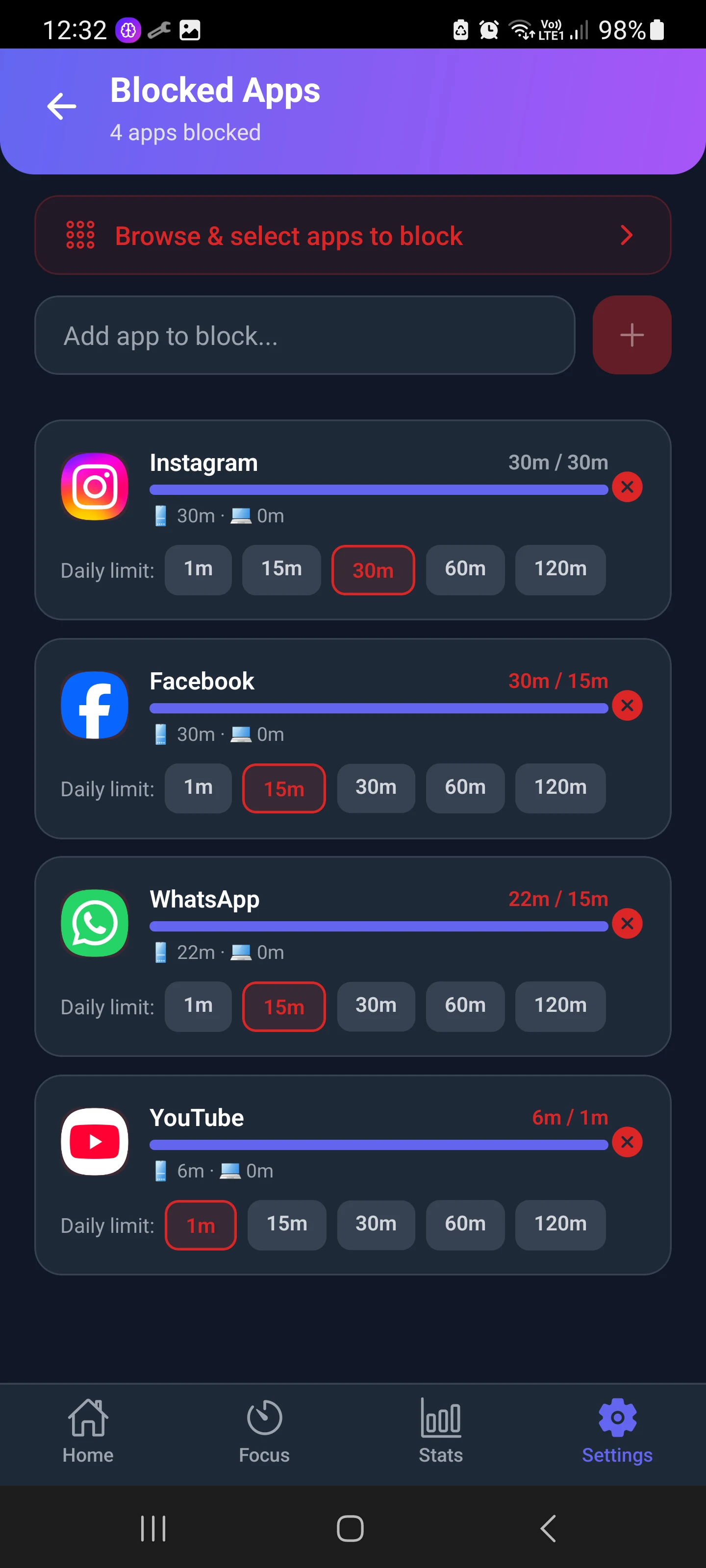
You can do the same for Messenger, Instagram, TikTok, or any other app you want to control, while keeping essential apps like your phone, maps, or work chat available.
Step 3: Set a Daily Limit for Facebook
Give Facebook a daily allowance. Keep it short if you only need Facebook for Messenger, Groups, or Marketplace. Once the allowance is used, Mindova interrupts access to Facebook for the rest of the day.
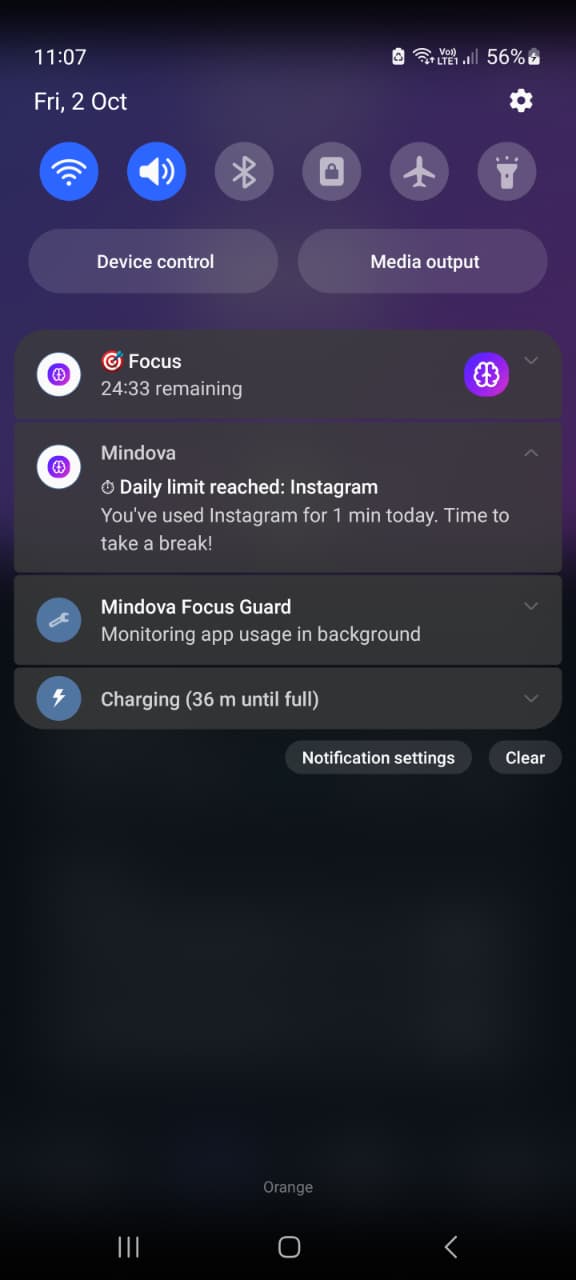
What we tested
We ran the full end-to-end test on Android with Instagram, not Facebook: we set a one-minute daily limit and checked what happened when it ran out. Facebook uses the same per-app limit feature. You can see the full test, with screenshots, in our guide to blocking the Instagram app on Android.
For a full overview of the features, see our Mindova App Blocker guide.
When does Mindova make more sense than Digital Wellbeing?
If you only need a basic Facebook timer, Digital Wellbeing may be enough. Mindova is more useful when:
- You want one daily limit shared across Facebook, Instagram, TikTok, and YouTube, so blocking one app does not just move you to another.
- You want to mark apps as productive or distracting.
- You want Focus Sessions and insights about your app usage.
- You also want to block websites on your computer with the Mindova browser extension.

Block distractions. Stay focused with Mindova.
Block distracting websites and apps, set limits, and protect your focus time across your browser and phone.
Free plan, no credit card • Try Pro free for 7 days
Method 5: Disable or Archive the Facebook App
If you want a full break from Facebook, you can remove it from your app drawer without deleting your account.
Disable Facebook (if it came preinstalled)
On many Samsung, Xiaomi, and other Android phones, Facebook comes preinstalled. In that case you can disable it:
- Go to Settings → Apps.
- Tap Facebook.
- Tap Disable, then confirm.
The app disappears from your home screen and stops running in the background. To get it back, return to the same screen and tap Enable. If you only see Uninstall and no Disable button, you installed Facebook yourself and cannot disable it.
Archive Facebook (Android 15 and newer)
On newer Android versions, you can Archive an app instead of uninstalling it:
- Go to Settings → Apps → Facebook.
- Tap Archive.
Android removes most of the app but keeps your data. The Facebook icon stays on your home screen with a small cloud symbol. Tapping it reinstalls the app from Google Play, which adds enough friction to stop many mindless opens.
Disabling the app is not deactivating your account
Disabling or archiving only affects the app on your phone. Your Facebook account stays active, and people can still message you. If you want a break from the account itself, read our guide to temporarily deactivating Facebook.
Method 6: Restrict Facebook's Data and Notifications
If you want Facebook to stay installed but become less tempting, you can stop it from refreshing in the background:
- Go to Settings → Apps → Facebook.
- Tap Mobile data & Wi-Fi (or Mobile data on Samsung).
- Turn off Background data.
- Go back and tap Notifications, then turn off the notification types you do not need.
Some Android brands, such as Xiaomi and OnePlus, also let you block mobile data or Wi-Fi completely for one app. This does not block Facebook, but fewer notifications means fewer reasons to open it.
Can You Lock the Facebook App With a PIN?
Some phones have a built-in App lock (for example Xiaomi, OnePlus, and Oppo), and Samsung offers Secure Folder. These ask for a PIN or fingerprint before Facebook opens.
An app lock protects your privacy, but it does not limit your time, because you already know the PIN. For focus, a daily limit works better. For more options, see how to lock apps on Android.
Does Blocking the Facebook App Also Block Facebook in Chrome?
No. App timers, Focus mode, and Mindova's Android app limits apply to the Facebook app. You can still open facebook.com in Chrome or another browser on your phone. To close that gap:
- In Digital Wellbeing, turn on Show sites from Chrome in the Dashboard settings, then set a timer for facebook.com.
- Follow our guide to blocking Facebook on Chrome, including DNS options for mobile.
What About Messenger?
Messenger is a separate app. Blocking Facebook does not block Messenger, and limiting Messenger does not limit Facebook. If you want to keep chatting but stop scrolling, limit Facebook and leave Messenger available.
What If Facebook Still Opens After You Set a Limit?
- You set the limit on the wrong app. Check that you limited Facebook, not Facebook Lite or Messenger. Facebook Lite needs its own limit.
- You are using the browser. App limits do not cover facebook.com.
- The timer reset. Digital Wellbeing timers reset at midnight.
- Focus mode is on a break or not scheduled. Check the schedule.
- Permissions were turned off. If you use an app blocker, check that its usage access and accessibility permissions are still enabled.
Frequently Asked Questions
How do I block the Facebook app on Android without deleting it?
Use Settings → Digital Wellbeing & parental controls → Dashboard → Facebook → App timer. Facebook stays installed, but it pauses when your daily time is used.
How do I disable Facebook on Android?
Go to Settings → Apps → Facebook and tap Disable. This only works if Facebook came preinstalled. Otherwise, use Archive or an App timer.
How do I permanently block an app on Android?
Android does not have a permanent block. The closest options are disabling or archiving the app, or using an app blocker with a very short daily limit.
Can I block Facebook on Android for free?
Yes. Digital Wellbeing App timers, Focus mode, disabling, and archiving are all built into Android and free.
Does this work on Samsung phones?
Yes. On Samsung, open Settings → Digital Wellbeing and parental controls → App timers. Samsung also lets you hide apps from the home screen, but hiding Facebook does not block it.
Does blocking Facebook delete my account or messages?
No. App timers, Focus mode, disabling, and archiving only affect the app on your phone. Your account, posts, and messages are not deleted.
Does Mindova have a free plan?
Yes. The free plan needs no credit card and lets you block up to 3 apps or sites, with 10 Focus Sessions a month and 7 days of stats. Pro costs $4.99/month or $39.99/year, removes the limits and adds Cloud Sync. You can try Pro free for 7 days.
Choose the Limit You Will Actually Keep
You do not need to delete Facebook to use it less. Start with a Digital Wellbeing timer if you only need a daily limit. Use Focus mode for work and study hours. If you keep switching from Facebook to Instagram or TikTok, use Mindova to set one daily limit across all of them.
Looking for the same guide for other apps? See how to block Instagram and TikTok on Android, or read our guide to blocking apps on Android.
Less scrolling. More focused time.
Use Mindova to block distracting websites and apps, set daily limits, and create protected time for studying, working, or deep focus.
- Android AppBlock and limit distracting apps on Android.
- Browser ExtensionChrome, Edge, Brave, Opera & Vivaldi
- iPhone AppControl distracting apps and protect your focus on iPhone.


Start free — no credit card needed. Try Pro free for 7 days whenever you like.
Mouhsine
Admin
Passionate about helping people achieve peak mental performance through evidence-based strategies and mindful technology use.
Related Articles
How to Block the YouTube App on Android Without Deleting It
Block the YouTube app on your Android phone without deleting it. Use Digital Wellbeing app timers, Focus Mode, YouTube's Shorts limit, or Mindova.
How to Block X (Twitter) on Android Without Deleting It
Block the X (Twitter) app on Android without deleting it. Use App timers, Focus Mode, Mindova or Private DNS, with step-by-step instructions.
Brick Alternatives (2026): Cheaper and Free Ways to Block Apps on Android
Brick costs $59 and needs a puck you tap. Compare cheaper NFC cards, free open-source blockers and app-only options for Android, with official prices and honest trade-offs.
Comments
Be the first to comment.